Homepage Templates provide a personalized, role-specific landing page in PSA. Each template is designed to display the information most relevant to your work, helping you focus on tasks, approvals, and key insights without navigating through multiple areas of the system.
Administrators to tailor the content for different roles. Each Homepage Template can include configurable widgets, arranged using a drag-and-drop designer. Widgets can be customized to:
- Display only the information most relevant to your work.
- Include metrics and KPIs for quick insight.
- Surface pending approvals, tasks, or other actionable items.
Note: The Homepage you see is based on the Template assigned to you by your administrator. You may also be assigned a modified Template, in which case the layout and tiles in your Homepage could differ from the screenshots provided.
Homepage Assignment and Precedence
The Homepage you see is determined by the template assigned to you by your administrator. When multiple templates could apply, the system uses a defined order of precedence to determine which template is displayed:
- User – Templates assigned directly to your user account.
- Security Profile – Templates assigned based on your security profile.
- Functional Group – Templates assigned to your functional or project group.
- Master Site – Templates assigned at the organizational site level.
- Default Homepage Template – The system-wide default template.
Note: If no Default Homepage Template exists and no templates are assigned at any level, the Legacy Homepage is displayed. This may also occur temporarily during rollout or if your administrator has not yet assigned a template.
Out-of-the-Box Homepages
The system includes several ready-to-use Templates, which administrators can assign directly or customize further:
Standard User Homepage
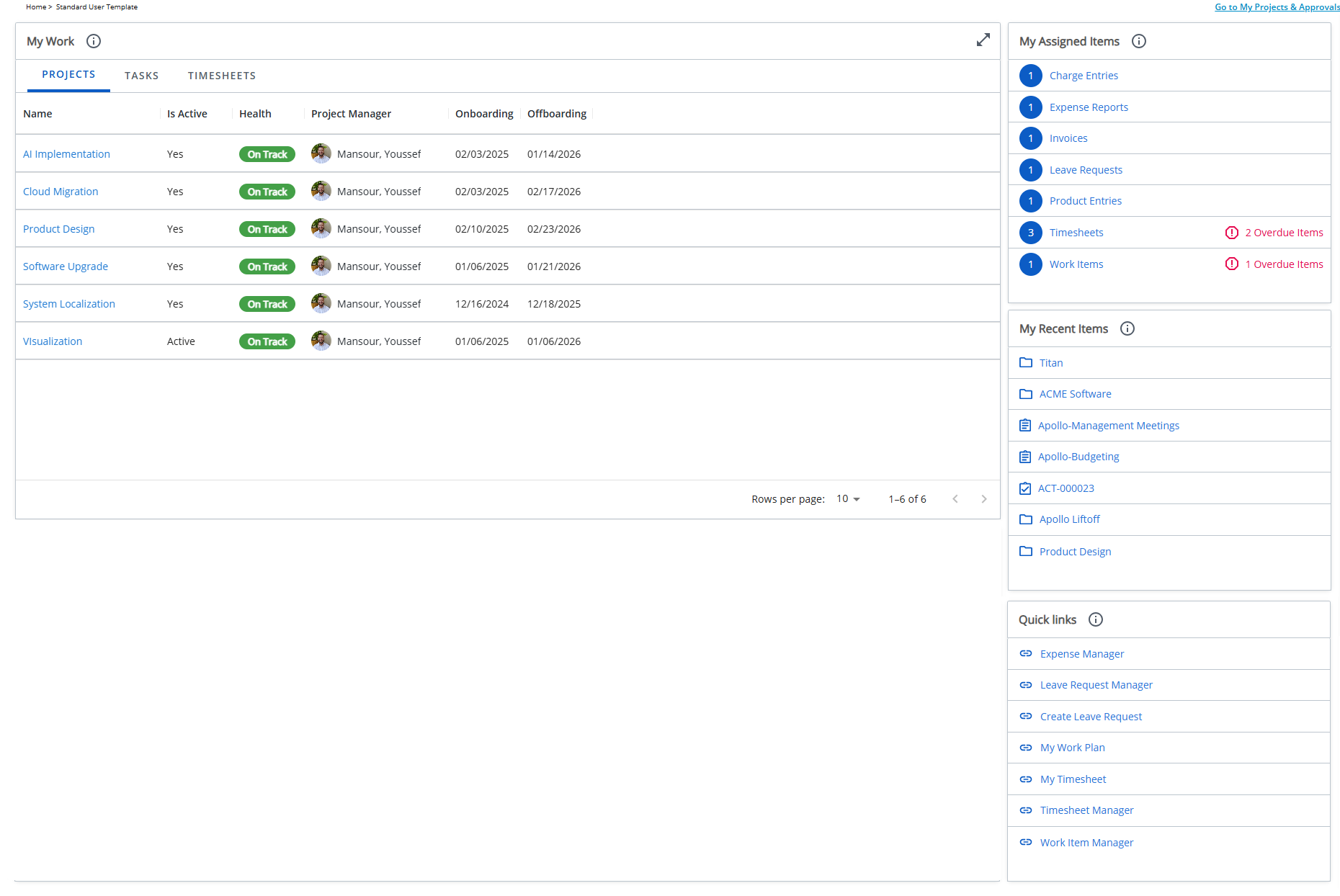
The Standard User Homepage consolidates everyday work into a single, streamlined view. The My Work tile displays current projects, tasks, and timesheets. The My Assigned Items tile highlights pending approvals without requiring navigation across multiple areas. The Quick Links tile provides direct access to frequently used tools such as Timesheets, Work Plans, and Expense or Leave Request Managers, reducing search time. The My Recent Items tile makes it easy to resume work, supporting a faster and more efficient workflow.
In Summary: Designed for individual contributors, this Homepage brings together the tools and information you need most often focusing on day-to-day work and pending tasks.
It includes tiles such as:
 My Work tile
Projects tab: Shows Projects where you are a Team member. You can view details such as Project Name, Active, Health, Project Manager, and your Onboarding and Offboarding dates.
Note: Suspended Projects are not included.
Tasks tab: Lists Tasks assigned to you. You can view the Task Name, Active, Start date, End date, Project, Project Manager, and Alternate Project Manager.
Note: Includes Upcoming Tasks (Start date within the next 7 days) and Inactive Tasks (no Time entries in the past 7 days). Completed Assignments are not included.
Timesheets tab: Displays the last 10 Timesheets you opened and/or submitted.
Note: Approved Timesheets are not included.
My Assigned Items tile
Consolidates all items that require your review or approval. Includes pending Timesheets, Expense Reports, Invoices, Leave Requests, Work Items, Charges, and Product Entries, helping you manage approvals more efficiently.
My Recent Items tile
Provides quick access to Projects , Work Items, Tasks and Users.
Quick Links tile
Provides shortcuts to: Expense Manager, Leave Request Manager, Create Leave Request, My Work Plan, My Timesheet, Timesheet Manager and Work Item Manager.
Project Manager Homepage
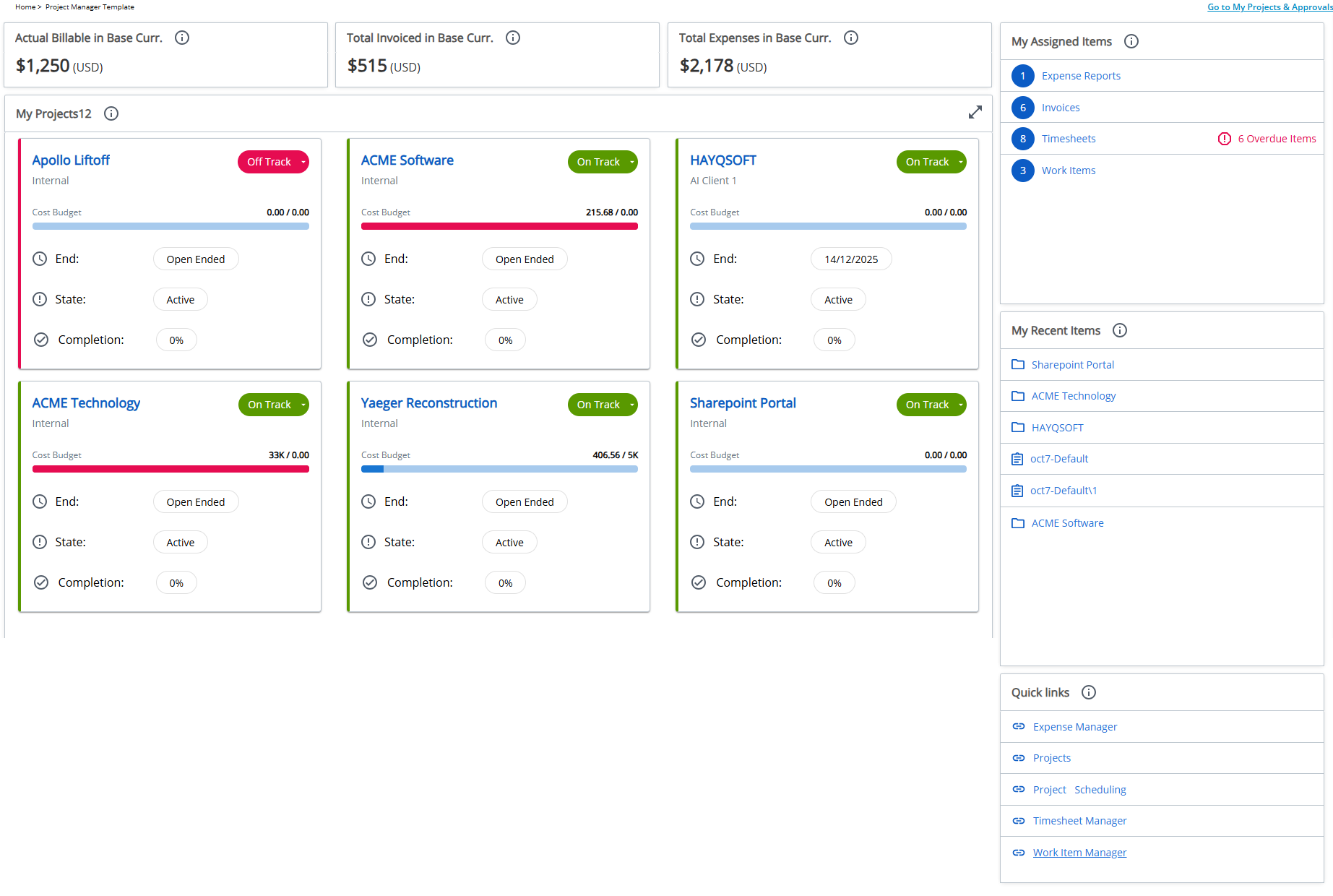
The Project Manager Homepage delivers a role-specific dashboard focused on project health, financials, and operational tasks. KPI tiles surface key metrics, including billable hours, charges, and expenses, providing immediate insight into project performance. The My Projects tile centralizes access to active projects, and the My Assigned Items tile streamlines approvals for Timesheets, Expenses, and Work Items. Quick Links offer shortcuts to essential project and resource management tools, while My Recent Items enables easy return to in-progress work. Together, these elements help project managers monitor progress, act quickly on approvals, and make informed decisions with minimal effort.
It includes tiles such as:
KPIs tile
Shows high-level project metrics based on My Projects View, including:
- Actual Billable in Base Curr. – Displays the total billable amount for all projects shown in the My Projects View for the logged-in user.
- Total Invoiced in Base Curr. – Displays the total invoiced amount across all projects listed in the My Projects View for the logged-in user.
- Total Expenses in Base Curr. – Displays the total expense amount for all projects included in the My Projects View for the logged-in user.
My Projects tile
Shows the projects you manage, helping you track performance and stay focused on active work.
My Assigned Items tile
Consolidates all items requiring your review or approval, including pending Expense Reports, Invoices, Timesheets and Work Items.
My Recent Items tile
Provides quick access to Projects, Tasks, User, and Work Items you recently viewed.
Quick Links tile
Provides shortcuts to: Expense Manager, Projects, Project Scheduling, Timesheet Manager, and Work Item Manager.