Timeline View Buttons are available on every Work Plan and provide a unified method for adjusting the date display. They make it easy to switch between Daily, Weekly, and Monthly based on the level of detail you need.
Depending on your organizational role and assigned permissions, you can access the Work Plans through one of several available paths. These access points are illustrated in the Accessing the Work Plans article.
For the purpose of this article, we will use the Project Work Plan as an example.
Note: The pages and formats shown in this article may differ from what you see in your environment. Your organization’s configuration or the rights assigned to you may result in a different experience.
Timeline View Buttons

The Timeline View Buttons appear above the timeline portion of the Work Plan. Each button is labeled according to its view option:
- D for Daily
- W for Weekly
- M for Monthly
When you select a view, its button displays a blue background, providing a clear visual indicator of the active setting.
Select a Timeline View
Daily Timeline View
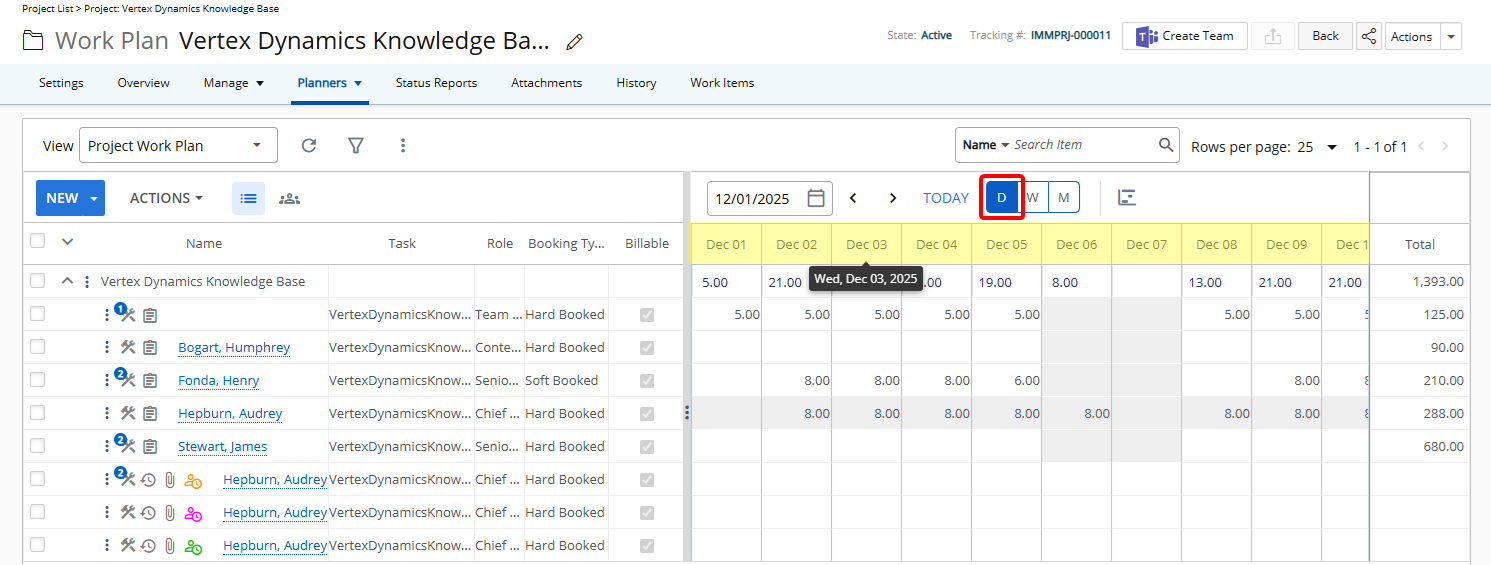
Daily View displays each column in MM DD format.
Example: Example column header: Oct 01
Tooltip format: Weekday, MM DD, YYYY
Example: Example tooltip: Wed, Oct 01, 2025
This view is useful when you need to examine tasks or dependencies at a granular level.
Weekly Timeline View
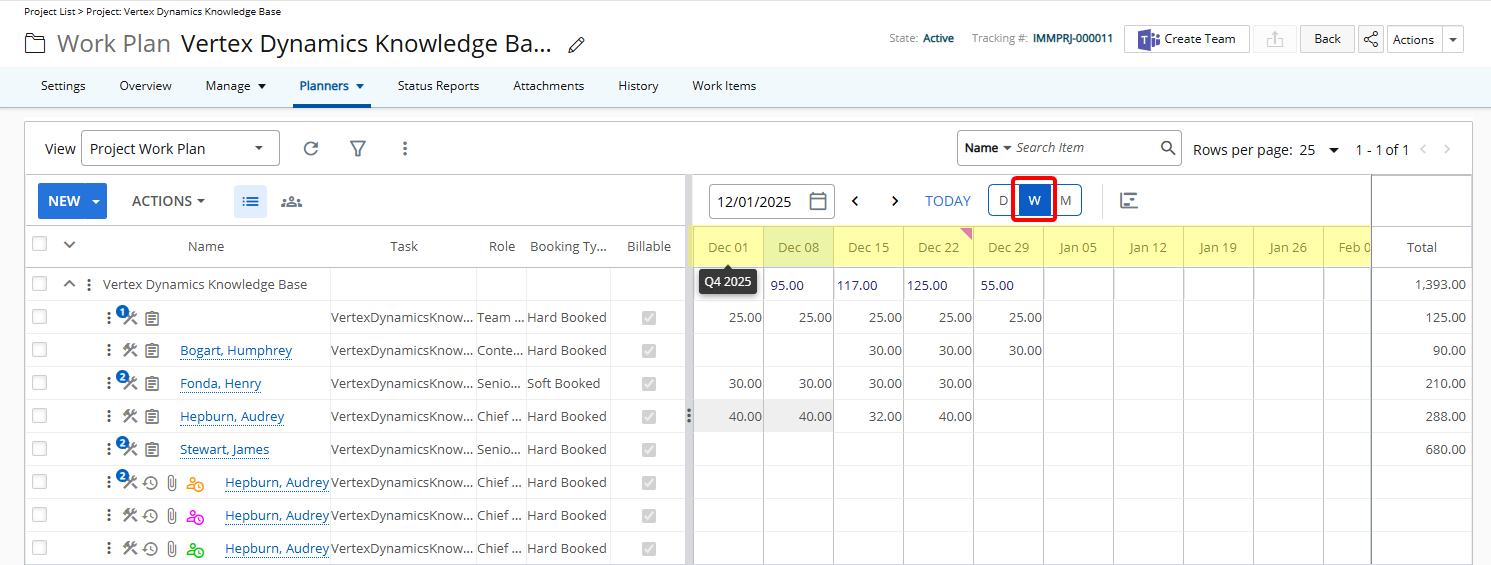
Weekly View displays each column using the start date of the week in MM DD format.
Example: Example column header: Oct 13
Tooltip format: Q# YYYY
Example: Example tooltip: Q4 2025
This view supports medium-range planning and helps you understand schedule progress week by week.
Monthly Timeline View
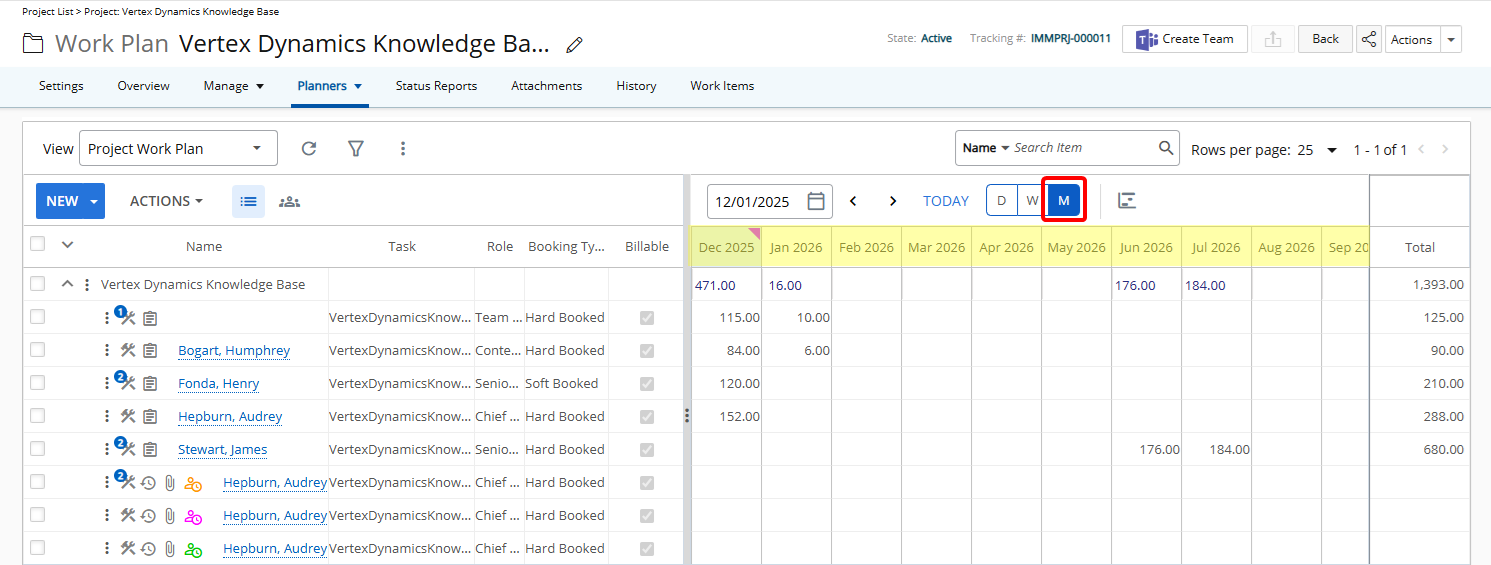
Monthly View displays each column in MM YYYY format.
Example: Example column header: Dec 2025
Tooltip format: Q# YYYY
Example: Example tooltip: Q4 2025
This view works well for high-level planning and portfolio-level oversight.
Understand Column Header Tooltips
When you hover over a column header in any view, a tooltip appears with additional information about the represented date or date range.
In Daily View, tooltips provide full date context, including the weekday.
In Weekly and Monthly Views, tooltips provide the associated quarter and year.
These tooltips help you quickly interpret the timeframe covered by each column without changing views.
| Selected View | Column Format | Tooltip (Column header) |
|---|---|---|
| Daily | MM
DD Example: Oct 01 |
(Weekday, MM DD, YYYY) Example: Wed, Oct 01, 2025 |
| Weekly | Start date of the week (MM DD) Example: Oct 13 |
(Q# YYYY) Example: Q4 2025 |
| Monthly | MM YYYY
Example: Dec 2025 |
(Q# YYYY) Example: Q4 2025 |