Project List Context Menu
The context menu available from the Project List provides shortcuts to easily:
- Edit Project
- Delete or Copy projects
- Add a new project under or Copy a Project placeholder in Hierarchy display
- Add a new project under, Delete or Copy a project in Hierarchy display
- Access the: Work plan, Project Planner, Project Status Report Timesheets and Calendar
This article covers the available options from the context menu in the Project List page.
Example: Diana, a Project Manager, who is a heavy user of Project List is now able to use the context menu to perform actions without changing her focus away from the Project List and to easily perform actions such as adding, deleting or accessing the Project Work Plan, Project Planner, Project Status Report and the Calendar with ease and thus improve her performance.
Available options when in Display List View
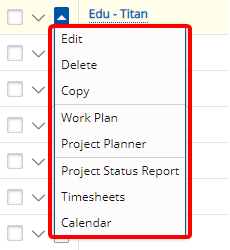
When in Display List View the following options are available from the Project List Context Menu:
- Edit: Click Edit to open the Project in edit mode.
- Delete: Clicking on Delete will result in the deletion of the Project.
Note: This option will be available provided the proper security rights have been granted to delete a Project.
- Copy: Clicking on Copy will open the Project Copy page where you can create a copy of the chosen project and decide on the Copy Options. For more information on copying a project click here.
- Work Plan: Selecting Work Plan will open the Project Work Plan page where you can add/remove bookings. For more information on using the Resource Management module, click here.
- Project Planner: Clicking on Project Planner will open Project Planner.
Note: This option will be available provided the Project Planner license is enabled.
- Project Status Report: Clicking on Project Status Report will open the Project Status Report.
Note: This option will be available provided the proper security rights have been granted to access the Project Status Report.
- Timesheets: Click to access the Timesheets list page. Two Views area available to you:
- Assigned Timesheets: list of all Timesheets assigned to logged user and related to the Project
- All Timesheets: list of all Timesheets in any State that are related to the Project.
- Calendar: Clicking on Calendar will open the Project Calendar.
Caution: When in Display List View the Filter, Expanded Row Column Selection and Column Selection buttons are available.
Available options when in Display Hierarchy View
When in Display Hierarchy View the following options are available for a Placeholder/Parent or a Child Project:
 Placeholder or Parent Project
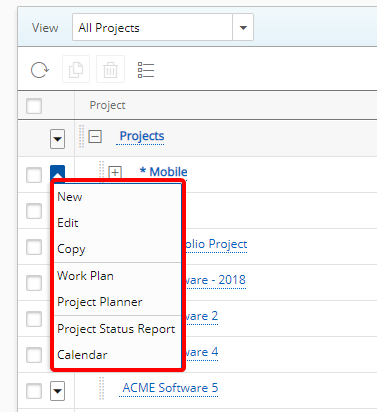
When in Display Hierarchy View the following options are available for a Placeholder or Parent Project:
- New: Clicking on New will open the Create Project page where a new Project can be created.
- Edit: Click Edit to open the Project in edit mode.
- Copy: Clicking on Copy will open the Project Copy page where you can create a copy of the chosen project and decide on the Copy Options. For more information on copying a project click here.
- Work Plan: Selecting Work Plan will open the Project Work Plan page where you can add/remove bookings. For more information on using the Resource Management module, click here.
- Project Planner: Clicking on Project Planner will open Project Planner.
Note: This option will be available provided the Project Planner license is enabled.
- Project Status Report: Clicking on Project Status Report will open the Project Status Report.
Note: This option will be available provided the proper security rights have been granted to access the Project Status Report.
- Calendar: Clicking on Calendar will open the Project Calendar.
Caution: When in Display List View the Filter, Expanded Row Column Selection and Column Selection buttons are available.
Child Project
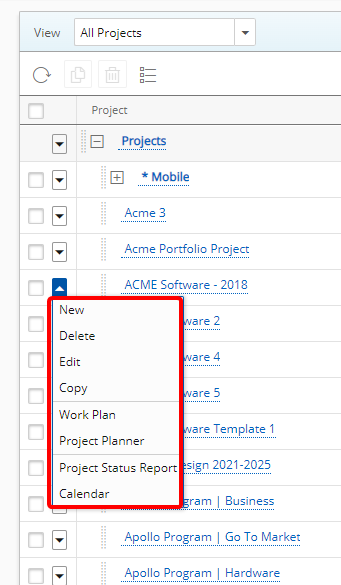
When in Display Hierarchy View the following options are available for a Child Project:
- New: Clicking on New will open the Create Project page where a new Project can be created.
- Delete: Clicking on Delete will result in the deletion of the Project.
Note: This option will be available provided the proper security rights have been granted to delete a Project.
- Edit: Click Edit to open the Project in edit mode.
- Copy: Clicking on Copy will open the Project Copy page where you can create a copy of the chosen project and decide on the Copy Options. For more information on copying a project click here.
- Work Plan: Selecting Work Plan will open the Project Work Plan page where you can add/remove bookings. For more information on using the Resource Management module, click here.
- Project Planner: Clicking on Project Planner will open Project Planner.
Note: This option will be available provided the Project Planner license is enabled.
- Project Status Report: Clicking on Project Status Report will open the Project Status Report.
Note: This option will be available provided the proper security rights have been granted to access the Project Status Report.
- Calendar: Clicking on Calendar will open the Project Calendar.
For further details refer to: