Create a Salesforce Connected App
Once created, this can be used to integrate with Qvidian using OAuth. For more information, see Connection Information.
Note: If you are intending on using an external client app for your Salesforce integration, please see Create an External Client App.
- Log into Salesforce as an administrator.
- Click the Setup link located at the top of the page.
- On the tree view under Build, click Create to expand the node.
- Select Apps.
- Click the New button within the Connected Apps section.
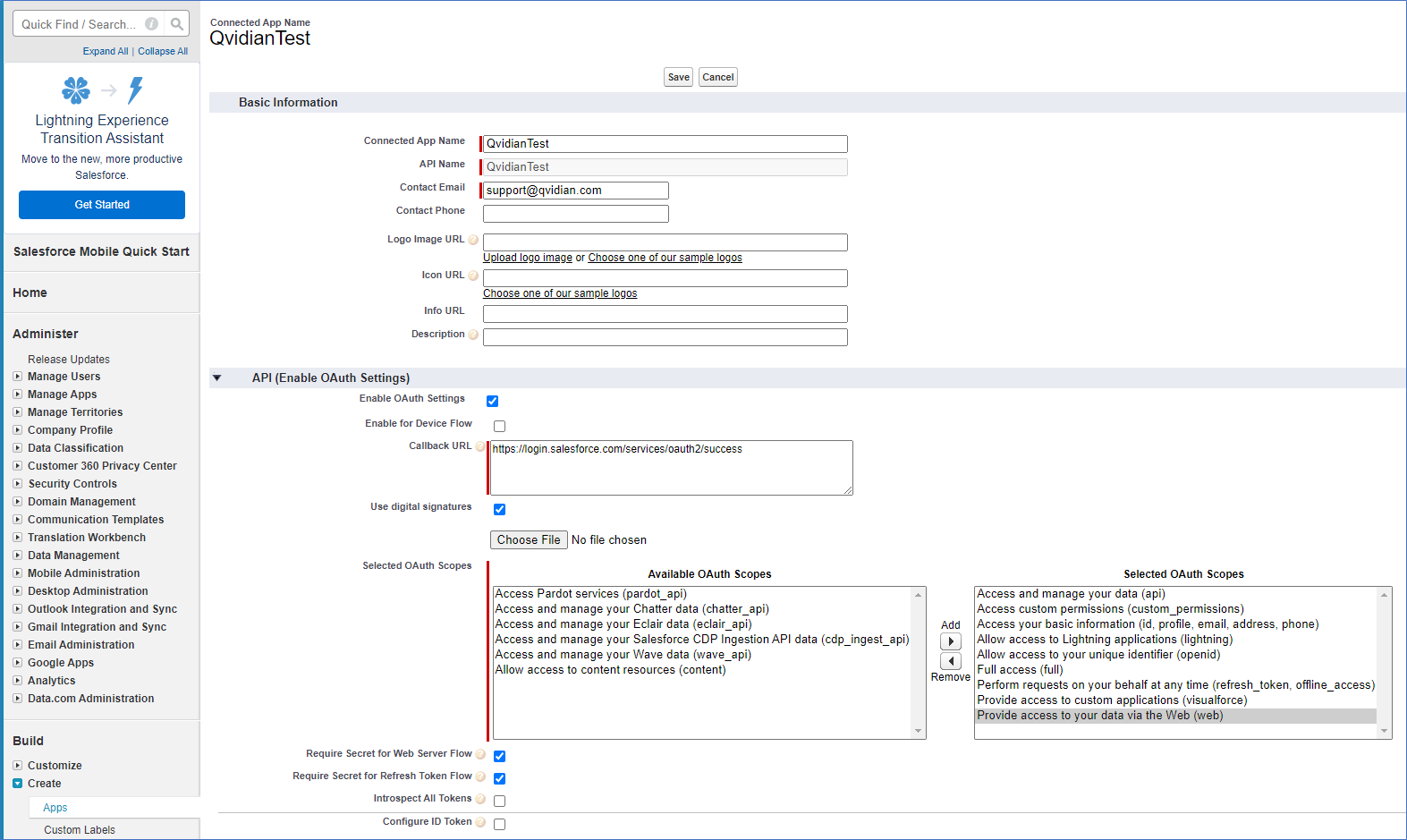
- Enter the following Basic Information:
- Enter the Connected App Name as appropriate for your system. This will automatically populate the API Name field.
- Enter the Contact Email. This will be: qvidian-support@uplandsoftware.com.
Note: The required fields will be noted with a red bar.
- Enter the following API (Enable OAuth Settings) information:
- Select the Enable OAuth Settings checkbox.
- Enter the following Callback URL: http://login.salesforce.com/services/oauth2/success.
- Select the Use digital signatures checkbox and click the Choose File button to upload a password protected server certificate file (e.g.: server.cer). A non-password protected copy of this server certificate will be required later on during the configuration process.
- Add the following OAuth scopes to the Selected OAuth Scopes field:
- Access and manage your data (api)
- Access custom permissions (custom_permissions)
- Access your basic information (id, profile, email, address, phone)
- Allow access to Lightning applications (lightning)
- Allow access to your unique identifier (openid)
- Full acess (full)
- Perform requests on your behalf at any time (refresh_token, offline_access)
- Provide access to custom applications (visualforce)
- Provide access to your data via the Web (web)
- Select the Require Secret for Web Server Flow checkbox.
- Select the Require Secret for Refresh Token Flow checkbox.
Note: To create a password protected certificate file, please see the Salesforce DX Developer Guide: https://developer.salesforce.com/docs/atlas.en-us.sfdx_dev.meta/sfdx_dev/sfdx_dev_auth_key_and_cert.htm.
- Click Save. The “Connected App” properties page for the new app will be displayed.
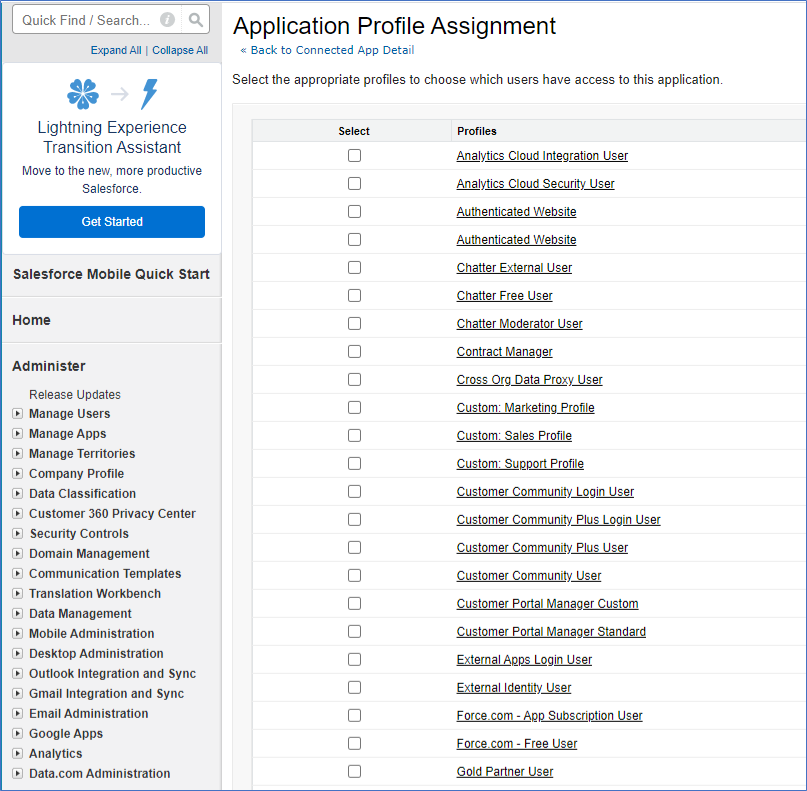
- Navigate to: Administration | Manage Apps | Connected Apps. Scroll down to the Profiles section and click Mange Profiles to display the Application Profile Assignment page.
- Select all the Profiles that you want to have access to the connected app.
- Click Save and return to the Connected App Detail page.
- Return to the Qvidian application and log in with a credential that has SFDC connection administrative permissions. For instructions on how to complete the configuration process, see Connection Information.
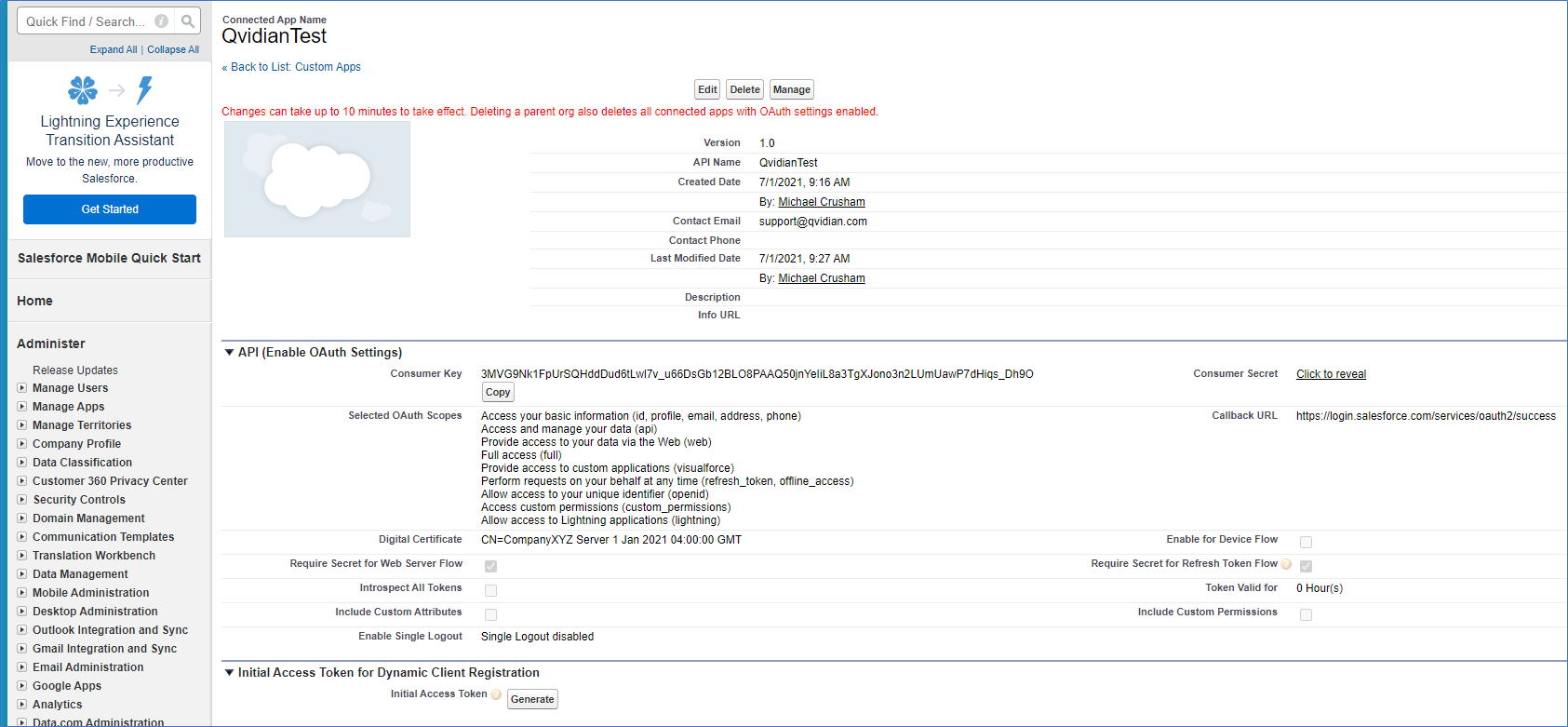
Tip: Please note the Consumer Key near the top of the API (Enable OAuth Settings) section. You will need to copy this key later on in the configuration process.