Create an External Client App
Create an external client app for your Qvidian Salesforce integration.
Note: If you are intending on using a Salesforce connected app, please see Create a Salesforce Connected App.
Example: The following steps outline how to create an external client app that uses the JWT Bearer Flow enablement, which requires a digital certificate. It is recommended that the JWT Bearer Flow enablement is ready prior to creating the app; however, it can be added later.
- Navigate to the App Manager from within Setup.
- Click New External Client App.
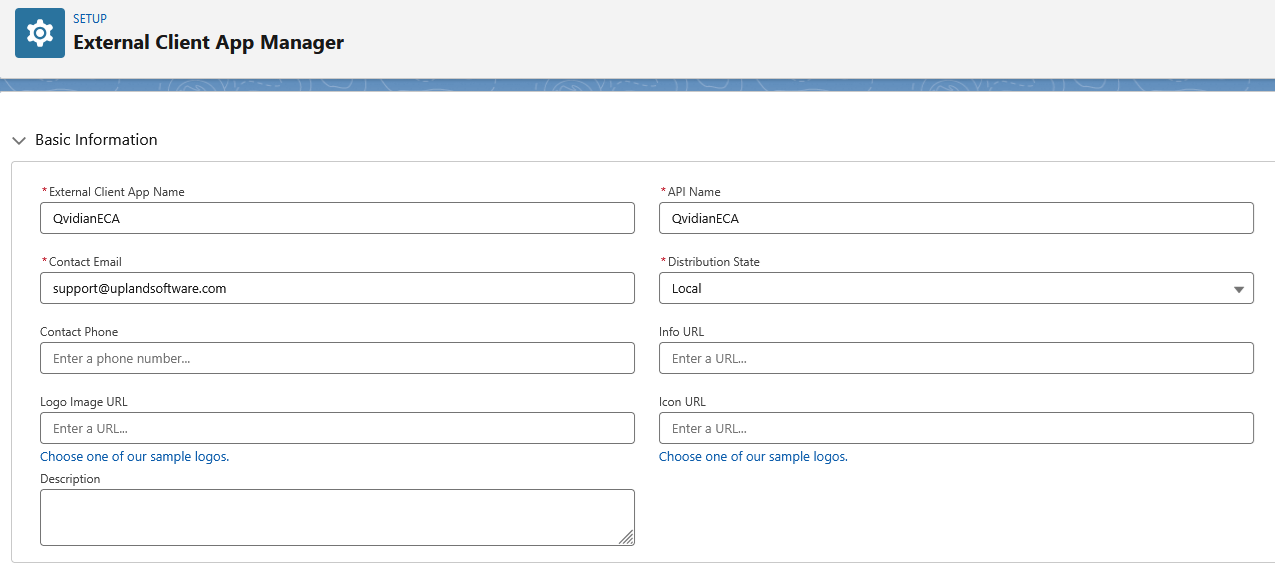
- Enter the following Basic Information into the External Client App Manager:
- Enter a descriptive External Client App Name (e.g. "Qvidian Integration App"). The API Name will autofill.
- Enter the Contact Email address.
- Select Local from the Distribution State dropdown menu. This ensures the app is only usable within your current org and cannot be packaged or distributed.
- (Optional) Add an Info, Logo Image, and/or Icon URL and a Description.
- Click Next or Create, depending on the interface version.
- Configure the API (OAuth) settings:
- Select the Enable OAuth checkbox.
- Enter the Callback URL.
- Select the required OAuth Scopes to define the permissions for the app.
- Select the Enable JWT Bearer Flow checkbox. To supply a digital security certificate (.crt file), click Upload Files or drag the file into the Or drop files area.
- Save and manage the credentials.
- Click Save or Create to finalize the app creation.
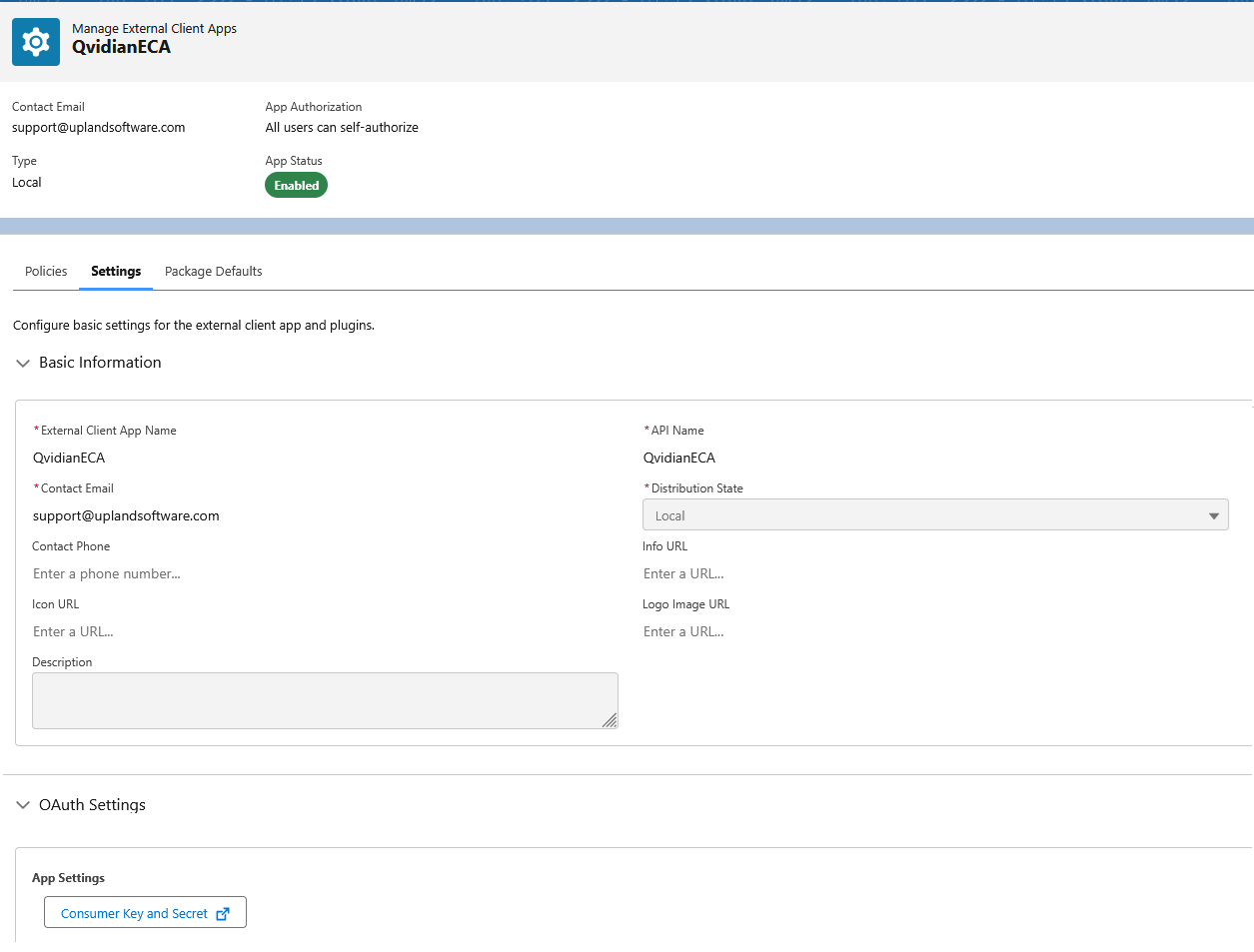
- After creation, navigate to the app's Settings tab and expand the OAuth Settings section at the bottom of the page.
- Click Consumer Key and Secret to view your credentials. You may need to verify your identity via email.
- Securely note the Consumer Key (i.e. Client ID), as you will need this when configuring the Salesforce credentials within Qvidian.
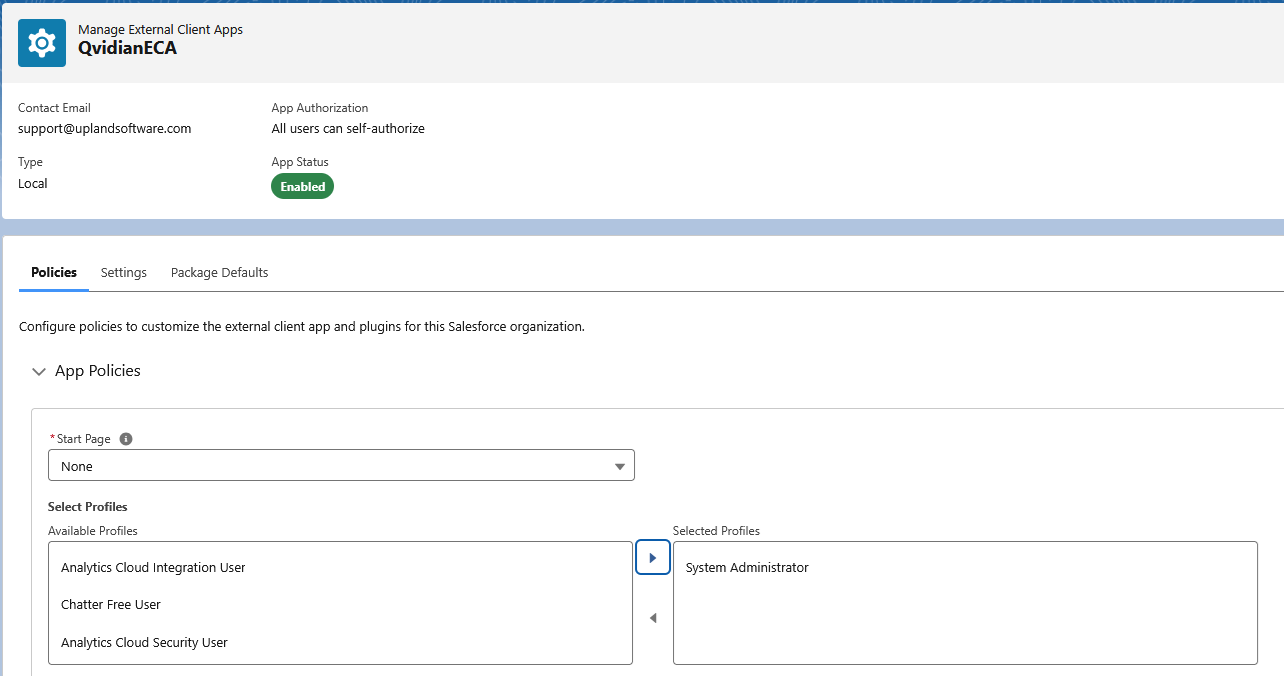
- Configure the policies.
- Navigate to the Policies tab and click the Edit button.
- Within the OAuth Policies section, select the following from the Permitted Users dropdown menu: Admin approved users are pre-authorized. A "Confirm permitted user policy" dialog will display; click OK.
- Within the App Policies section, select the Profile of the user that will be the Qvidian integration API user.
- Click Save.
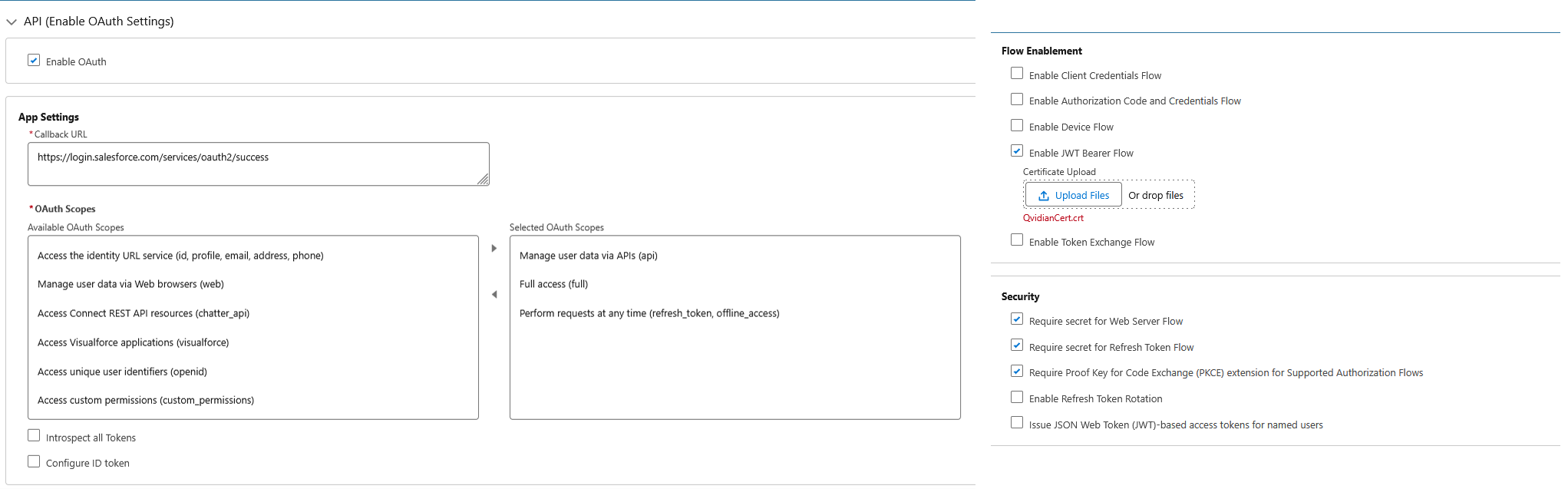
Example: For local development or server-to-server integrations, common placeholder URLs like https://login.salesforce.com/services/oauth2/success or a specific URL provided by your external service can be used.
Tip: Common scopes for API access include: Manage user data via APIs (api), Full access (full), and Perform requests at any time (refresh_token, offline_access).