Administrator Console home page for Super Admins
Upon successful login, the Super Admin will be redirected to the following Home page of the Administrator Console:
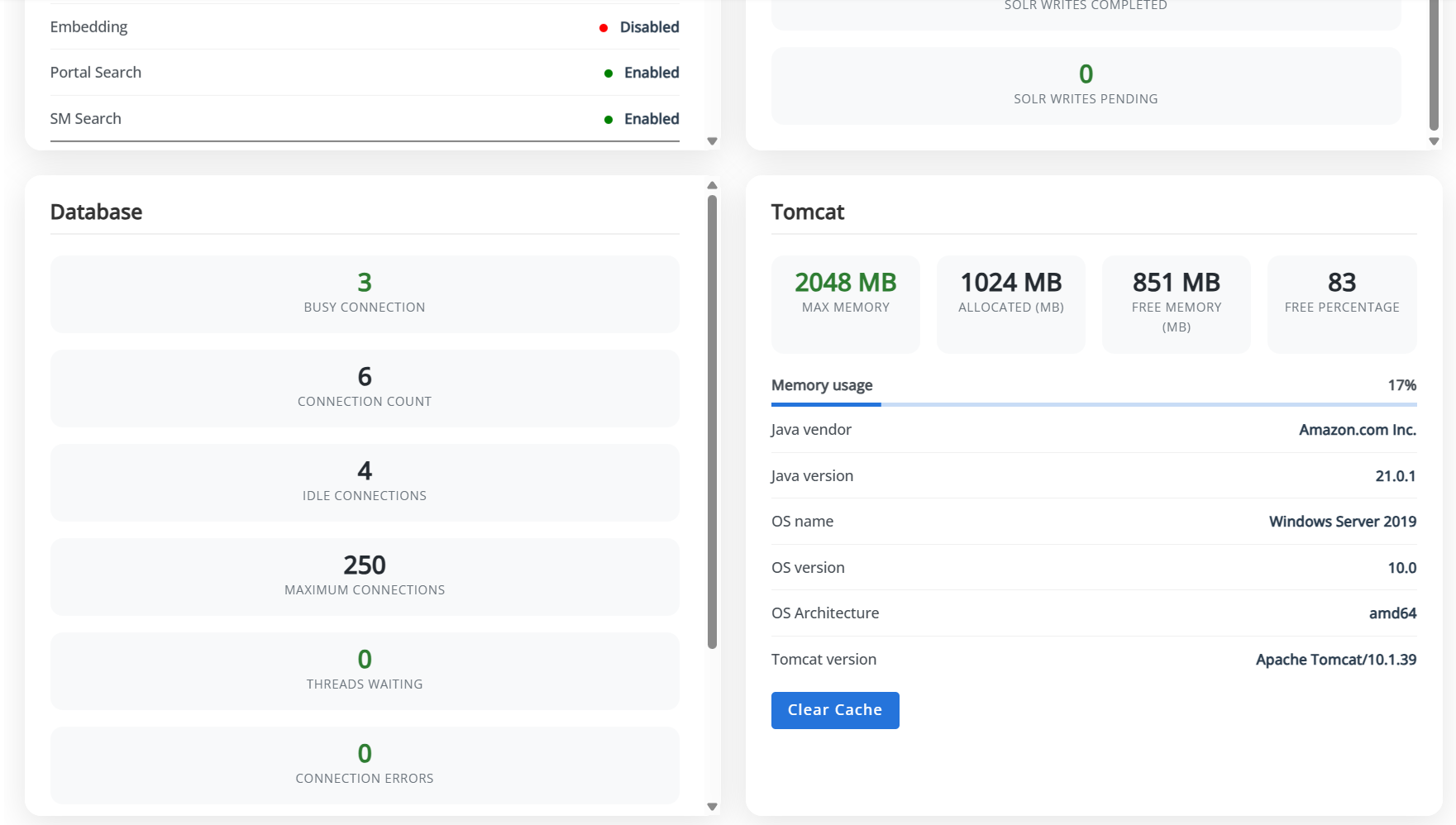
The Home page displays the following tabs:
Overview
This section displays the application's current status and health over the last 24 hours. It includes the following data:
-
Company-wise details of Solr connections in the Solr section.
-
Completed and pending Solr indexing requests in the Solr Queue section.
-
Database health, connection statistics, and performance indicators in the Database section.
-
Tomcat server status, uptime, and resource utilization in the Tomcat section. This section also provides a Clear Cache button.
ReIndex Log
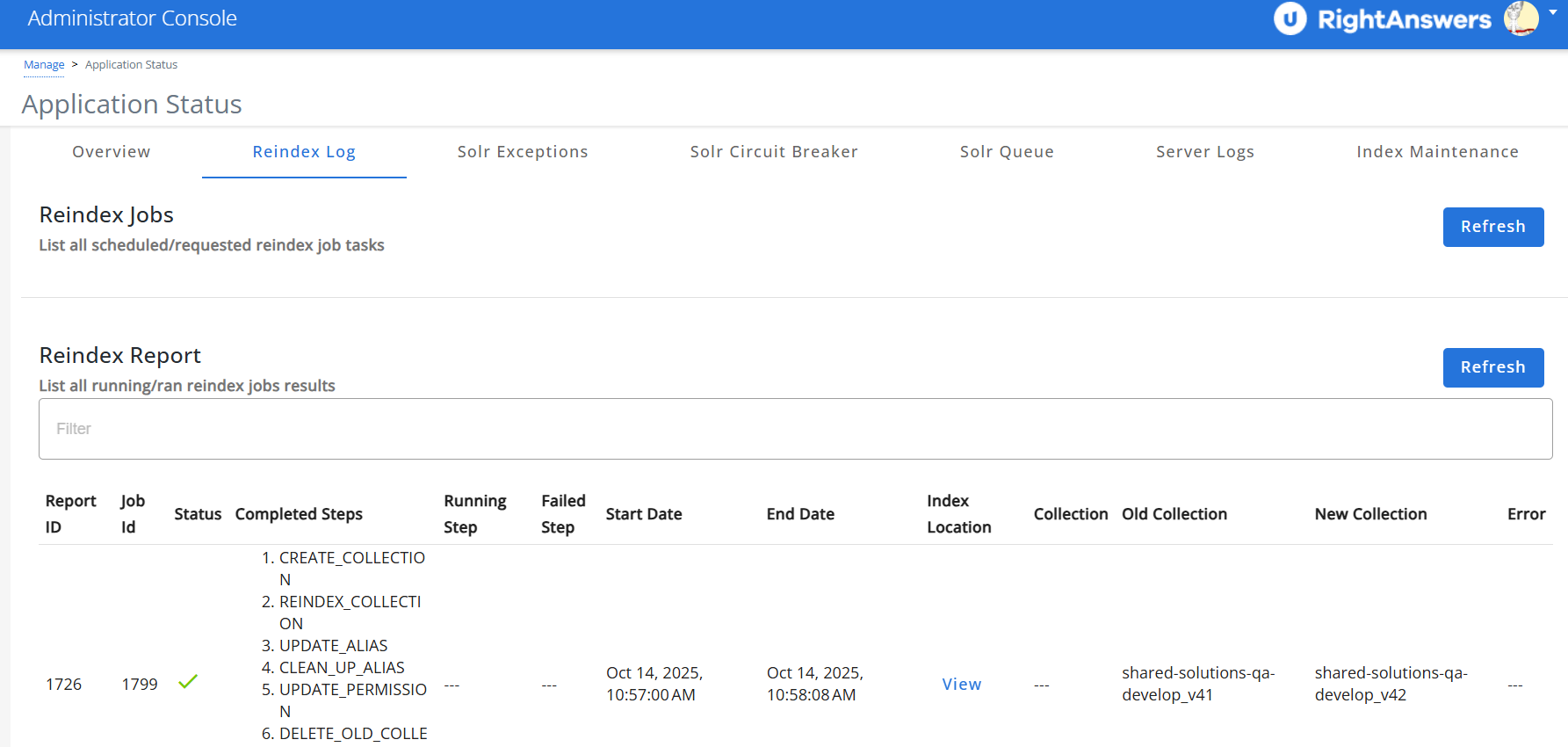
The ReIndex tab allows Super Admins to view, manage, and refresh both scheduled and in-progress reindex job tasks from a centralized interface. It also provides quick options to delete reindex jobs and monitor completed reindex activity in real time.
For more information, refer to RightAnswers: Solr Reindex .
Solr Exceptions
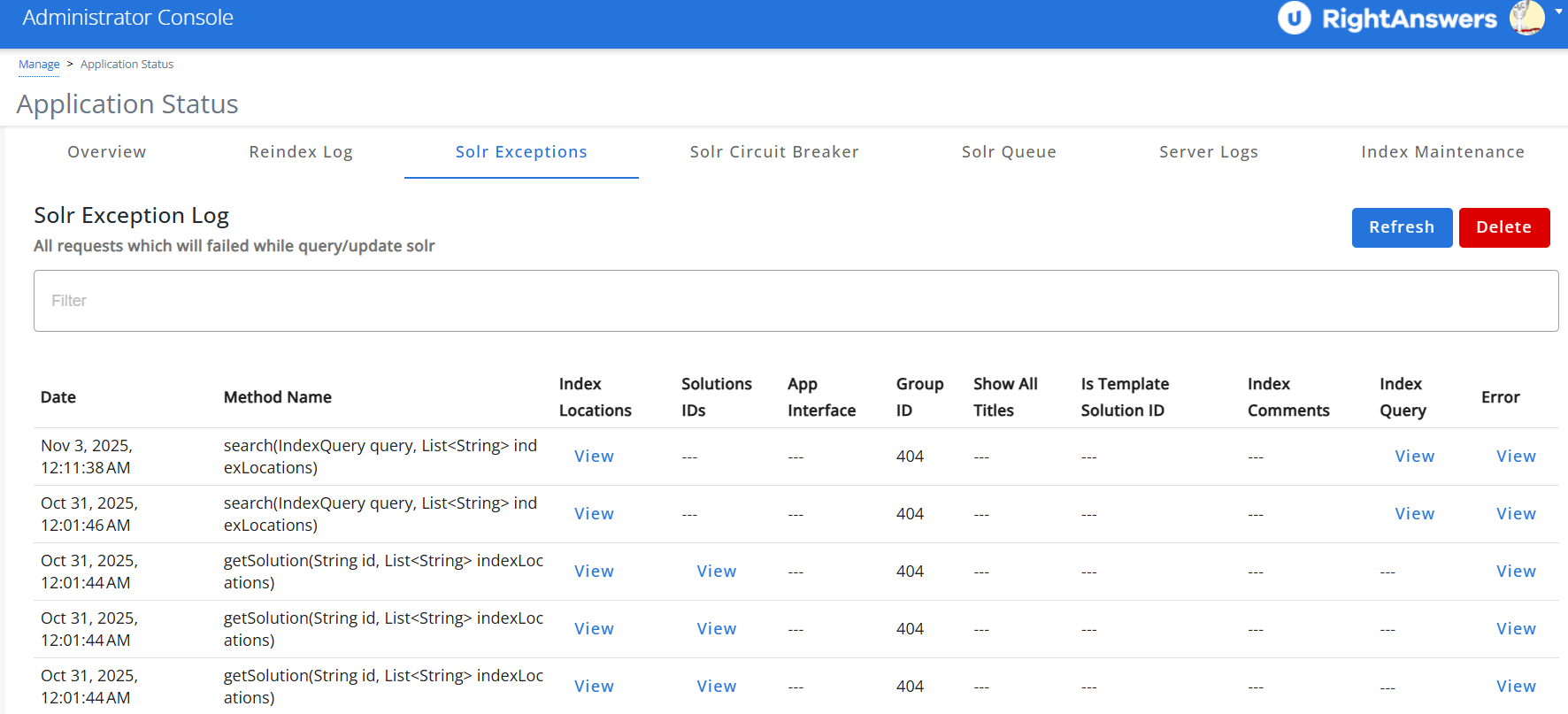
The Solr Exception tab provides Super Admins with a detailed view of all failed Solr query or update requests. It also offers quick actions to delete logged exceptions and refresh the page to display the most up-to-date information.
For more information, refer to RightAnswers: Solr Exception .
Solr Circuit Breaker
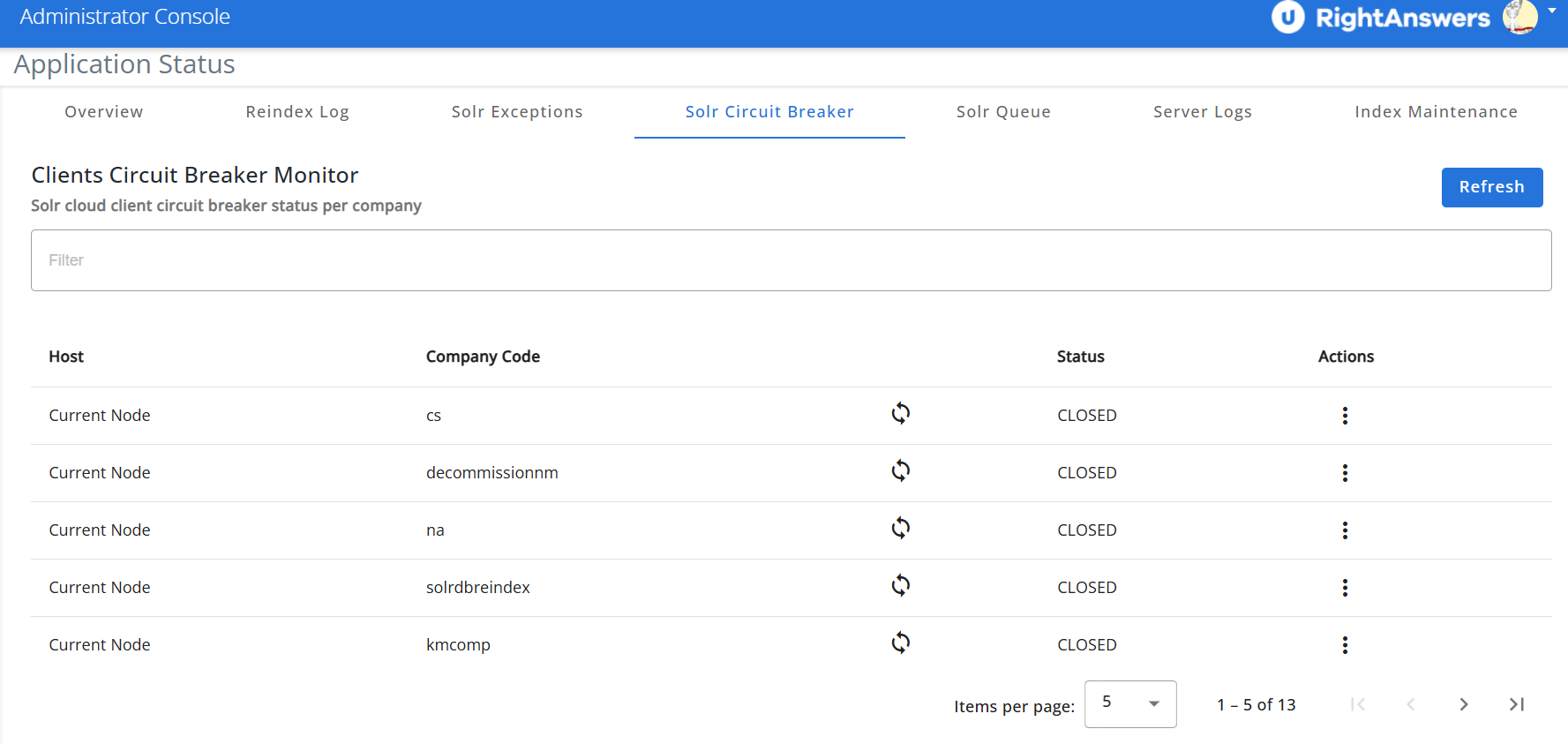
This tab helps monitor and manage the status of the Solr cloud circuit breakers across all companies.
For more information, refer to RightAnswers: Solr Clients Monitor .
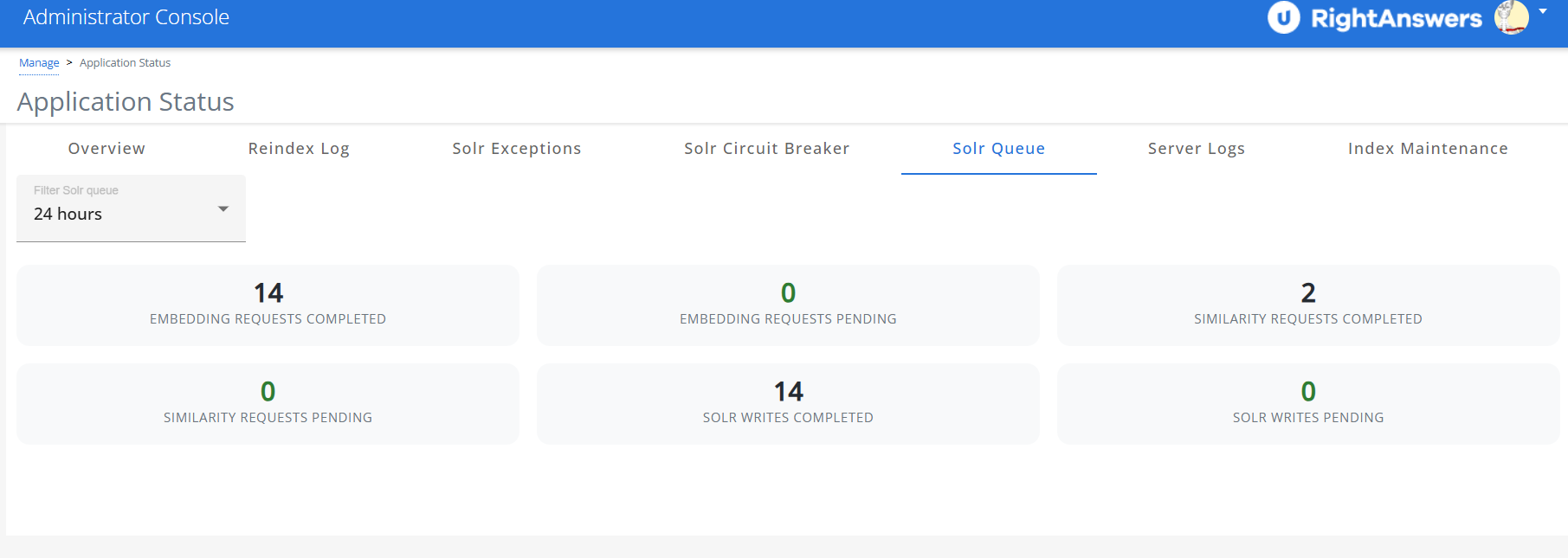
Solr Queue
This section displays pending Solr indexing tasks. You can filter the indexing requests by 5 minutes, 30 minutes, or 24 hours.
For more information, refer to RightAnswers: Solr Queue .
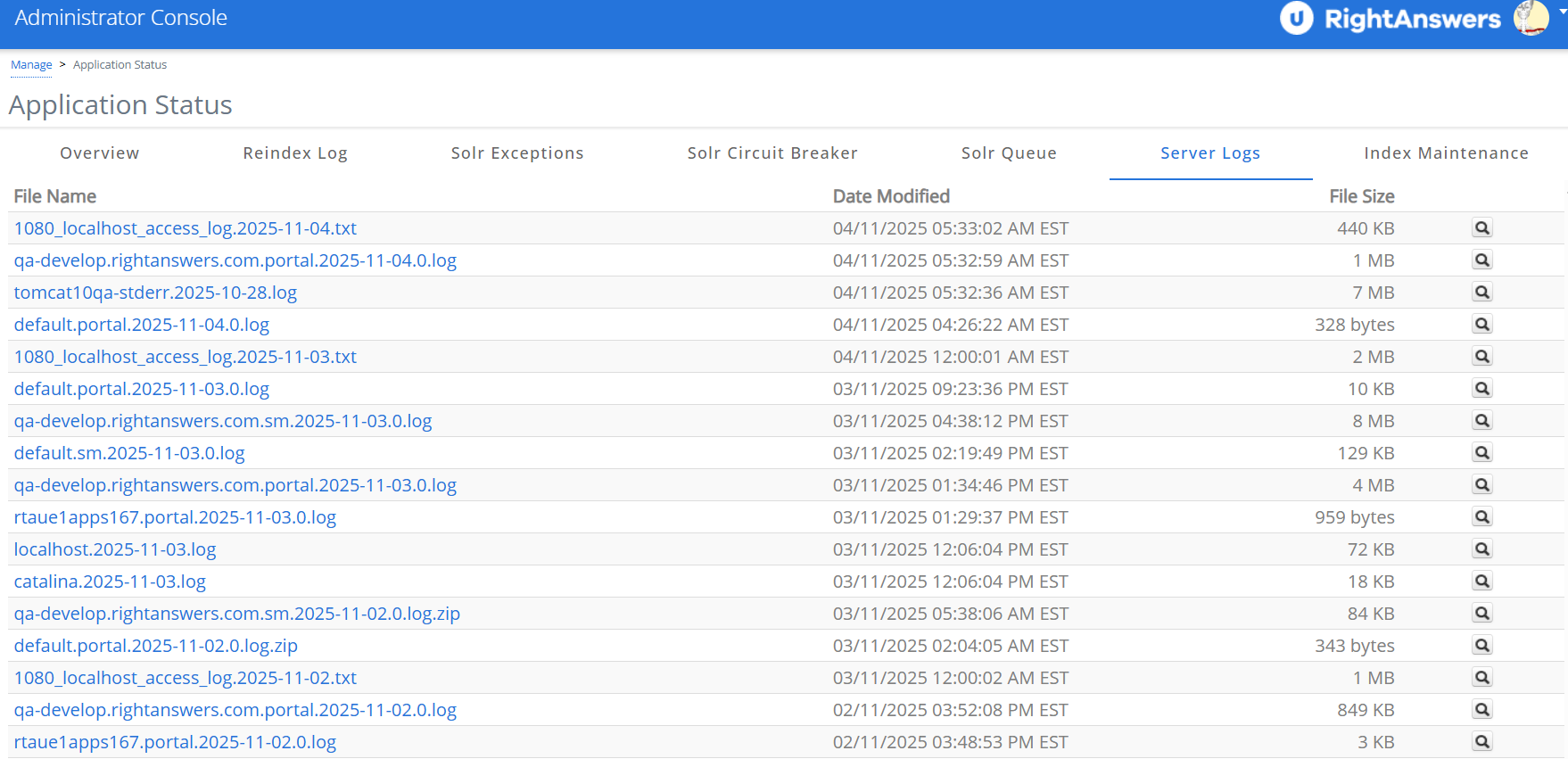
Server Logs
The Server Logs page provides access to server log files for troubleshooting.
For more information, refer to RightAnswers: Admin: Server Logs .
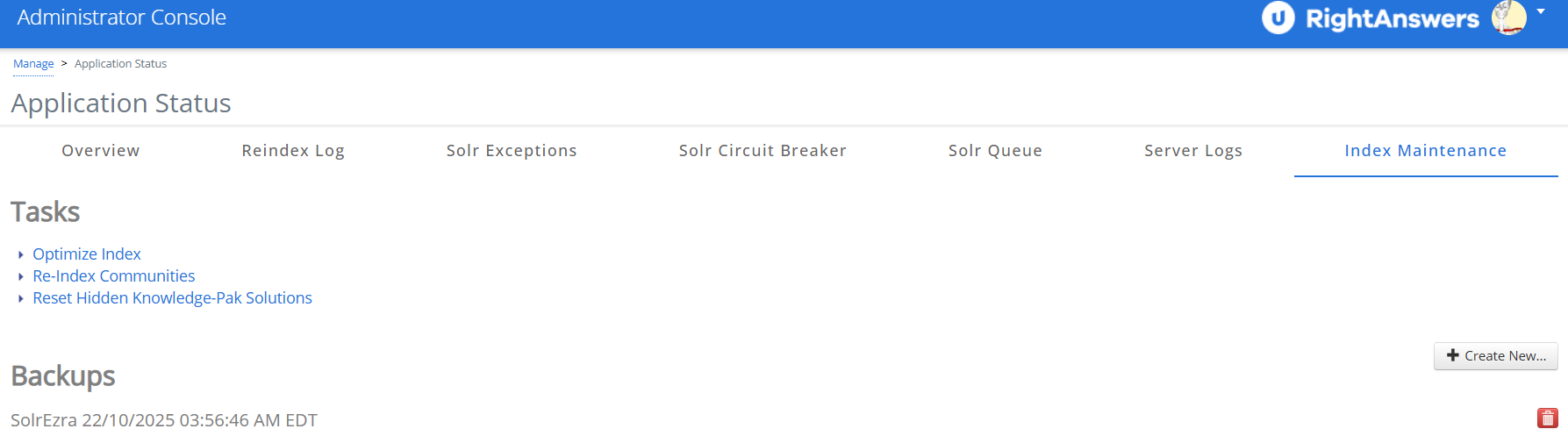
Index Maintenance
Allows optimization, cleanup, and maintenance of search indexes.
For more information, refer to RightAnswers: Admin: Manage Index Maintenance .
Hamburger Menu
Clicking the Hamburger menu
 displays the following menu options:
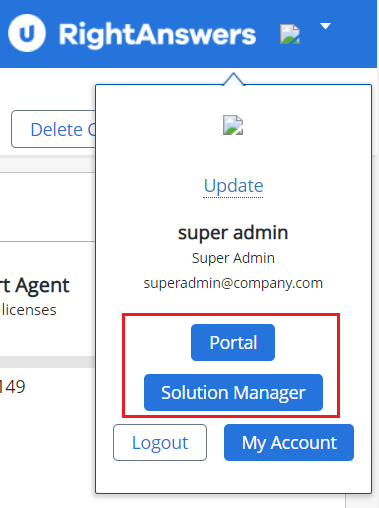
User Profile
The User Profile allows you to view and manage your credentials. It also provides quick access buttons to navigate to other interfaces without re-authenticating.
For more information, refer to RightAnswers: Administrator Profile .
Help
Use the Help icon
 to browse or search for solutions. Help content opens in a new window and is sourced from
the latest RightAnswers official documentation.
to browse or search for solutions. Help content opens in a new window and is sourced from
the latest RightAnswers official documentation.
For more information, refer to RightAnswers: Administrator Console Help .