Manage Company Details
From the Manage tab, you can create, manage or delete companies. To create a new company, you need to log in as a Super-Administrator. An administrator can only edit an existing company.
Note: RightAnswers creates new companies for customers and most customer implementations will have only one company.
Create a new company: (Super Admin ONLY)
- In the Administrator Console, click Manage > Details.
- Click New Company.
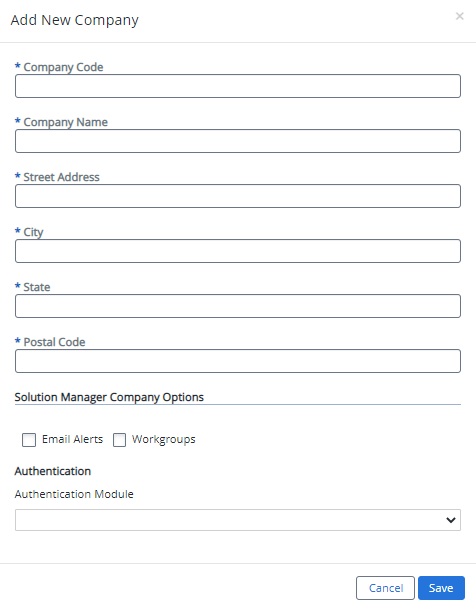
An Add New Company pop-up window is displayed.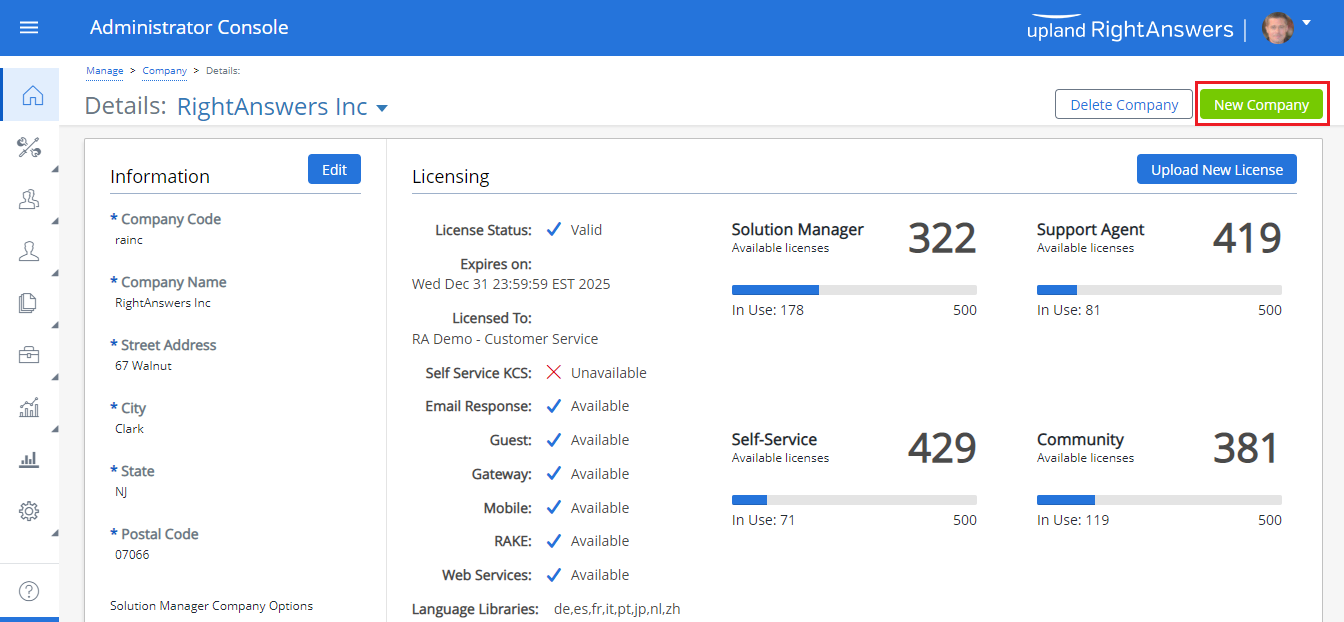
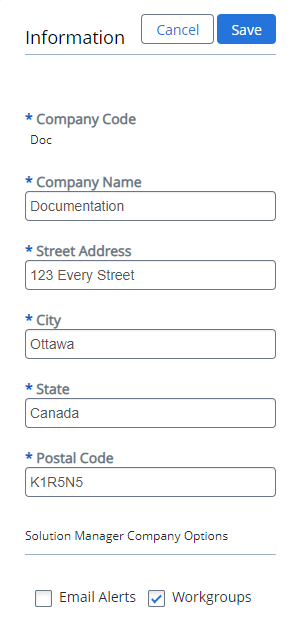
- Fill in the Company Code, Company Name, Street Address, City, State and Postal Code.
-
Under Solution Manager Company Options, select Email Alerts and Workgroups if required.
-
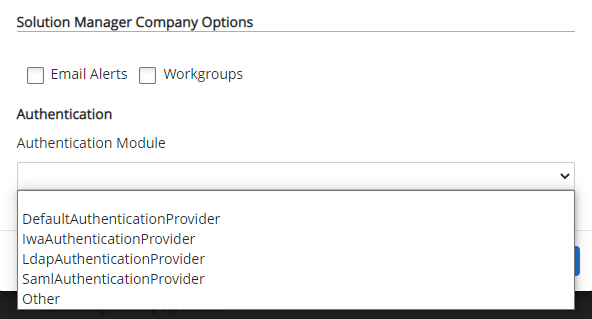
Under Authentication, click the drop-down arrow to select the Authentication Module.
- Click Save or Cancel to discard.
Edit a company details:
- On the Administrator Console Home, click Manage icon.
-
Select Details.
The Details page is displayed.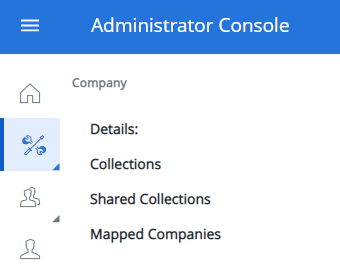
- Next to company Information, click Edit.
- Edit the Company Name, Street Address, City, State or Postal Code if needed.
- Below the Solution Manager Company Options, select or unselect Email Alerts or Workgroups as required.
-
On the top, click Save or Cancel to discard.
Upload a company new license:
-
Click Upload New License.
An Upload License File window is displayed.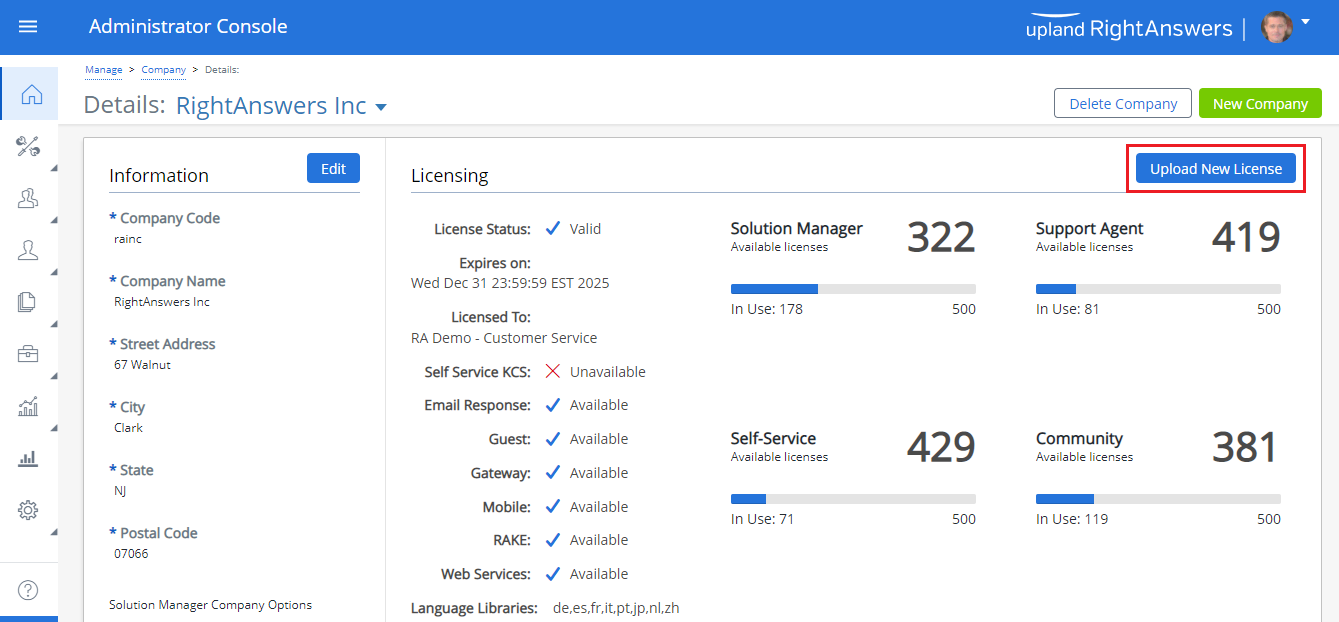
-
Click Select files.
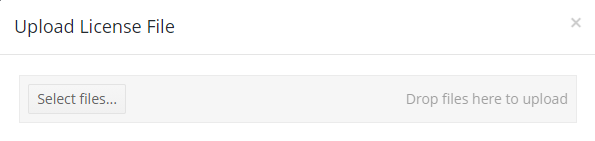
A pop-up window is displayed. -
Browse for the license file and click Open.
The company new license is uploaded.
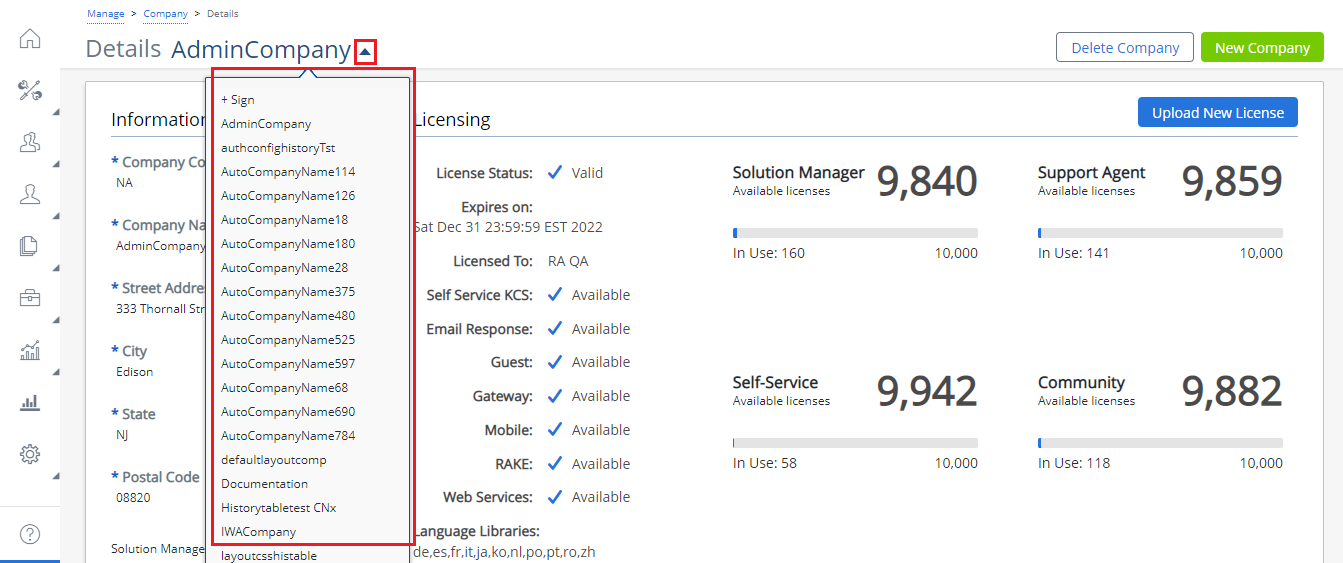
Note: A SuperAdmin can manage multiple companies by selecting the required company from the drop-down menu.
Delete an existing company: (Super Admin ONLY)
You must contact the Support team for requesting the deletion of any company. The deletion request will be handled in the backend.