With the addition of the option Prevent Users from deleting Expense Receipts after they've been included in an Invoice and/or a Payable Batch located on the Expense System Setup page, Users can now be barred from deleting Expense Entry & Expense Report Receipt and Document Attachments once the Expense Report has been included in an Invoice and/or Payable Batch.
Organizations can now ensure the integrity of the Actual entries by enforcing that Receipt and Document Attachments not be removed from an Expense Entry or Expense Report once they’ve been included in an Invoice and/or Payable Batch.
This article covers how to prevent Users from deleting Expense Receipts after they've been included in an Invoice and/or a Payable Batch
Use case: Adam the site administrator has been tasked to stop users from deleting Expense Receipts once the Expense Report has been included in an Invoice. He can easily navigate to the Expense System Setup page and select the option Prevent Users from deleting Expense Receipts after they've been included in an Invoiced and/or a Payable Batch. Upon trying to delete an attachment from an already invoiced Expense report users will now be presented with a message informing them that the attachment cannot be deleted.
Version Note: This feature is available as of Tenrox 2019 R2.
1. Navigate to the System Expense page
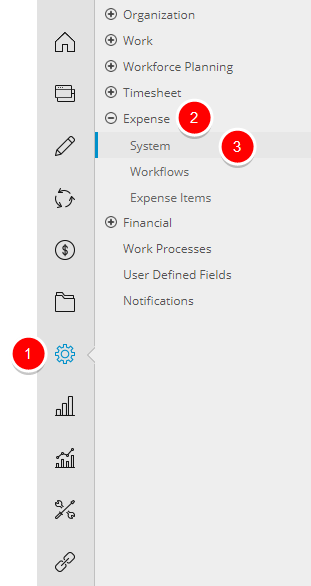
- Click Setup from the Icon Bar.
- Click Expense from the Navigation Menu.
- Select System to access the System Expense page.
2. Prevent Users from deleting Expense Receipts
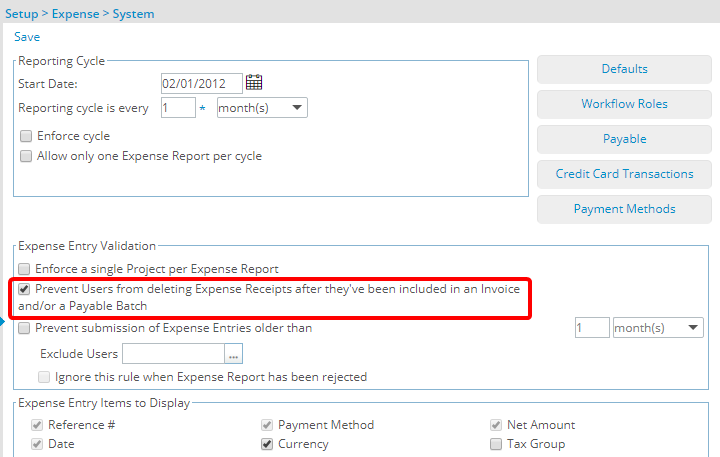
- Select the option Prevent Users from deleting Expense Receipts after they've been included in an Invoice and/or a Payable Batch located in the Expense Entry Validation section.
Note:
- When an Expense Report is part of an Invoice or Payable Batch but not included, then Document Attachments can be deleted.
- Only Notes on Expense Reports and Expense Entries can be deleted, when the Expense Report is included in an Expense Payable Batch or is invoiced
3. Click Save
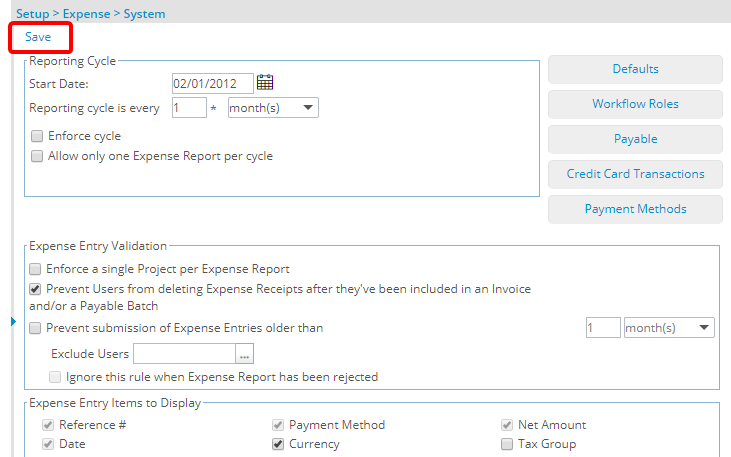
- Click Save to save your changes.
4. View your Changes
 4.1 Expense Report is part of an Invoice or Payable Batch but not included
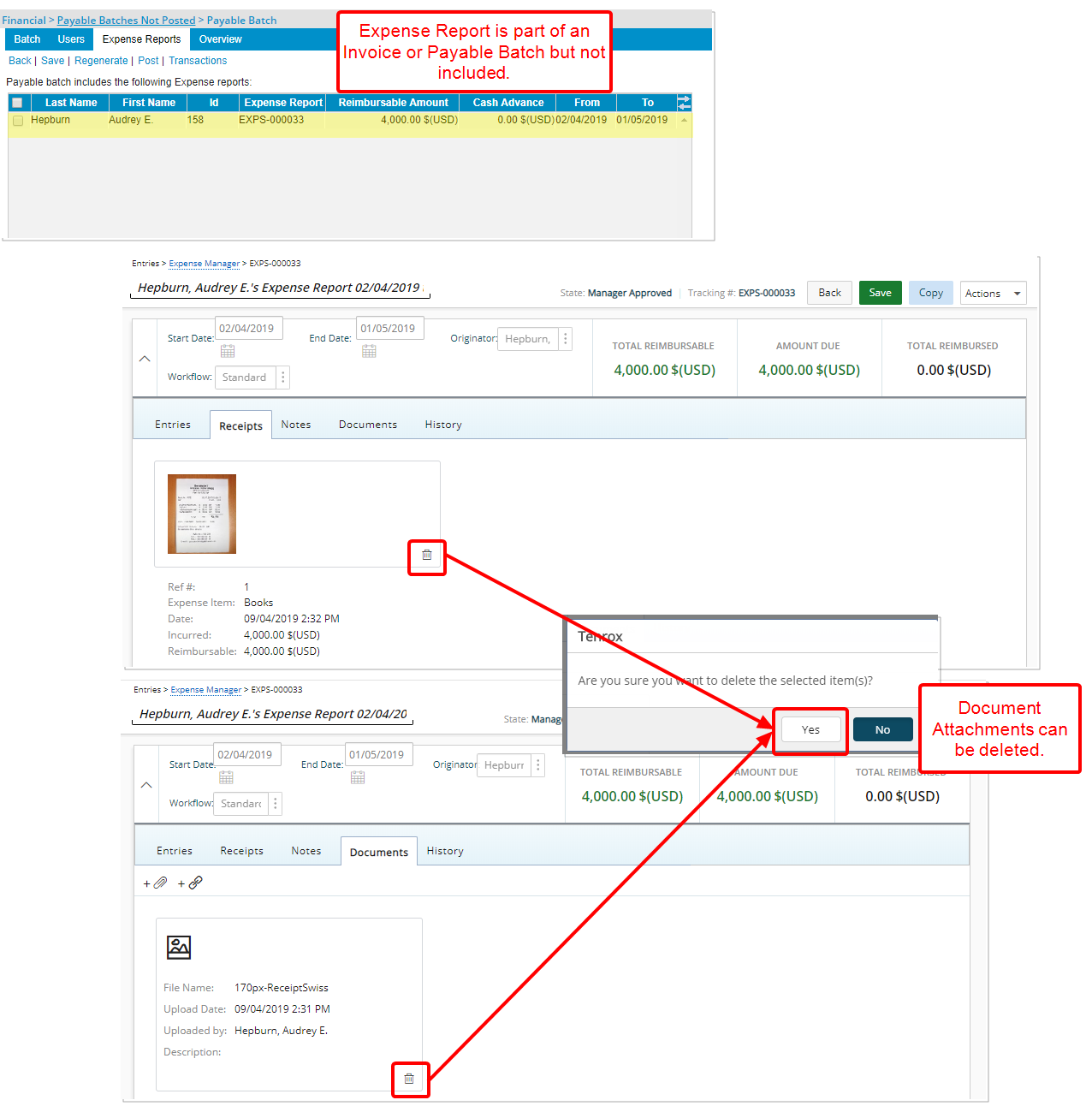
- When an Expense Report is part of an Invoice or Payable Batch but not included, then Document Attachments can be deleted.
4.2 Expense Report is part of an Invoice or Payable Batch and included
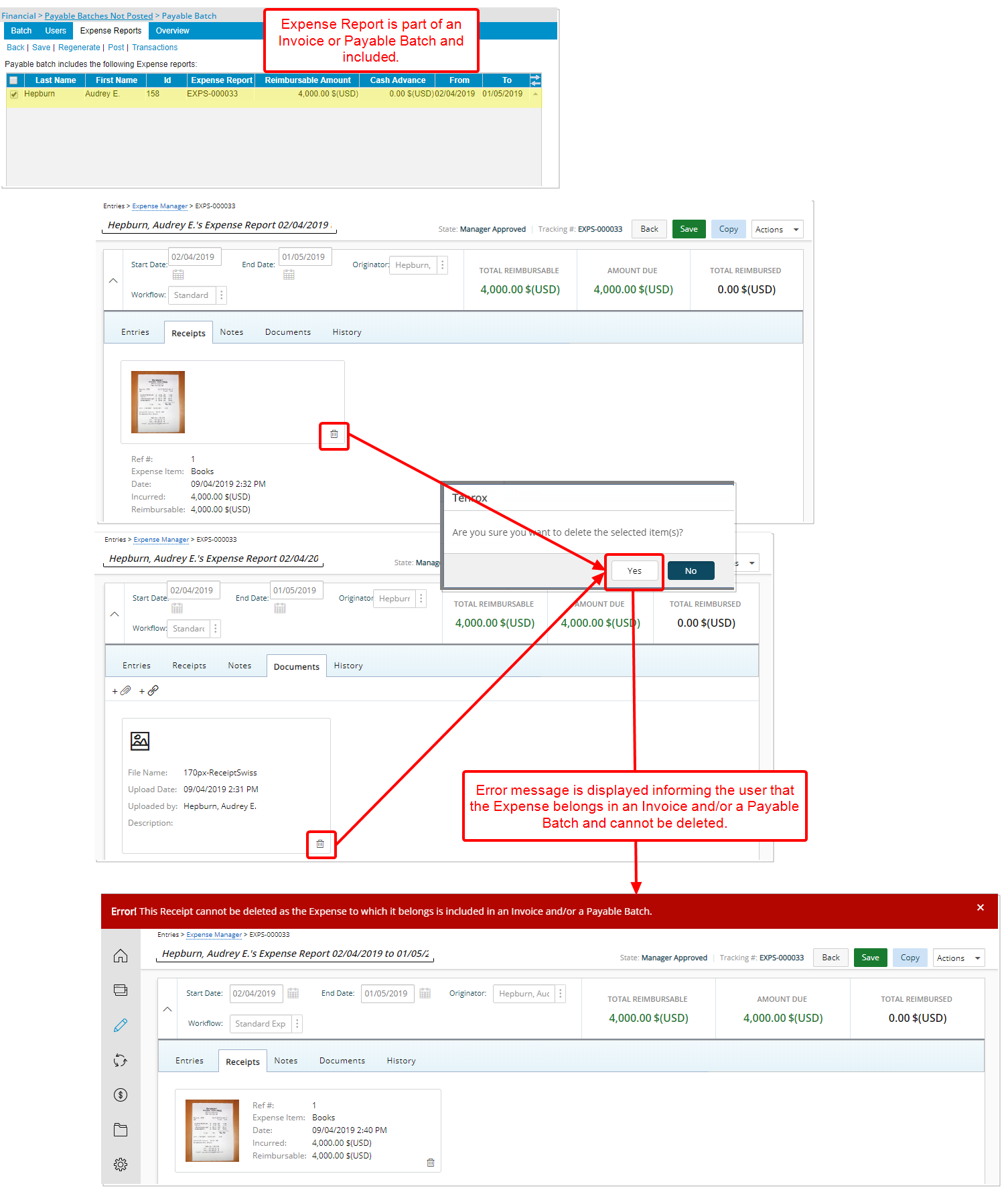
- When an Expense Report is part of an Invoice or Payable Batch but not included, then Document Attachments can be deleted.
Note:
- Only Notes on Expense Reports and Expense Entries can be deleted, when the Expense Report is included in an Expense Payable Batch or is invoiced