Reports Tab (Accessing the Menu Bar in the Tenrox Application)
Note: This article was authored in the former format, which includes functionality dating back to version 2013 R1 and earlier. The content will be converted to the current platform article format.
Reports Tab
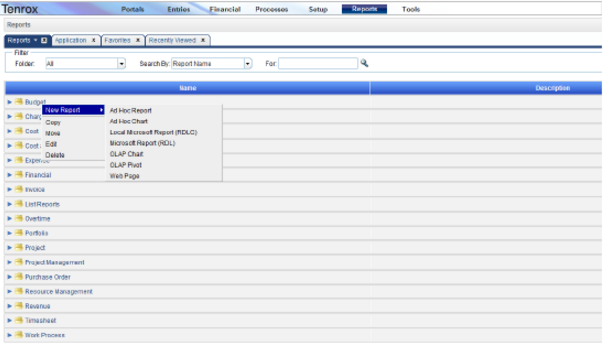
The Reports tab, accessed from the top menu and displays the Reports screen, provides the list view of existing reports categorized under the following sub-tabs:
- Reports: displays all reports currently available in the system, excluding the Application reports
- Application: displays all application reports in the system
Note: The Application tab is only displayed if logged users are assigned Modify rights to the Application Reports component in their security profiles; for more information, see Creating a Security Role.
- Favorites: displays all reports added to the logged user's favorites; for more information, see Report Setup: Adding or Removing Reports from the Favorites and Recently Viewed Tabs.
- Recently Viewed: display the top 10 reports that have been recently previewed by the logged user; for more information, see Report Setup: Adding or Removing Reports from the Favorites and Recently Viewed Tabs.
Note: The custom tabs are user-defined tabs that are created by the logged users through the New Tab functionality found by clicking the drop-down menu of any of the four (4) tabs mentioned above. For more information, see Report Setup: Setting Up Custom Tabs.
Version Note: Available as of Tenrox 2013 R1 Implementation of a Tab Scrolling System
Implements a Tab scrolling system, as well as limit the amount of displayed characters, which allow for multiple Tabs to display.
Tab Scrolling System
The following details this feature:
- Only one line of tabs is visible, thus tabs no longer wrap under each other.
- When there are more tabs to be shown than the line fits, the first ordered tabs appear, while the other tabs do not display
- When the screen is resized, the tabs dynamically appear / disappear depending on whether they are to be displayed or not.
- When applicable, a "Previous" icon at the beginning of the list of tabs and a "Next" icon at the end of the list of tabs display.
- The icons display only if the user's screen resolution is too small to display all unhidden tabs on the same line.
- The icons have a tooltip named "Previous" and "Next", respectively.
- If the screen is resized, the icons dynamically appear / disappear depending on whether they are to be displayed or not.
- Clicking on an icon cycles the visible tabs to the subsequent tabs, one tab at a time. The next tab to be displayed will also cause the tab on the opposite edge to disappear.
- Tabs will navigate from beginning to end; that is, the Previous icon does not appear when the first tab displays and the Next icon does not appear when the last tab displays.
- The size of the tab to display determines how many tabs to hide, possibly leading to multiple tabs being hidden to display the next tab.
- The currently selected tab continues to be selected regardless of whether the tab is visible on the screen or not.
- When loading the list of tabs, if the previously selected tab is not available on the list of first tabs that displays, the system shifts the tabs such that the tab appears. The page always shifts the first tabs in order to make space.
Example: 5 tabs can be displayed, the 6th tab is selected. When re-loading the page, the first tab will be hidden in order to display the 6th tab.
Name Truncating of Tab Display
The tab display name includes some limitations:
- Tab names entered by the user in Reports Central continue to have its existing character limit.
- The visible characters of a tab name on Reports Central is reduced to 40 characters. Any characters exceeding this limit is replaced with an ellipsis ("…").
- Example: A tab with name "List of Active Projects with Budgets Greater than 100,000" will be displayed as "List of Active Projects with Budgets Gre…"
- Tooltips continue to display the full name of the tab.
From the Reports tab, within the Reports and Application sub-tabs, the following report types are available:
- Ad Hoc Report
- Ad Hoc Chart
- Local Microsoft Report (RDLC); for more information, see the Tenrox Reports Guide
- Microsoft Report (RDL)
- OLAP Chart
- OLAP Pivot
- Web Page
For details on how to create a report, see Report Setup: Setting Up the Reports.
See Also:
- Accessing the Menu Bar in the Tenrox Application
- Setting Up the Reports
- Report Setup: Setting Up Custom Tabs
- Report Setup: Editing Custom Tabs
- Report Setup: Deleting Custom Tabs
- Report Setup: Setting Up Folders
- Report Setup: Editing Folders
- Report Setup: Deleting Folders
- Report Setup: Setting Up the Reports
- Report Setup: Editing Reports
- Report Setup: Deleting Reports
- Report Setup: Previewing Reports
- Report Setup: Replacing the Ad Hoc, OLAP Chart and OLAP Pivot Report Types
- Report Setup: Exporting Ad Hoc, OLAP Chart and OLAP Pivot Report Types
- Report Setup: Filtering and Searching Reports
- Report Setup: Copying Folders or Reports
- Report Setup: Moving Folders or Reports
- Report Setup: Assigning Security Rights to Custom Tabs, Folders and Reports
- Report Setup: Adding or Removing Reports from the Favorites and Recently Viewed Tabs
- Report Setup: Designing the Pivot Tables for OLAP Reports
- Report Setup: Adding Columns to the OLAP Pivot Table Reports
- Report Setup: Adding or Editing Filters for Measures and Dimensions in the OLAP Pivot Table Reports
- Report Setup: Accessing the OLAP Pivot Table Report Shortcut Menus
- Report Setup: Viewing the OLAP Pivot Table Reports
- Manager: Ad Hoc Reporting
- Creating a Security Role
- Tenrox Reports Guide