The Capture Mode scan setting has been developed to allow users to perform ID Scanning at HP supported devices. When Capture Mode > ID Capture Prompt Both Sides is enabled each ID side can be scanned individually when prompted. Both sides will appear on a single page.
The following Capture Mode options are available.
-
Standard
-
Standard Add Pages
-
Book Capture
-
ID Capture Prompt Both Sides
-
ID Capture Prompt Back Side Only
Enabling Capture Mode ID Capture Prompt Both Sides
Administrators can use Devices > Button Properties > Scan Settings to enable Capture Mode ID Capture Prompt Both Sides. The default setting is Capture Mode Standard.
To enable Capture Mode ID Capture Prompt Both Sides
-
Go to Devices in the Server Administrator and expand.
-
Right-click the appropriate device. The Properties short cut menu appears.
-
Select Properties. The Device Group Properties dialog box appears.
-
Select the Buttons tab.
-
Select the appropriate button. The Button Properties dialog box appears.
-
Select the Scan Settings tab.
-
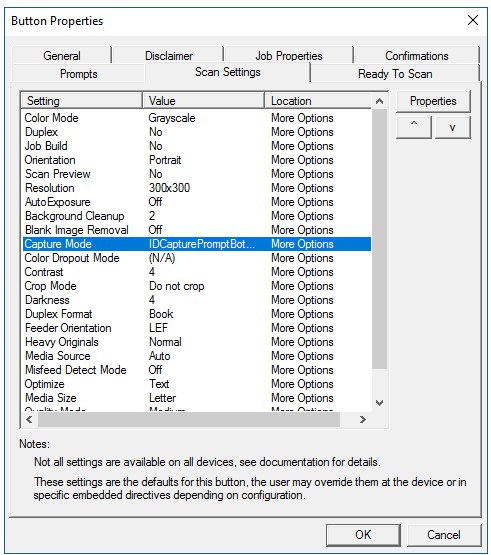
Select Capture Mode. The Scan Setting Properties dialog box appears.
-
Select the appropriate Capture Mode option, for example, IDCapturePromptBothSides.
-
Select the appropriate Display on Page option. More Options is the default.
-
Select OK on the Scan Setting Properties dialog box.
See an example of the Button Properties dialog box with the Capture Mode scan setting below.
-
Select OK on the Button Properties dialog box.
-
Select OK on the Device Group Properties dialog box.