The Maintenance component removes messages from the
Standard and Custom Cleanup Differences
Standard cleanup applies to all jobs
A standard cleanup can be configured between 3 and 180 days as a scheduled task on the Windows system where the server database is located. When cleanup runs, items are marked for deletion and deleted at 5 am the following day. This is a default setting that can be changed by an Administrator if necessary. Administrators use the Maintenance Component > Cleanup > Queues options to configure a standard cleanup.
Custom cleanup applies to specific jobs
A custom cleanup can be configured by setting cleanup job properties on a rule. This ensures that only specific jobs delivered by the rule are cleaned up by the Maintenance component.
The following System job properties can be applied to a rule to run a custom cleanup.
-
CustomCleanupEnabled
-
CustomCleanupIntervalHours
The following job properties can also be used in a control file.
-
prCustomCleanupEnabled
-
prCustomCleanupIntervalHours
Note: Jobs are flagged as expired based on the interval hour(s) set but are not removed until the scheduled maintenance has been completed.
Applying the Custom Cleanup Job Properties to a Rule
The following example shows how to apply the custom cleanup job properties to a Route to Connector rule.
Note: This example is for illustrative purposes and may not apply to your unique workflow requirements.
To apply the Custom Cleanup job properties to a rule
-
Create a user rule in the Server Administrator.
-
Select the user rule in the Details pane. The Rule Properties dialog box appears.
-
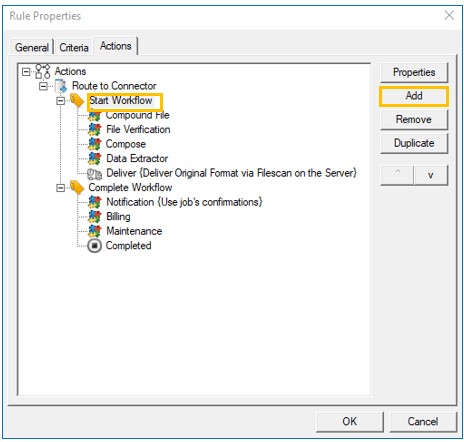
Select the Actions tab.
See the Rule Properties > Actions > Start Workflow action example below.
-
Select the Start Workflow action. The Action Properties dialog box appears.
-
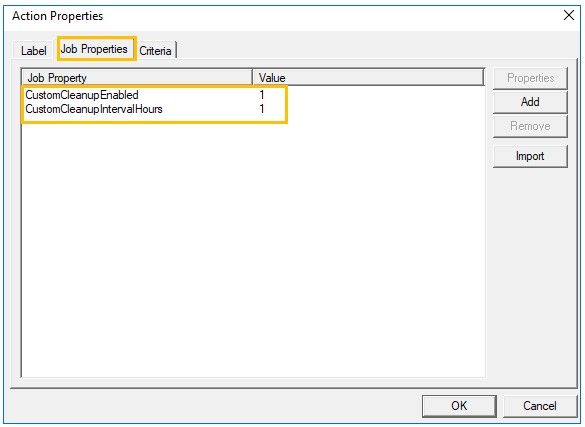
Select the Job Properties tab.
-
Select the Add button. The Set Job Property dialog box appears.
-
Type CustomCleanupEnabled in the Property box.
-
Type 1 in the Value box.
-
Select OK.
-
Select the Add button.
-
Type CustomCleanupIntervalHours in the Property box.
-
Specify the number of hours, for example, 1 in the Value box.
-
Select OK on the Set Job Property dialog box.
-
Select OK on the Action Properties dialog box.
See the Action Properties > Job Properties > Custom Cleanup example below.
-
Select OK on the Rule Properties dialog box.
Indexing the CustomCleanupEnabled property
Indexing the CustomCleanupEnabled property Volume list may result in a faster cleanup. This step is optional but recommended.
To index the CustomCleanupEnabled property Volume list
-
Go to Job Properties in the Server Administrator.
-
Select System in the Details pane.
-
Select the CustomCleanupEnabled property. The Job Property dialog box appears.
-
Select the Indexing tab.
-
Select the Active Volume list.
-
Select OK.
Note: Jobs submitted after enabling indexing will result in a faster cleanup. Any jobs submitted before indexing was enabled will not.
See also