Connectors are used to manage how messages flow in and out of the
In addition, Administrators can choose to set up how many times the server can attempt to deliver a message with attachments if the first attempt was unsuccessful. Error codes can also be set up to support Administrators in troubleshooting delivery failures.
Note: A license is required for the Zip Archive connector. Contact your Account Manager if necessary. Auto Retry and Error code setup are optional and not required for Zip Archive connector use.
Before you begin
Administrators must complete the following tasks.
-
Determine where to deliver the zipped attachments.
-
Determine whether Auto Retry and Error codes are to be used (optional).
-
Set up the Zip Archive connector.
-
Create a Route to Connector rule.
-
Set up Zip Archive folder maintenance and cleanup.
Accessing Connectors
You can access any connector to view and edit its properties by using the Server Administrator > Connectors node.
To access Connectors
-
Start the Server Administrator.
-
Expand the Server Administrator tree.
-
Select Connectors. The Connectors details pane lists the connectors that are licensed with your server.
-
Select any connector to view and edit its properties if necessary.
The following instructions show how to set up the Zip Archive connector with Auto Retry and Error codes.
Note: These instructions are for illustrative purposes and may not reflect your unique workflow requirements.
 Setting up Zip Archive connector
Use Connectors in the Server Administrator to set up Zip Archive connector.
To set up Zip Archive connector
-
In the Server Administrator, right click Connectors. The Connectors short cut menu appears.
-
Select New
-
Select Zip Archive Connector. The Create New Zip Archive Connector wizard appears.
-
Use the default Server Address or specify a remote server address.
-
Select Next.
-
Use the default Zip Archive connector name or specify another name in the Name box.
-
Select Next.
-
Specify or choose where the zipped attachments are to be delivered in the Destination folder box.
-
Use the default Translation file or choose another one in the Translation file used to generate description file box.
Note: The Translation file is used to translate the server’s properties during processing into an XML file format. This file is delivered to the Zip Archive folder with the attachments.
-
Select Next.
-
Select Finish.
Setting up Auto Retry (optional)
Use Auto Retry to set up how many times the server can attempt to deliver an message with attachments if the first attempt was unsuccessful and track error codes.
To set up Auto Retry
-
In the Server Administrator, select Connectors.
-
Select the Zip Archive Connector on the Server in the Connectors details pane.
-
Select the Auto Retry tab.
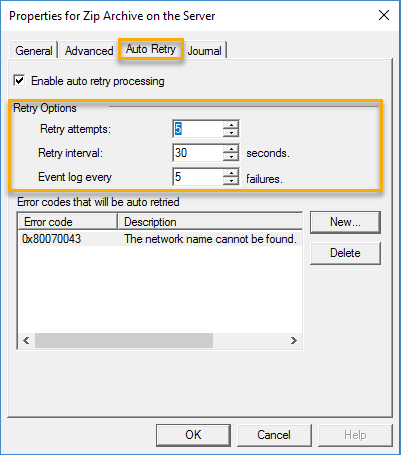
See the Zip Archive Connector Properties > Auto Retry dialog box example below.
-
Select Enable auto retry processing.
-
Use the following Retry default settings or specify other values in the appropriate boxes.
-
Retry attempts - 5
-
Retry interval – 30 seconds
-
Event log every number of failures – 5 failures
-
-
Select OK if you are done or continue with Setting up Error codes.
Note: At least one error code is required if Auto Retry is enabled.
Setting up Error codes (optional)
Use Error codes to assist you and other Administrators with managing connector delivery errors.
To set up Error codes
-
In the Server Administrator, select Connectors.
-
Select Zip Archive Connector on the Server in the Connectors details pane. The Zip Archive Connector Properties dialog box appears.
-
Select the Auto Retry tab.
-
Go to Error codes that will be auto retried.
-
Select the New button. The New Error Code dialog box appears.
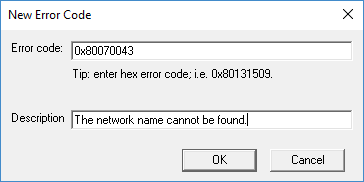
See the New Error Code dialog box example below.
-
Specify the error code value, for example, 0x80070043 in the Error code box.
-
Specify the description, for example, The network name cannot be found in the Description box.
-
Select OK on the New Error code dialog box.
-
Continue with Steps 5 through 8 to add more error codes if necessary.
-
Select OK on the Zip Archive Connector Properties dialog box when you are done.
See Error code examples below.
-
Error code: 0x80070003
-
Description: The system cannot find the path specified.
-
-
Error code: 0x80070043
-
Description: The network name cannot be found.
-
Creating a Route to Connector rule
Use Rulesets to create a Route to Connector rule that identifies which email address the server needs to monitor for attachments, process the attachments as zipped files and where to deliver the attachments after processing.
The instructions below are for illustrative purposes only and may not reflect your unique workflow requirements.
To set up a Route to Connector rule
-
In the Server Administrator, select RuleSets.
-
Right click User. The Properties short cut menu appears.
-
Select New > Route to Connector. The Criteria wizard page appears.
-
Use the default destination type, for example, Email or select another on the Destination type drop down list.
-
Type the criteria, for example, an email address in the Matches box.
-
Select Next.
-
Select Zip Archive Connector on the Server on the Connector drop down list.
-
Use the default PDF format or select another on the Format drop down list
-
Use the default Include Template and Include Documents settings or select another from the appropriate drop down lists.
-
Select Next.
-
Ensure the rule name and criteria are accurate in the Rule Name box.
-
Select Finish.
Ensure the Deliver action is pointing to the Zip Archive connector in the Rule properties.
-
Select the appropriate rule in the RuleSets > User details pane. The Rule Properties dialog box appears.
-
Select the Action tab. The Actions workflow tree appears.
The Deliver action, for example, is shown as Deliver {PDF via Zip Archive Connector on the Server}.
-
Select OK.
Creating a test message
Use Messages in the Server Administrator to create a test message and verify that the message attachments are zipped and delivered to the appropriate destination folder.
To create a test message
-
In the Server Administrator, right click Messages. The Messages short cut menu appears.
-
Select New > Test Messages.
-
Specify the server name in the Server box.
-
In the Recipients section, select the Add button. The Add New Recipient wizard appears.
-
Use the Email type default.
-
Select Next.
-
Specify the email address used in the Zip Archive connector rule in the Email box.
Note: The name and company details are optional.
-
Select Finish.
-
Type a subject in the Subject box. (optional)
-
Type comments in the Comments box. (optional)
-
Select the Add button and select the attachments for the test.
-
Select Deliver.
Verifying Message delivery
Use the Messages > History folder to verify message delivery.
-
In the Server Administrator, select Messages > History.
-
Select the Successful filter.
-
Select the appropriate job id in the Job ID table. The Recipient Properties dialog box appears.
-
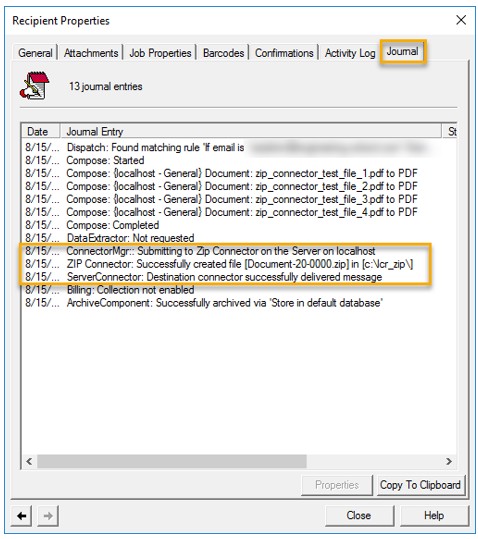
Select the Journal tab. All processing details related to the message and attachments are shown in the Journal.
See the Recipient Properties > Journal example below.
Checking the Zip folder
The Zip folder will have the zipped attachments as a result of a successful message delivery.
-
Go to the Zip folder and check the zip attachments delivered.
See the Zip folder example below.
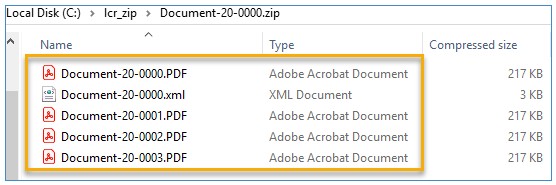
Note: The file naming convention is based on the filename template specified during the Zip Archive connector setup, for example, Document-%prRecipientID%-%Attachment_Index%. In the example above, the zipped attachments start with Document, 20 as the job id property, and 0000 as the attachment index value. The XML file contains server processing details for reference or external application use.
Setting up Zip folder maintenance and cleanup
Use Server Administrator > Components > Maintenance to set up the Zip folder maintenance and cleanup task.
To set up maintenance and cleanup
-
In the Server Administrator, select Components.
-
Select Maintenance in the Components details pane. The Maintenance Properties dialog box appears.
-
Select the Cleanup tab.
-
Go to Folder Cleanup.
-
Select Add. The Cleanup Folder Properties dialog box appears.
-
Specify the Zip folder name in the Folder box.
-
Use the default Delete files older than setting or specify a different parameter.
-
Use or clear the Remove empty folders setting.
-
Select OK on the Cleanup Folder Properties dialog box.
-
Select OK on the Maintenance Properties dialog box.
See also