While processing messages, you may come across a message that was inadvertently sent to your queue and should have been sent to another queue. In this case, you can reassign the message to the appropriate queue.
To reassign a message:
-
Locate the message you want to reassign.
-
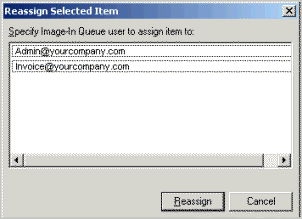
Right click the message and select Release from the drop down menu options. Alternately, click File > Reassign. The Reassign Selected Item page opens listing the email associated with available queues.
-
Select the email of the queue to which you want to reassign the queue and click Reassign.
The message moves to the queue specified and is removed from the original queue.
See also
Working with Messages in New Items Folder