Creating and Editing Themes
Create Email Designer Themes to apply style sets, e.g. company colour schemes, to your email.
If a theme changes, you can choose to apply theme updates or not. Edits to the theme are not automatically applied to campaigns using that theme.
Similarly, updates made to a theme within a campaign are not automatically applied to the theme template. You need to save edits to your theme template or save your changes as a new theme.
Note:Themes list updates automatically,newly created themes appear instantly without refreshing the page.
Creating a new theme
To create a new theme:
-
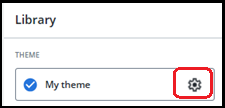
After making changes to the default theme, select the cog icon in the Theme menu under the Library menu.
-
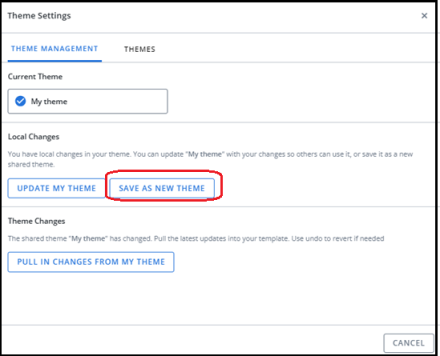
Under Local Changes press Save As New Theme.
-
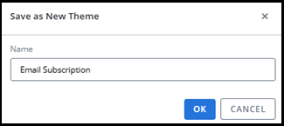
Enter the Theme name.
-
Click OK.
The new theme is applied to the campaign and is available for selection from the Themes tab.
Applying theme updates to your campaign
To import theme changes into your campaign:
-
Open the Library menu.
-
Select the settings cog in the theme field.
-
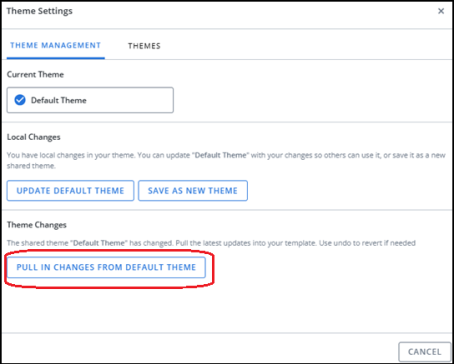
In the popup window, select the Theme Management tab.
-
In the Theme Changes section, press the Pull in Changes from your_theme_name button.
Editing a theme template
To apply changes you make to a theme:
-
Open the Library menu.
-
Select the settings cog in the theme field.
-
In the popup window, select the Theme Management tab.
-
In the Local Changes section, press the Update your_theme_name button.
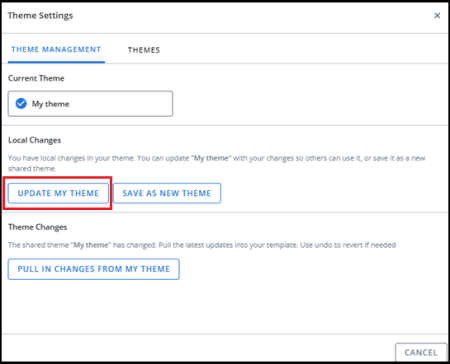
Note: this affects the master template for the theme. Other campaigns using this theme will need to pull your changes for them to apply.
Tip: if you make changes but do not want to overwrite the original theme, save your changes as a new theme.
Editing and saving a theme as a new theme
To save changes you make to a theme as a new theme:
-
Open the Library menu.
-
Select the settings cog in the theme field.
-
In the popup window, select the Theme Management tab.
-
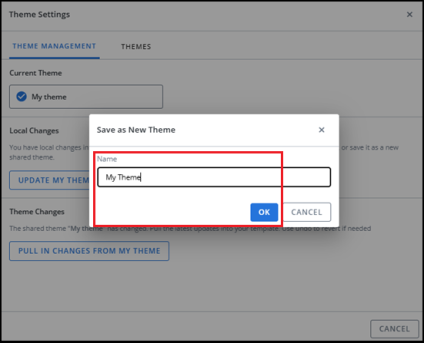
In the Local Changes section, press the Save as New Theme button.
-
Enter a name for your theme in the popup window.
-
Press the OK button to save your theme.