MCP integration
The MCP integration allows AI models like Claude and ChatGPT to interact with data and functionality in AccuRoute CloudFAX.
The following MCP tools are available to connected clients:
| Tool Name | Purpose |
|---|---|
| Send Fax | Send an outbound fax through AccuRoute CloudFAX |
| Get Fax Status | Retrieve the delivery status of a previously sent fax. |
| List Outbound Faxes | Retrieve paginated outbound fax transactions. |
| List Inbound Faxes | Retrieve paginated inbound faxes. |
| Download Inbound Fax | Download the file content of a received fax. |
| Get Account Balance | Retrieve the AccuRoute CloudFAX prepaid account balance. |
Connect via Claude
-
In AccuRoute CloudFAX, create an API token. See Create an API token.
-
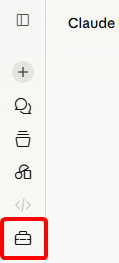
In Claude, click Customize in the navigation sidebar.
-
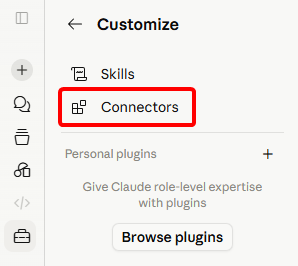
Click Connectors.
-
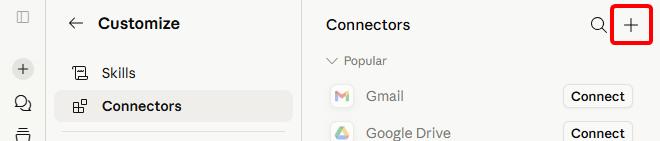
Click Add Connector and select Add custom connector.
-
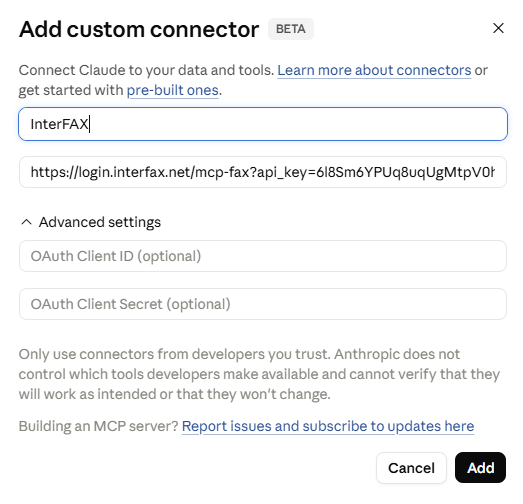
In the Name field, enter a name for the connector.
-
In the Remote MCP server URL field, enter the URL for your AccuRoute CloudFAX site, followed by /mcp-fax?api_key= and then paste the API Token you copied from AccuRoute CloudFAX.
For example: https://login.interfax.net/mcp-fax?api_key=tkn_8f39b1a2c4e5f6g7h8i9j0k1l2m3n4o5p
-
Click Add.
-
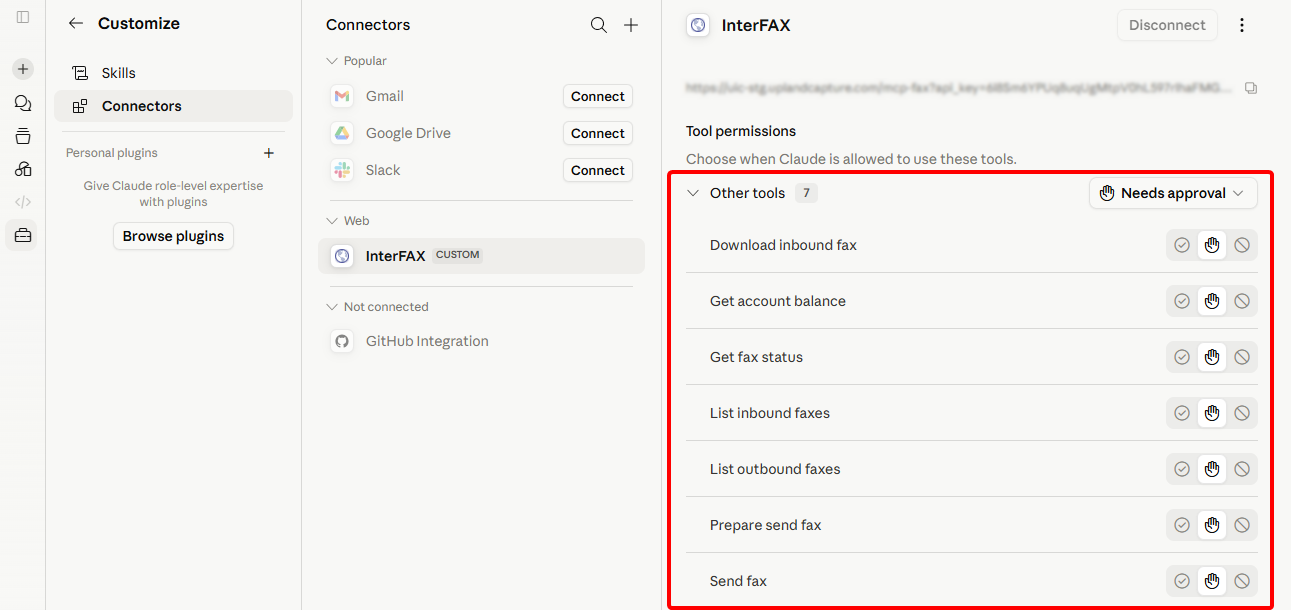
The list of available tools is shown. You can adjust the approval settings for each tool as needed.
Connect via ChatGPT
-
In AccuRoute CloudFAX, create an API token. See Create an API token.
-
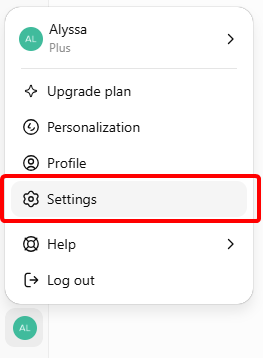
In ChatGPT, click your profile avatar in the bottom-left corner, then select Settings.
-
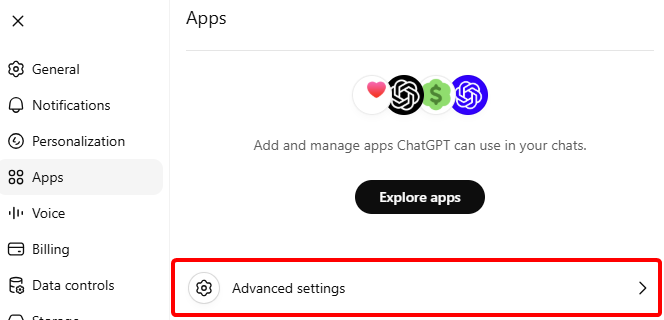
From the Settings menu, select Apps, then click Advanced settings.
-
Click the radio button to turn on Developer mode, then click Create app.

-
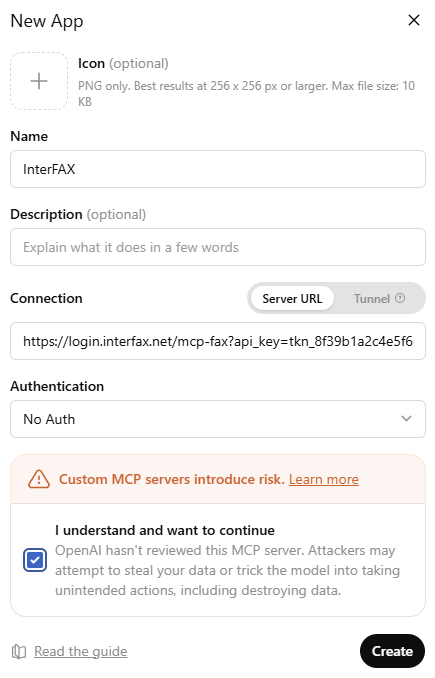
In the Name field, enter a name for the app.
-
In the Connection field, enter the URL for your AccuRoute CloudFAX site, followed by /mcp-fax?api_key= and then paste the API Token you copied from AccuRoute CloudFAX.
For example: https://login.interfax.net/mcp-fax?api_key=tkn_8f39b1a2c4e5f6g7h8i9j0k1l2m3n4o5p
-
Select No Auth from the Authentication drop-down list.
-
Select the check box to agree to the warning.
-
Click Create.
-
Click Connect.
-
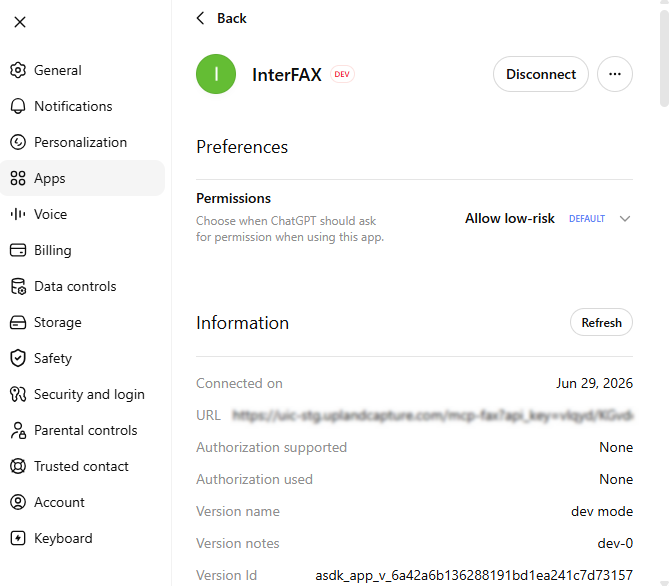
The app is available in the Apps menu. You can adjust permissions for the app as needed.