How to Install the SharePoint Online Connector
All BA Insight connectors can be downloaded from Right Answers under Knowledge > BA Insight > Product Downloads > Connectors.
This connector is installed with the same generic steps as any BA Insight connector.
Satisfy the Prerequisites for your connector before installing.
Configuration specifics are detailed below.
Connector-specific Settings
Set the Connection: Certificate Authentication
- After setting your generic information, click the Connect or Refresh Web Service link.
- The page refreshes and displays additional settings.
-
In the Certificate field, enter your Certificate common name. The Connector supports certificate authentication only.
If you copy your certificate details, as shown in the Certificate console graphic below, your syntax will contain unnecessary spaces.
You must ensure you enter your certificate information in syntax without spaces or your certificate will not work.
CORRECT SYNTAX example: "CN=Jeff Smith"
INCORRECT SYNTAX example: "CN = Jeff Smith"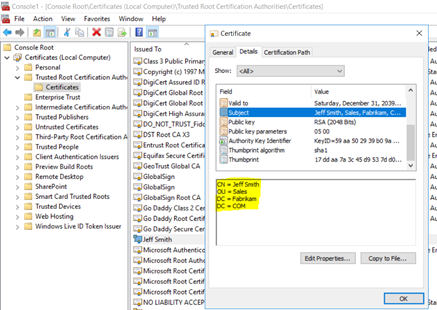
-
In the Password field, enter the Application ID.
-
This is a GUID such as "c87a7836-a1da-455c-9171-836bf793c195".
-
- Site collections/Site Collections Enumerator Filter:
- This value depends on your use case.
- Typically, users enter a site collection with inclusion (
*) set. - This captures all of the sites with the base URL.
- If you are using a Site Collection Enumerator, the format is described under the field in the user interface.
- Use the include and exclude keywords, followed by a list of site collections.
- Multiple site collections are separated by the pipe character |.
- Wild cards (*) are valid.
For example:
include=https://sitecollection.sharepoint.com/site1| https://sitecollection.sharepoint.com/sites*
exclude= https://sitecollection.sharepoint.com/excluded
- If you are not using the Site Collection Enumerator, enter one site collection to be crawled per line.
- If you are using a Site Collection Enumerator, the format is described under the field in the user interface.
- Synchronized Domain: Enter the fully qualified domain name of the internal domain synchronized with your Azure Active Directory.
- Disabled Security: Check to disable security. This results in no content be scurity-trimmed.
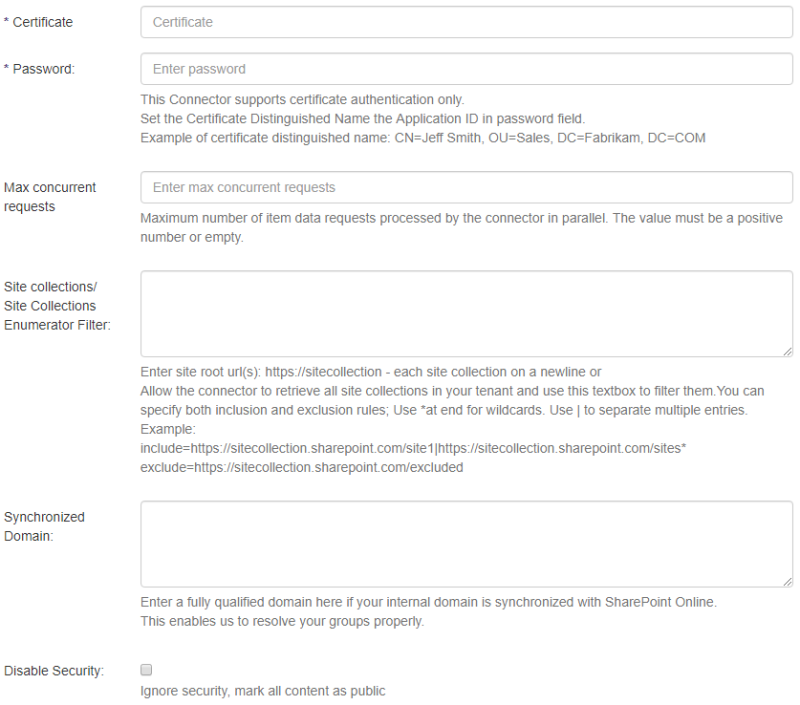
- Complete the following fields.
Carefully read the instructions under each field.
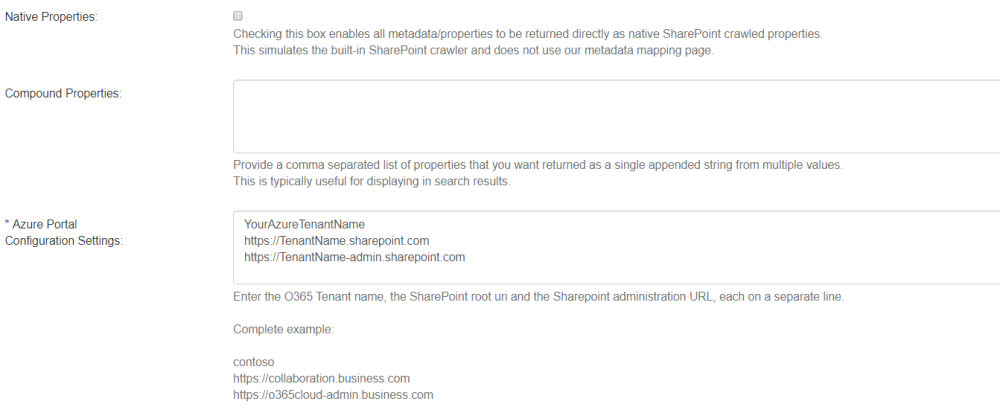
Refer to the graphic below for sample values.- Native Properties:
- Used only for Connector Framework implementations.
- Checking this box enables all metadata/properties to be returned directly as native SharePoint crawled properties.
- Compound Properties:
- Provide a comma-separated list of properties to be combined and returned as a single appended string from multiple values.
- Azure Portal Configuration Settings:
- Enter the following values in the following order, as shown in the graphic below, one per line:
- Tenant name
- Audience URI
- Admin URL
- Enter the following values in the following order, as shown in the graphic below, one per line:
- Native Properties:
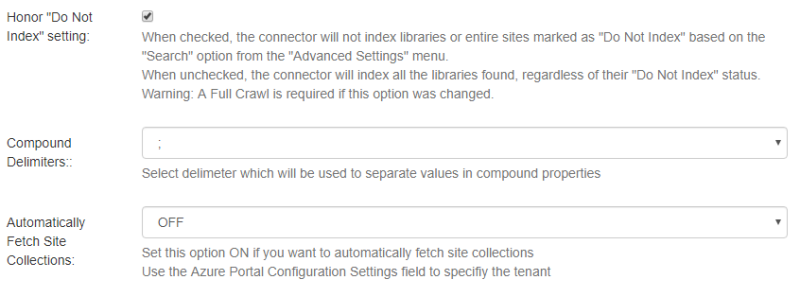
- Next, complete all remaining fields. Carefully read the instructions under each field.
-
To property map well known groups from SharePoint (like Everyone except external users, All Authenticated Users, and Authenticated Users), use the following Group load script:
Group Load ScriptCopydim sysId as string = HOST.GetSystemId()
If sysId = "true"
HOST.SetAdId("NT AUTHORITY\Authenticated Users")
End If
If sysId = "windows"
HOST.SetAdId("NT AUTHORITY\Authenticated Users")
End If
If sysId.startswith("spo-grid-all-users")
HOST.SetAdId("NT AUTHORITY\Everyone")
End If -
If you use Connectivity Hub as your framework, you must replace the default security sync scripts to properly resolve users and groups. Use the security sync scripts below:
User Load ScriptCopyDim systemId as String = HOST.GetSystemId()
if (String.IsNullOrEmpty(systemId)) then
Return TargetDirectory.GetUserByDisplayIdentifier(HOST.GetSystemName())
else
Return TargetDirectory.GetUserByDisplayIdentifier(systemId)
end ifGroup Load ScriptCopyDim systemName as String = HOST.GetSystemName()
if (String.IsNullOrEmpty(systemName)) then
Return TargetDirectory.GetGroupByDisplayIdentifier(HOST.GetSystemId())
else
Return TargetDirectory.GetGroupByDisplayIdentifier(systemName)
end if
Complete the information in the remaining tabs using the generic instructions here:
- Connector Framework
- ConnectivityHub
- AD Settings (Security Directory)
- Mailbox/Datastore Options (Datastore Sync Settings)
- Users/Group Sync (Security: Scripts)