How to Migrate to the Latest SharePoint Online Connector
Multiple Installations
You do NOT upgrade the old SharePoint Online connector using a single step process.
You install the latest SharePoint Online connector alongside the older SharePoint Online O365 connector.
ONLY after a new connection is created, your content source crawled, and additional steps, detailed below, are complete, do you uninstall the old SharePoint O365 connector.
About
Follow the steps below to migrate to from the BA Insight SharePoint Online v1 connector to v2.
- Note: Version 1 of the connector remains installed and operational while you install version 2 of the connector.
- Remove v1 only after v2 is installed and configured.
- The BA Insight SharePoint Online v2 connector requires:
- A new connection
- A new content source
- Three jobs are succesfully run and validated:
- Datastores Load
- Datastore Types Load
- Security Sync
Install the SharePoint Online v2 Connector
Install the new SharePoint Online v2 connector.
Before proceeding, ensure you unblock the connector .zip file.
- Double-click the connector MSI file to launch the wizard.
- Follow the steps in the wizard.
- Complete all necessary fields. See How to Set Up and Configure the SharePoint Online v2.0 Connector.
Reset IIS
- Launch a Command prompt with Admin privileges.
- Run the command “iisreset.”
- Close the Command prompt.
Set Up a New Connection
Connection configuration settings are described in the topic How to Set Up and Configure the SharePoint Online v2.0 Connector.
Differences between connector versions in Filtering and Datastore Sync settings are described below.
Filtering
Enter the site collections in the Datastore Sync Settings instead of the Site Collection Filter.
Site Collection Filter (v1 of connector)

Datastore Sync Settings (v2 of connector)
Use the applicable filter site method below. Only one method is required.
- Filter site collections by URL.
.png)
- Filter site collections by title
_547x90.png)
- Filter site collections by template ID
_573x99.png)
Autofetch Functionality
-
In v2 of the SharePoint Online connector, the "Autofetch" check box has been removed.
-
The decision to retrieve all datastores in your tenant is made by the connector, depending on the datastore filter entered.
Examples
- Site collection URL filter:
- “include=https://contoso.sharepoint.com/sites/ACSPO" → ACSPO site collection returned. No autofetch performed.
- “include=https://contoso.sharepoint.com/sites*” → Autofetch returns all site collections in the tenant
- “exclude=https://contoso.sharepoint.com/sites/GeorgeM” → Autofetch returns all sites in the tenant except for "GeorgeM"
- Site collection URL filters:
- include=https://contoso.sharepoint.com/sites/* exclude=https://contoso.sharepoint.com/sites/GeorgeM” → Autofetch is performed
- Any Site collection Title filter entered → Autofetch is performed
- Any Web Template ID filter entered → Autofetch is performed
Note: The user need not be concerned with Autofetch.
This functionality has been moved behind the scenes and the user can focus solely on the site collection filters
Removed Options
The following options have been removed from version 1 of the connector:
- "Synchronized domain"
- "Compound delimiters"
- "Native properties" (rendered irrelevant)
Run the Datastores Load Job
After you set up your connector's connection, you must run a datastores load job.
- Navigate to the Tasks tab.
- Create a new task for your connection.
- Select the Datastores Load job.
- Create Create.
_795x570.png)
- Verify the job runs successfully.
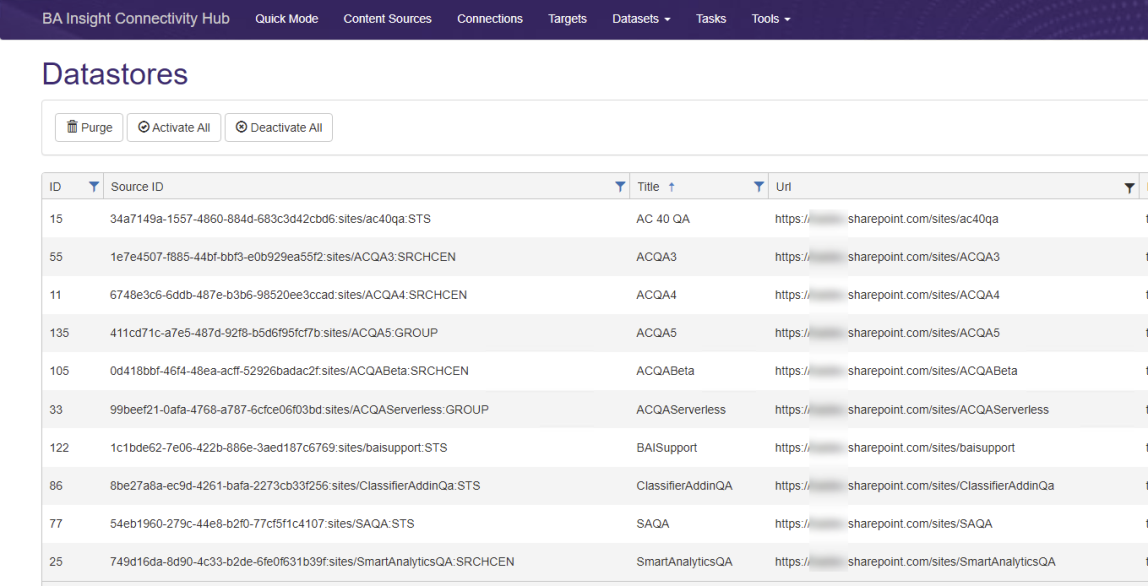
- On the Connections tab, under the Actions drop-down for your connection, select the Datastores Load option.
- Validate that all of the expected site collections are shown and set to active.
Run the Datastores Types Load Job
- Navigate to the Tasks tab.
- Create a new task for your connection.
- Select the Datastores Types Load job.
- Create Create.
_588x425.png)
- Verify the job runs successfully.
- On the Connections tab, under the Actions drop-down for your connection, select the Datastores Types Load option.
- Validate that all of the expected site collections are shown and set to active.
Run the Security Sync Job
The security setup is similar to that of the v1 connector.
- Run the Security Sync job.
- Validate your security map.
- For assistance, contact BA Insight support.
Create a New Content Source
Site Content Filter
Datastores in the SharePoint Online v2 connector are site collections (the top-level sites) only, and not sites.
To support retrieving content from only specific sites, a SITEURL content filter can be used in the Custom Filters field.
Example
- In version 1, you can crawl a specific sub-site via the Datastores list (v1 below).
- In version 2, this is configured in the content source using a custom filter (v2 below)
SharePoint Online O365 v1

Latest SharePoint Online

Metadata
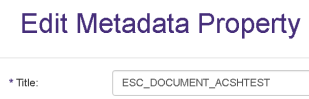
Metadata generation in SharePoint Online v2 is not generated using the format PARENTCONTAINER_METADATANAME, but simply METADATANAME.
For this reason you see a significantly lower number of properties after the Datastore Types Load job completes.
SharePoint Online Connector v1
SharePoint Online Connector v2

Crawling Published/Draft Items
- SharePoint Online connector version 2 does not require two configured Azure applications:
- 1st with full rights,
- 2nd with READ rights only
- Version 2 of the connector crawls only items which are Published/Approved (if content approval is enabled).
- Version 2 of the connector does not crawl Draft items.
Crawling Previously Indexed Content
- In version 2 of the connector, the only site collections are the datastores.
- Content that was previously crawled with version 1 of the connector must be recrawled with version 2.
- In version 2 of the connector, the sub-sites of a site collection are returned as items.
Remove SharePoint Online v1 Components (Optional)
You can now delete/remove SharePoint Online v1 components from your ConnectivityHub.
This is completely optional.
This includes your SharePoint Online v1 connector:
- Connection
- Content Source
- Any datastore load or datastore types load jobs.
- Security information such as security map, etc.
Uninstall the SharePoint Online v1 Connector
On the server your connector is installed on, perform the following steps:
- Open the Windows Control Panel.
- Select Add/Remove Programs>Uninstall a program>BA-Insight SharePoint Online Connector.
- When finished, close the window.