How to Set Up and Configure the Box Connector
This connector is installed with the same generic steps as any BA Insight connector.
Satisfy the Prerequisites for your connector before installing.
Configuration specifics are detailed below.
Connector Installation Specifics
Requests to your source system from the BA Insight Connector Framework come through the connector web service.
- For best performance, the connector web service should be installed on a windows server “near” the source system.
- If necessary, it can be installed on any of the app servers in your SharePoint farm.
- Note: The BA Insight Box Connector must be configured with secure connection - HTTPS - to function properly.
- Connector site bindings are set in IIS.
Verify the Installation
To verify the installation, follow these steps:
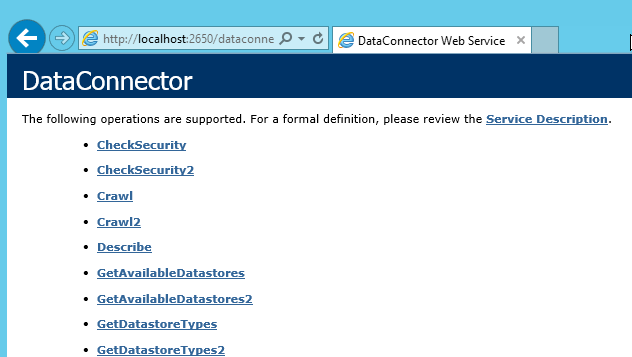
- Enter the URL to the DataConnector, in the format:
http://<host>:<port number>/dataconnector.asmx,
where <host> is the FQDN, Host name, or IP of the server where the connector is installed, and <port number> is the port number chosen during setup. - A DataConnector page appears, similar to that pictured below, that confirms the installation was successful.
Box App
Create the Box app and generate the security token.
Add the Connection Information
The following steps add a connection to the Connector Framework.
This connection information instructs the Connector Framework how to access your source system via the connector.
- Navigate to the Connector Framework.
- On the “Connections” tab, select “WebService Connection” from the “Add New” dropdown list.
- Enter the following basic connection data:
- Title: The name used for the connection.
- Content Owner: The Sharepoint user who will have full access to all of the content crawled by this connection. Typically this is a service account.
- Discovery Group (optional): Any AD group that will also be granted access to all items crawled by this connection.
- Web Service: The URL to the connector web service. The URL is in the format:
http://<host>:<port number>/dataconnector.asmx
where <host> is the FQDN, host name, or IP of the server where the connector is installed, and <port number> is the port number entered during the installation wizard process.
- Click Connect or Refresh Web service. The page re-loads with additional options.
- Complete the information to connect to the Box connector.
- Enter the Authentication ID used during the authorization of the Box application as discussed in the preceding chapter.
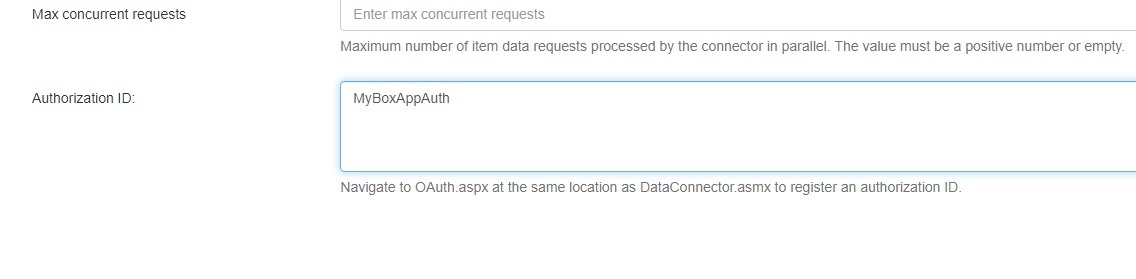
- Enter the Authentication ID used during the authorization of the Box application as discussed in the preceding chapter.
- Configure the rest of the connector fields under the other tabs, as appropriate.
Addendum: API Endpoints
For information about Box API calls, see: https://developer.box.com/guides/api-calls
The following is a list of the Box API endpoints called by the BA Insight Box connector:
- https://api.box.com/2.0/events
- https://api.box.com/2.0/users
- https://api.box.com/2.0/users/<userid>
- https://api.box.com/2.0/groups
- https://api.box.com/2.0/groups/<groupid>/memberships
- https://api.box.com/2.0/folders/<folderid>
- https://api.box.com/2.0/folders/<folderid>/collaborations
- https://api.box.com/2.0/folders/<folderid>/items
- https://api.box.com/2.0/files/<fileid>
- https://api.box.com/2.0/files/<fileid>/content