How to Set Up and Configure the SharePoint 2013/16/19 Connector
All BA Insight connectors can be downloaded from Right Answers under Knowledge > BA Insight > Product Downloads > Connectors.
This connector is installed with the same generic steps as any BA Insight connector.
Satisfy the Prerequisites for your connector before installing.
Configuration specifics are detailed below.
After installing the connector, install the Site Collection Enumerator if you would like the connector to automatically enumerate the site collections rather than entering them manually.
Install and Configure the Site Collection Enumerator
- The Site Collection Enumerator is a SharePoint solution which can be found in the folder where the SharePoint connector was installed.
- The SharePoint solution deploys the SitesEnumerator.svc service inside the SharePoint /_vti_bin folder in the farm you wish to index.
To add the package to the SharePoint farm to index, follow these steps:
- Copy the SharePointSiteCollectionEnumerator.wsp package on a server of the SharePoint farm to index.
- Open the SharePoint Management PowerShell with admin rights and run the following command in order to add the solution to the target farm:
Add-SPSolution "fullPathToTheWSP\SharePointSiteCollectionEnumerator.wsp"
- Install and deploy the Site Collection Enumerator solution:
Install-SPSolution -Identity SharePointSiteCollectionEnumerator.wsp -GACDeployment - No additional configuration is required.
Connection Configuration Specifics
Full READ permission can be given for an entire web application by way of the SharePoint Central Administration site.
You must add the user at the web app level to get full READ permissions.
- Login
- Required
- Enter the credentials of the account with full READ permissions.
- If the remote SharePoint farm to be indexed resides in an Active Directory domain not trusted by the domain with Connector Framework installed, you must also specify account credentials (in format Domain\User) to access the remote Active Directory domain.
- The SharePoint credentials must be added first, followed by a semi-colon and then by the remote AD domain credentials.
For example:
RemoteSPDomain\ReadOnlyUserName;RemoteSPDomain\ReadOnlyUserName
ReadOnlyUserPassword;ReadOnlyUserPassword - If there are multiple remote AD domains involved, add multiple credentials, each separated by a semi-colon.
- Site collections/Site Collections Enumerator Filter: This entry depends on the Automatically - Fetch Site Collection setting that you specify in step 11.
If this entry is set to:- OFF
- ON:
- This filter is used by the SharePoint Site Collections Enumerator service.
- Case-insensitive.
- You can specify both inclusion and exclusion rules; one set per line.
- Use * at the end of the string for wild cards.
Use the "|" character to separate multiple entries.
Enter site root URLs only. DO NOT enter sub-site URLs.
Example:
include=https://[tenant].sharepoint.com/site1|https://[tenant].sharepoint.com/sites*
exclude=https://[tenant].sharepoint.com/excludedNOTE: The site collections enumerator filters top-level site collections.
The enumerator does NOT filter sub-sites.
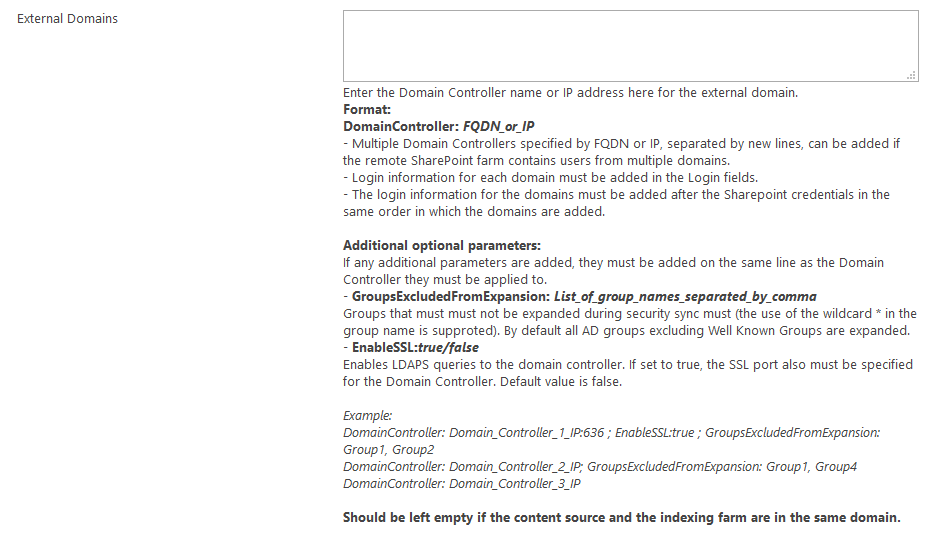
- External Domains:
- If the remote farm lives in an untrusted AD domain, specify the Fully Qualified Domain Name or IP address of the Domain Controller to use to properly process any AD security group used by the remote SharePoint farm.
The information must be added in the following format:
DomainController: <FQDN_or_IP>- Leave empty if the content source and the indexing farm are in the same domain
- Multiple domains must be added on separate lines
- Login information for each domain must be added in the Login section in the same order in which the domains are added in this section.
- Optional parameters can be added for each domain, on the same line as the FQDN or IP. The parameters must be separated by semi-colons.
- GroupsExcludedFromExpansion:
- This is a comma (,) separated list of groups that will be excluded from expansion during Security Sync
- EnableSSL:
- If set to "True", LDAP queries are used to retrieve the group membership.
- The port number (default: 636) must also be added to the Domain Controller FQDN or IP.
- GroupsExcludedFromExpansion:
- If the remote farm lives in an untrusted AD domain, specify the Fully Qualified Domain Name or IP address of the Domain Controller to use to properly process any AD security group used by the remote SharePoint farm.
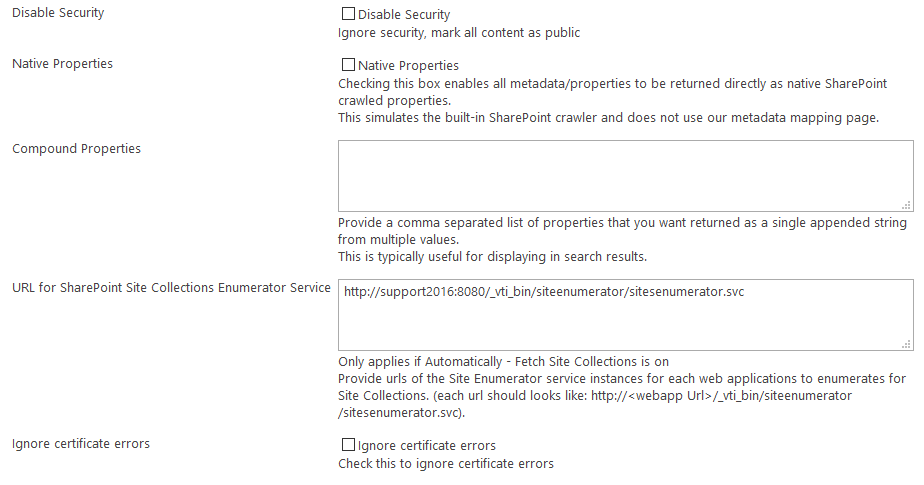
- Disable Security: Click this option if you want to ignore security and make all of your content public.
- Native Properties:
- If this flag is set, all the metadata and properties are returned directly as native SharePoint crawled properties.
- The Native Properties operation simulates the built-in SharePoint crawler and does not use the Connector metadata mapping page.
- For this reason, uncheck this box if you want to use the Metadata page.
- Compound Properties:
- Enter a list of properties that you want returned as a single appended string.
- If you enter more than one property, specify the delimiter using Compound Delimiters as explained below:
- For each of specified properties, the SharePoint 2013/16/19 Connector returns a property with a
_COMPOUNDsuffix. - The value of this property is a single appended string from multiple values, which is useful to display in your search results.
- For example, if the multi-value property
SAMPLEhas the string valuesSAMPLEandSAMPLE1, theSAMPLE_COMPOUNDproperty takes theSAMPLE,SAMPLE1string value.
- For example, if the multi-value property
- For each of specified properties, the SharePoint 2013/16/19 Connector returns a property with a
- URL for SharePoint Site Collections Enumerator Service:
- Only applies if Automatically - Fetch Site Collection setting that you specify in step 11, is on.
- Enter a list of Site Enumerator services instances for each web application to enumerate.
- Make sure that the URL is formed with a site that exists in your collection.
- For example, if you have 2 sites in your collection:
- http://webapp/site1 and http://webapp/site2,
- Then your enumerator URL should be:
- http://webapp/site1/_vti_bin/siteenumerator/sitesenumerator.svc
or - http://webapp/site2/_vti_bin/siteenumerator/sitesenumerator.svc
- http://webapp/site1/_vti_bin/siteenumerator/sitesenumerator.svc
- For example, if you have 2 sites in your collection:
-
Ignore certificate errors: Check this option to ignore certificate errors.
-
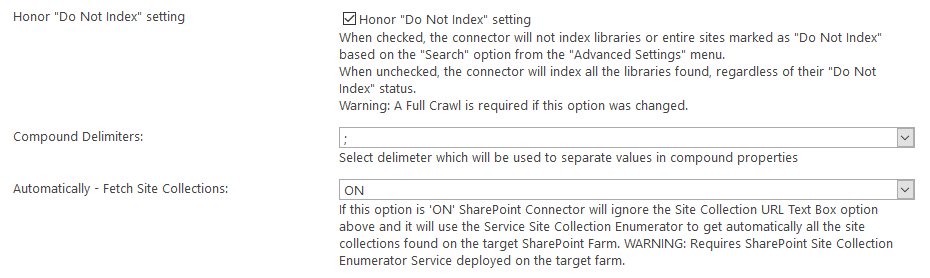
Honor "Do Not Index" setting:
By default, this check box is selected. Leave the default setting unless you want to index all the found libraries.
-
If you make a change to this setting, you must recrawl your content.
-
The setting also applies to sites.
-
When checked, lists belonging to sites which are marked with the
No indexflag are not crawled and the sites do not show up in the Mailboxes/Datastores list in Connector Framework.Note: This setting is not inherited by sub-sites and only works if you use the Auto-Fetch functionality for retrieving the site-collections from your SharePoint environment.
-
- Compound Delimiters:
- Specify a delimiter to separate values in your compound properties.
- For example, specify a comma (,) to use a comma- delimited string
- Automatically - Fetch Site Collections
- OFF (optional): Default setting. When set to OFF, you must explicitly enter each site collection you wish to index.
- ON: Use this drop-down setting to use the Site Collection Enumerator to collect all the site collections from the farm to index.
- Click Save.
Configure the Mailbox/Datastore Options
You must configure your mailboxes, or datastores, for the SharePoint 2013/16/19 Connector, using the following steps:
- Mailbox/Datastore Options: Click and see the Mailbox/Datastore Options page.
- Sync New Mailboxes/Datastores:
- If this flag is set, new Mailboxes/Datastores are automatically marked as active in the Mailboxes/Datastores list, and are processed during the next crawl.
- Otherwise, you must use the Mailboxes/Datastores list to activate the mailboxes and datastores automatically.
- Subtractive Sync:
- If this flag is set, Mailboxes/Datastores which are not found in Mailbox/Datastore load task are automatically removed from the Mailboxes/Datastores list and therefore from the index on the next incremental crawl.
- If you do not select this operation, use Mailboxes/Datastores list to delete, or to deactivate, the Mailboxes/Datastores manually.
- Sync New Mailboxes/Datastores:
- Site Title Filter: Filter the SharePoint site titles whose content you want to index.
- Each entry is case-insensitive.
- Use the wildcard * on either end of your entry, and use a | to separate your entries.
- For example, specify title1|*title2|*title3*.
- Site URL Filter:
- Filter the SharePoint URLs whose content you want to index. Each entry is case-insensitive.
- Use the wildcard * at the end of your entry, and use a pipe character (
|) to separate your entries. - For example, specify:
https://sitecollection.sharepoint.com/site1|https//sitecollection.sharepoint.com/sites*
- The Site URL Filter works like the Site collections/Site collections Enumerator Filter when you use the Site Collection Enumerator.
- Web Template Id Filter:
- Filter the SharePoint web template IDs whose content you want to index.
- Each entry is case-insensitive and must not include the number.
- Use the wildcard * at the end of your entry, and use a "
|" character to separate your entries. - For example, specify:
MPS|STS|SRCHEN|SPS*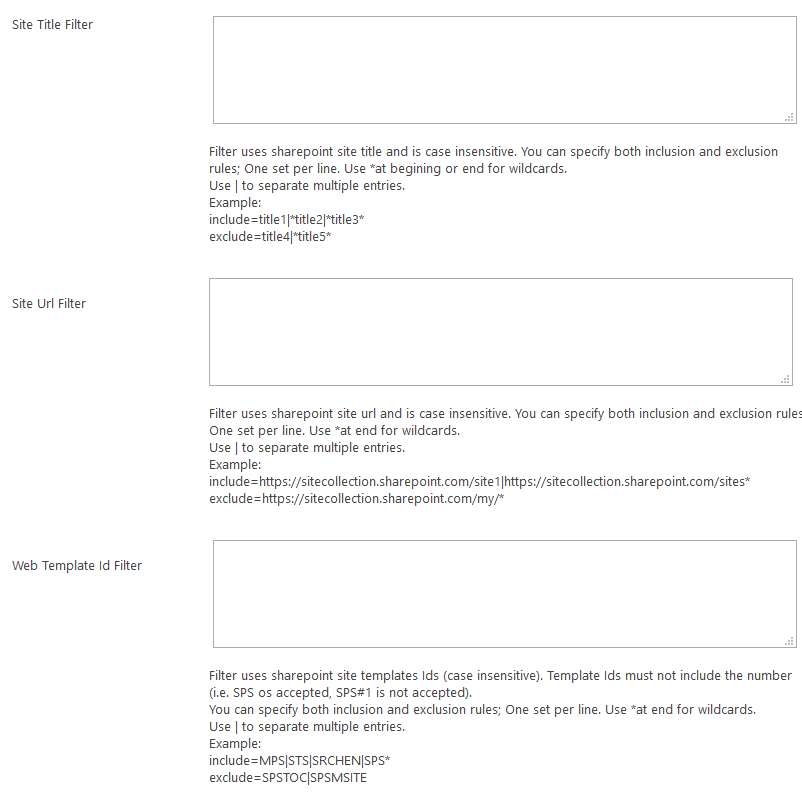
- Click Save.
Datastores/Datastore Types Job Frequency Requirements
-
After your connection is configured, you must run the datastore load job and datastore type load jobs in order to detect the SharePoint sites and metadata to index.
-
We recommend scheduling these jobs periodically once your content has been successfully indexed, so that new SharePoint sites and metadata can be properly detected and supported.
Content Configuration Specifics
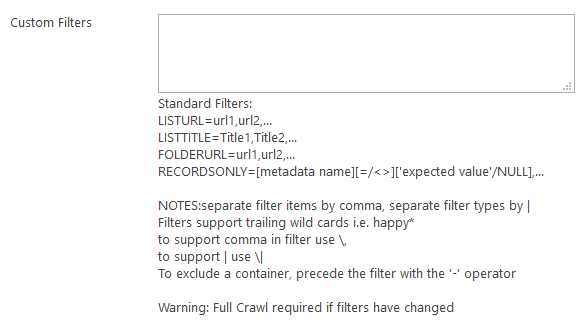
For a given content source, you can apply additional filters to decide which list or item to crawl.
Use the following syntax for the filters:
- LISTURL =url1,url2,...
- LISTTITLE=Title1,Title2,...
- FOLDERURL=url1,url2,...
- RECORDSONLY=[metadata name][=/<>]['expected value'/NULL]
- Separate filter items using a comma (,) and separate filters with a character pipe (
|) character. - Filters support trailing wild cards.
- To use a literal comma (
,) or a pipe character (|), precede the character with a backslash (\,), or (\|), respectively. - If any changes are made to this field, a full crawl is required to properly refresh the index.
- The records only option can be used to only return metadata for the items matching the condition specified.
- No file or binary content is retrieved for such items.
- No file or binary content is retrieved for such items.
- By default, connector returns SharePoint sites as search result items.
- To exclude these entries from search results, disable Site content type using the content types filter.
Extracting HTML Text and Metadata from Documents
You can extract HTML text and metadata from your source system.
-
This is optional.
Extracted information includes:
- Available text and metadata which can be mapped to metadata properties.
- HTML metadata tags from HTML pages.
- Available HTML tags and links for use as metadata from HTML documents
Other Configuration Specifics
If during incremental crawl your changes are not picked up by the connector, check the web.config file for the settings:
-
ChangeAction and ObjectChanged

-
If one of these settings is missing from the configuration file, the Connector checks for all changes.
-
To property map well known groups from SharePoint (like Everyone except external users, All Authenticated Users and authenticated Users), use the following script for Group load script:
dim sysId as string = HOST.GetSystemId()

If sysId = "true"HOST.SetAdId("NT AUTHORITY\Authenticated Users")
End If


If sysId = "windows"HOST.SetAdId("NT AUTHORITY\Authenticated Users")
End If


If sysId.startswith("spo-grid-all-users")
HOST.SetAdId("NT AUTHORITY\Everyone")
End If