How to Personalize User Queries
About Personalized Queries
Personalized queries are used to filter and boost search results.
This can be done one of the two ways:
- Use the SmartHub user interface to set your options.
- Use the pipeline stage method below, which offers you an easy-to-use GUI in a SmartHub pipeline stage.
Be aware that the order of relevancy stages order can impact the way documents are boosted.
The default priority order is:
- User Relevancy
- Personalization
- Admin Relevancy
Limitations
Some SmartHub Features are unsupported by some backends.
For information about limitations to your backend, see the "Limitations" topic for your backend.
Personalized Query Pipeline Stage
- The Personalized Query pipeline stage enables you to append information to an actively running user query.
- This stage requires you to set the User Profile settings.
- The appended information is generated based on the users’ User Profile properties such as Department or JobName.
- Use the steps in Add a scripting stage to add the Personalized Query stage.
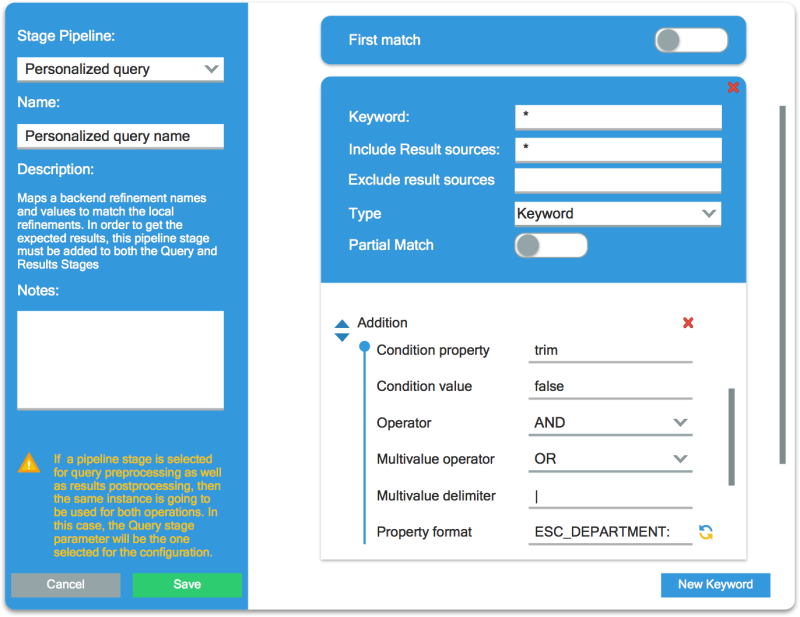
Personalized Query Stage Parameters
| UI Elements | Description |
|---|---|
| First match (toggle) | Enables the query processing stops at the first match per keyword |
|
Keyword (value) |
Enables the user to specify the keyword. This field is required. |
| Included Result Sources |
Enables the user to specify what result sources are used. If multiple result sources are used, the values must be separated by a semicolon. |
| Excluded Result Sources |
Enables the user to specify what result sources are excluded. If multiple result sources are used, the values must be separated by a semicolon. |
| Type | Enables the user to select the keyword type. |
| New Keyword (button) | Creates a new keyword with all the properties associated to a keyword. |
| Delete Keyword (button) | Deletes the selected keyword. |
| Partial Match | A toggle that enables partial matching. |
| Addition | Group of parameters described in bulleted list below. Can be added or removed (with red 'X'). |
|
The user can specify a property that is used in the condition check for the addition. |
|
The user can specify the condition check value for the addition. The addition condition is formed from the condition property and the condition value. |
|
Has one of the two available values: "AND" / "OR" . The default value is "OR". |
|
Has one of the two available values: "AND" / "OR" . The default value is "OR". |
|
Enables the user to specify a delimiter for multivalue properties. The input is invalid if it is empty. |
|
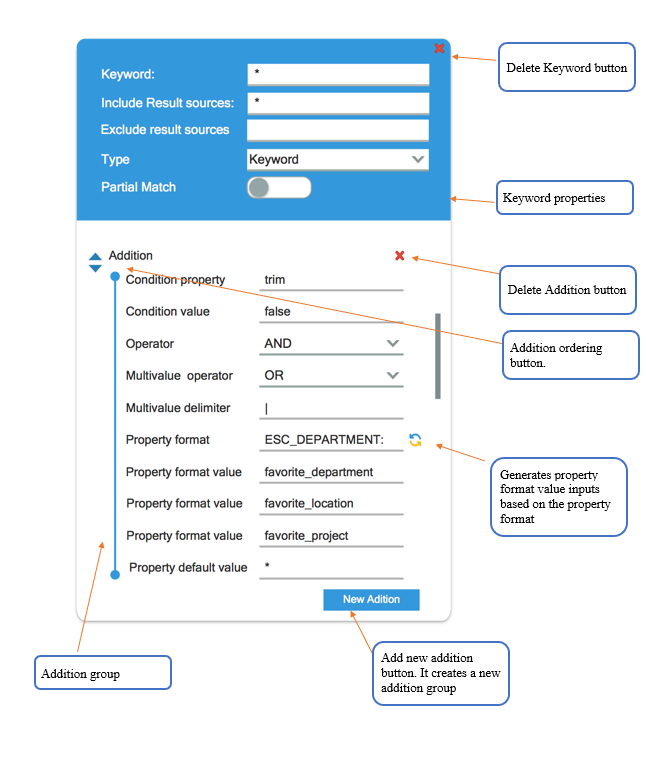
Enables the user to specify an additional property format. Generate property format value button Shown in the example graphic below. When clicked, this button renders a number of property values inputs based on the number of properties used in the property format text box. The property values are rendered in the order used in the property format textbox. |
|
Enables the user to specify the value for the property used in the property format textbox. |
|
Enables the user to specify a default value that is used in case that the dynamic property value entered does not exist. |
|
Deletes the selected addition. |
|
Enables the user to reorder the additions. |
|
See button at bottom of graphic below. Creates a new addition with all the properties associated with an addition. |
Personalize Query Keyword Example
See the following graphic for examples of various Personalized Query pipeline stage parameter values.