RightFind Backend
About RightFind
RightFind Enterprise provides faster discovery and insights with immediate access to scientific literature and data and strengthens copyright-compliant collaboration.
For more information see: http://www.copyright.com/business/rightfind/
Limitations
The RightFind backend does not support:
- User Impersonation
- Support previews
- File Type and Modified Date refiners
How to Set Up the RightFind Backend
Use the following topics to set up and configure your RightFind backend.
Add a New Backend to SmartHub
- Start by opening your SmartHub Administration site:https://<SmartHubSite>:<port>/_admin.
- Add a new backend.
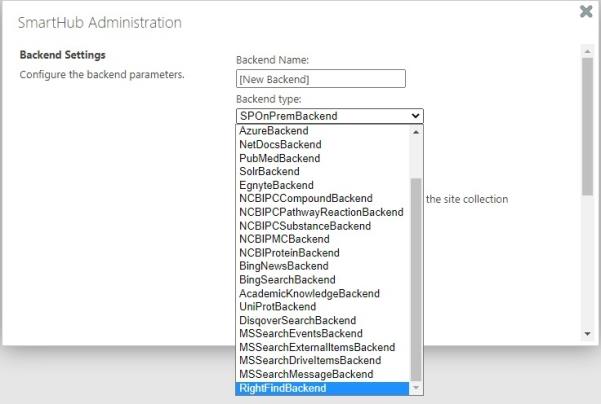
- TheBackend Settingspage appears. Select RightFindBackendfrom the "Backend type" drop-down menu:
- Complete the following fields on the page:
- Max number of results for shallow refiners: The number of results the backend uses to build the refiners (100 by default).
- The lower the value, the faster queries are performed. Note this can result in a less precise refiner.
- The higher the value, the slower queries are performed, Note this can result in a more accurate refiner.
- Fields to query: The RightFind index fields to query, comma separated. Default value is: title,parentTitle,abstract. The full set can be obtained by checking RightFind documentation,
- RightFind Domain: The RightFind domain you want to search. For example: www.myrightfinddomain.rightfind.com
- User Email: The email of the user account that has access to all items
- Password: The password for the email above
- Access Token: The access token obtained after authenticating
- Refresh Token: The refresh token obtained after authenticating, used to refresh the access token when it expires.
- Max number of results for shallow refiners: The number of results the backend uses to build the refiners (100 by default).
- Click the Get Access Tokenbutton. This opens a new web page and redirects you there.
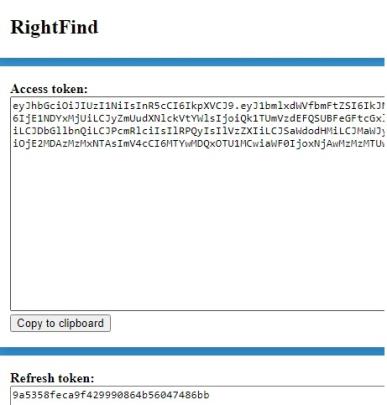
- Copy the access token using the "Copy to clipboard" button.
- Go back to theBackend Configurationpage and paste the access token in the Access Tokenfield
- Repeat steps 6 and 7 for the Refresh Token
- Click the Savebutton.
- Close the web page opened during the authentication process.
Verify the Required Pipeline Stages
After the Backend is configured, ensure the Property Mapperpipeline stage is configured for both theQueryandResults pipeline stages for your new RightFind Backend.
If these pipeline stages are missing, add them using the following steps:
- Go to theGeneral Settingspage from the SmartHub Administration page:https://<SmartHubSite>:<port>/_admin.
- Select the RightFind backend you have just created.
- Click Add a new Query Stagelink.
- In the newly opened window, select the Property Mapperstage from the "Pipeline Stages" drop-down.
- Add a new name for this state.
- In the "Parameters" text area on the right side, add the properties you want to map in the format described in the left panel.
- Save and repeat these steps for theResult Pipeline stage.
Configure Your SmartHub Results Page
- Your SmartHub Results page is controlled by the fileResults.html(or a modified version of that file if you use a customResultspage).
- Open yourResultsHTML page to edit.
- Reference theRightFind backend namewithin a
coveo-tab-section.
See the example below:
Example:

Refiner Properties
The results can be refined by the following properties:
- authors (string)
- publicationDate (string)
- title (string)
- genre (int)
- contentId (int)
Default Refiners
One default standard refiner is already mapped to the following property:
- Display Author → authors
Note: Note: The "File Type" and "Modified Date" refiners will not work with the RightFind backend. When using only a RightFind backend, it is advised to edit the Result.html file and remove the 2 refiners from the code.
Sorting Properties
The RightFind Backend supports sorting by only one property at one time.
The properties that can be used for sorting are:
- title
- score
- pubYear