Tracking user queries and selections
What is Tracking Behavior?
Tracking Behavior is comprised of the queries users perform and the selections they make when querying in SmartHub. This information can be analyzed in order to better meet user needs, improve the quality of your search, and anticipate future search demands.
How is Tracking Behavior Set?
Tracking behavior can be set by Admins or Users in different locations:
Administrator Set Behavior
- Administrators can specify tracking behavior using the
SH.Analyticssettings in the modules/SmartHubResourceLoader/DefaultModuleSettings.js file. - Copy the settings described below into your custom settings file, such as CustomResultsSettings.js for your custom Results.html page.
- Modify the settings as you see it. DO NOT modify the DefaultModuleSettings.js file. It is overwritten at upgrade time.
-
- If administrators choose not to show the tracking behavior control on SmartHub pages, the value of the defaultTrackingBehavior setting will be used as the tracking behavior for all users.

By default, defaultTrackingBehavior is set to "0" in the DefaultModuleSettings.js file:
0 - Track activity(default): All queries and selections are tracked and associated with the name of the user.1- Do not track: No information is recorded.2- Track but hide identity: All actions are monitored, but no personal data is associated with the tracking. SeeUser Profile mappings.After you change the "
showTrackingBehaviorControl" to "false," wait 10 minutes (let the sync to run two times) and then delete and recreate the paxindex. This way you ensure that you don't have old records in your reporting site.
- If administrators choose to show the tracking behavior control on SmartHub pages, the tracking behavior will be the one specified by the user in the UI.

- If administrators choose not to show the tracking behavior control on SmartHub pages, the value of the defaultTrackingBehavior setting will be used as the tracking behavior for all users.
User Set Behavior
Users can change their own tracking level by clicking Analytics from the User Preferences menu:
-
In the Analytics preferences menu, select one of the following:
-
Track
-
Do not track
-
Track but hide my identity
-
Determine which SmartHub Modules Return Tracking Results
Use the following list to understand which SmartHub Analytics modules use tracking behavior. By default, these modules are invoked in the <SmartHub_install_dir>/modules/SmartHubResourceLoader/DefaultModuleSettings.js file:

- LoadPage: This is triggered on any page refresh and records information about the page and the user.
- Query: This is triggered when a query is performed and results are returned. It records information about the query, user, and the returned result set.
- OpenResultItem: This is triggered when a user clicks the link to a document. It records information about the document, the entered query, and the user.
- ApplyRefiner: This is triggered when a refiner is applied. It records information about the query, the refiner, and the user.
- RemoveRefiner: This is triggered when a refiner is removed. It records information about the query, the refiner, and the user.
- This is an enrichment module.
- It adds information about the current user when an event is performed.
- Information is retrieved from the SharePoint User Profile service.
- Enriches information from ApplyRefiner with Visual Refiners special features such as:
- Show More
- Keep Filter
- SearchWithin
-
PreviewDocument: This is triggered when a user previews a document using Smart Previews. It records information about the following:
- Previewed document
- Interactions performed
- Query
- Users
- Previewed document
- Provides details about user interactions with the Chatbot.
- Provides document ratings related to:
- Content source
- Document quality
Custom Modules That Can Use Tracking Behavior
You can develop 2 types of custom modules:
- Capture module: This module captures events such as tracking mouse movements in order to learn about user search operations.
- Enrichment module: This module enriches the captured data.
For more information, contact BA Insight Support.
User Profile Settings
In order to use the tracking option, you must configure your user profile settings. These settings determine which users have their actions tracked. SmartHub Analytics calls the User Profile Service to obtain the profile details. Some of these properties (details) are saved in the index. The information that is stored in the index appears as User Analytics reports.
View Hidden Identity Values for Tracked User Operations with Hidden Identities
- The file format is set as: "User Profile Property Name": "Analytics internal mapping name"
- The property name from the User Profile appears on the left side of the colon ':' on each line.
- The Analytics internal mapping name appears on the right side, after the colon ':' on each line.
Hidden User Identities
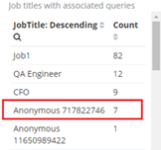
For each User Profile property (such as Department, Job, or Location), if a user chooses to track operations but hide their identity, a unique value appears, such as Anonymous asda43dsad5.
See the properties in the Reporting site, shown here:
Track case sensitive queries
By default all the queries are recorded and shown "lower case".
This causes the queries "test" and "Test" to be grouped and reported as "test".
If you need to enable case sensitivity for queries, copy the parameter enableCaseSensitivity (from DefaultModuleSettings.js) into your page's custom setting file and set it to true.