Generate Content Metadata
The Content Metadata page enables you to manage existing metadata definitions for an established Content Source, create new metadata definitions, and clone existing metadata properties to new Content Sources.
- Click the Content Sources Tab.
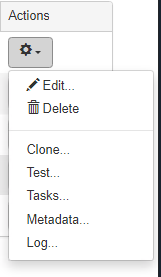
- Under Actions click the Metadata link for the content source.
- If you want to start with existing metadata to use as a template, select it from the Import drop-down list, and click Import.
- Click Generate.
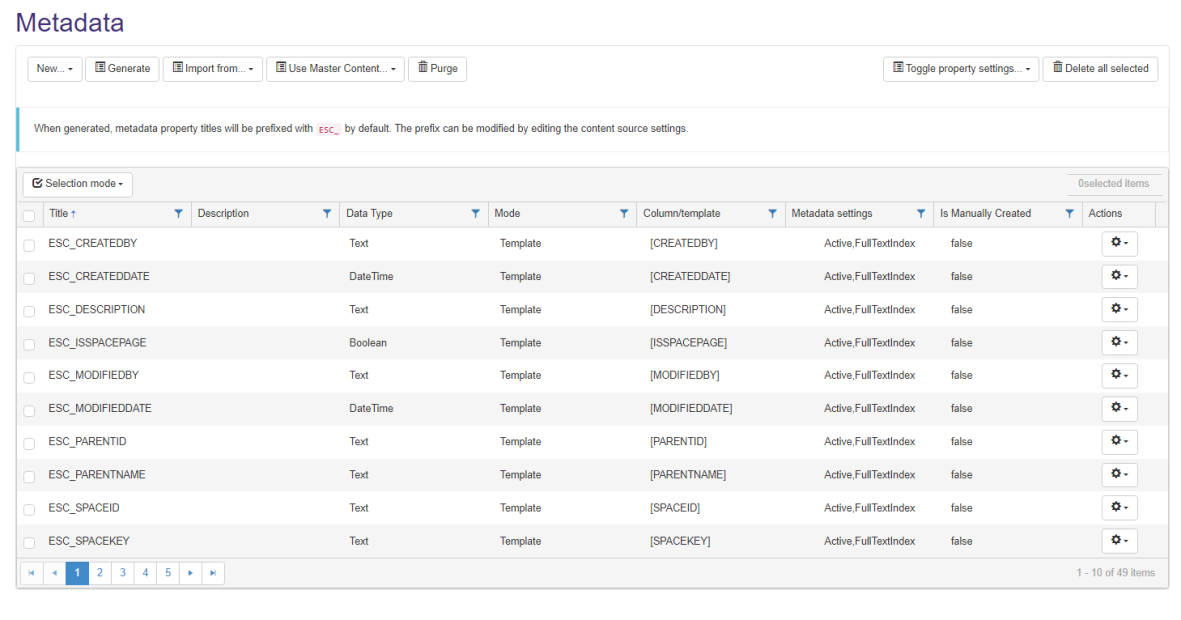
- To remove the metadata field for the associated Content Source, click the Delete Action.
- To edit the property, click the property name.
- View the "Metadata Description".
- View the "Content Type": Boolean, DateTime, Integer, Numeric, or Text.
- Check whether the item is Active for the associated content source.
- If checked, the metadata field will be used during content source indexing.
-
Select check box to include the metadata field in the full text index, as well as the property store
-
You can also set this flag in Central Administration UI : Search Service Application > Search Schema > Crawled Properties > Edit Crawled Property > Include in full-text index.
Important!
SharePoint 2013 ignores this flag for non-text properties that are mapped to managed properties, and these instances will not be included in full-text index.
For a workaround, see Connector Framework Troubleshooting.
-
- View whether a matching SharePoint Search Managed Property exists (Applicable to SharePoint Search instances only.)
- View whether custom scripting is used in the generation of this metadata field.
- View last modified date.
- View list of Content Sub-types that this metadata applies to. (Applies to some connectors.)
- View any alerts generated by the Framework associated with this item.