Add Smart Previews to Your Results Page
Use the following instructions to configure SmartHub to use the Smart Previews component.
About Smart Previews in the Results Page
-
Smart Previews enables Instant preview of the entire document regardless of location.
-
Content may be in SharePoint, in FileShares, or in any system with a connector.
-
For more information, see https://www.bainsight.com/smart-previews/
Add Smart Previews to the Results Page
To add the Smart Previews component to the Results page, at a high-level (details further below):
-
You first create a new, custom Results HTML page
-
Next, you modify the Results page settings
-
Lastly you preview your changes and save them.
-
For more information about using HTML page custom settings, see Use the UI Editor.
UI Editor
The easiest and fastest way to change the document thumbnails is via the SmartHub UI Editor.
For information about how to access the UI Editor as well as who can access it, see Use the UI Editor.
Procedure:
-
SmartHub administrators can simply click the UI Editor link from the SmartHub ADMINISTRATION page.
-
Click the Select a page link from the top menu.
-
Select (double-click) the Index.html page to modify it.
-
Below, the Index.html page is shown for sample purposes.
-
BA Insight recommends you create your own custom directory and custom page to modify. Leave the default files as templates.
-
Example: MyIndexPage.html
-
See Create Custom Pages.
-
-
-
Select the Advanced mode from the top right of the page.
-
Select the Customize ContentContainers link from the top of the page.
-
Select the Advanced settings edit link at the top center of the page.
-
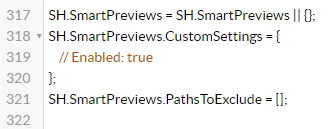
Scroll down to around line 317.
-
To access the available SmartPreviews settings, click the See Default Settings link in the top right corner.
-
A new browser tab opens with all available SmartHub module settings.
-
Search for the word "SmartPreviews" on the page to quickly navigate to the SmartPreviews default settings, below:
    SH.SmartPreviews = SH.SmartPreviews || {};
    SH.SmartPreviews.DefaultSettings = {
        Enabled: false,
        Address: "https://smartpreviews.bainsight.com",
        ExtensionProperty: "FileExtension",
        PreviewTriggers: ['.open-preview-button'],
        SupportedExtensions: ['rtf', 'doc', 'docx', 'docm', 'dot', 'dotm', 'dotx', 'ppt', 'pptx', 'pptm', 'pps', 'ppsx', 'pdf', 'xls', 'xlsx', 'xlsm', 'txt', 'log', 'zip', 'eml', 'msg', 'gif', 'jpg', 'jpeg', 'bmp', 'png', 'tif', 'tiff', 'emf', 'wmf'],
        Options: {
            OpenSearchPanelByDefault: false,
            OpenBookmarksPanelByDefault: false,
            KeepStopWords: false,
            ShowDescriptiveText: false,
            WidgetsToLoadForCustomViewer: ["htmlPreview", "docNav"],
            UITimeoutSeconds: 10,
            TimeoutWarningMessage: "Generating preview for this document is taking longer than %time% seconds. Please check back in a few minutes."
        },
        Thumbnails: {
            PersonalizedRecommendations: {
                Enabled: false,
                ResultsSelector: ".PersonalizedRecommendations .sh-result-item"
            }
        }
}- Copy only the settings you want to change from the section SH.SmartPreviews.DefaultSettings.
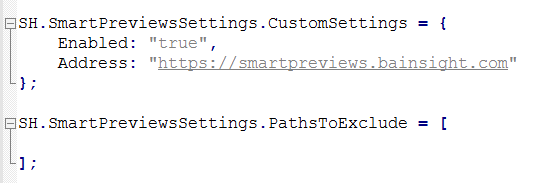
- Back in your Advanced settings tab paste the copied settings inside the section SH.SmartPreviews.CustomSettings and change them accordingly:
- Click Save changes.
- Click the link Preview <html> file.html at the top of the code editor.
- Review your HTML page in the new tab that opens.
- Make any necessary changes back in the code editor. Repeat steps 15-16 as necessary.
- Click Save changes.
Smart Previews Parameters
-
Enabled- Default: false
- Set to "true" to enable Smart Previews functionality.
Address- Replace this value with the Smart Previews Web Resources site URL address.
ExtenstionProperty- The property name that contains the file extensions.
PreviewTriggers- The selector of the button that will display the preview when clicking on it.
SupportedExtensions- Contains the file extensions for which Previews are generated.
Options-
OpenSearchPanelByDefault- Set to true to open the search inside panel, by default, when opening the document viewer.
-
OpenBookmarksPanelByDefault
-
Set to true to open the bookmarks panel, by default, when opening the document viewer.
Limitation: You cannot have bothOpenSearchPanelByDefaultandOpenBookmarksPanelByDefaultset to true at the same time. -
-
KeepStopWords- Set to true to highlight the stopwords in the document viewer.
-
ShowDescriptiveText- Set to true to display a descriptive text to help users understand what they see in the document viewer.
-
WidgetsToLoadForCustomViewer-
Specify what widgets to load when the preview is displayed in a custom viewer:
-
htmlPreview (Required): Displays the preview content.
-
docNav (Required): Displays the navigation bar for pagination.
-
zoomControl (Optional): Displays the zoom control.
-
searchToolbar (Optional): Displays the button that shows/hides the "Search inside" panel.
-
If the OpenSearchPanelByDefault setting is set to true, the searchToolbar widget becomes required.
-
docActions (Optional): Displays the preview actions button.
-
bookmarksToolbar (Optional): Displays the button that shows/hides the bookmarks panel.
-
-
-
UITimeoutSeconds- The number of seconds after which the TimeoutWarningMessage is displayed.
- If you do not want to display a message, set to -1.
-
TimeoutWarningMessage- The message that will be displayed when the online previews generation takes too long.
- Default value is "Generating preview for this document is taking longer than %time% seconds. Please check back in a few minutes."
-
%time% This is replaced with the actual number specified in the UITimeoutSeconds setting.
Limitation:UITimeoutSecondsandTimeoutWarningMessagesettings work only with Smart Previews v3.3 or newer versions.
-
Thumbnails-
For details see the Configure Documents Thumbnails section.
-
-
ContentBySearchSelectors-
Contains a comma separated list of ContentBySearch selectors.
-
If it is left blank, the preview buttons are not displayed for any of the ContentBySearch elements.
-
For example: ".CoveoContentBySearch" or "#InterestsCBS,#MyDepartmentCBS".
-
-
Note: Content Security Policy from SmartHub web.config should be modified so that the Smart Previews resources are loaded by the browser.
Example:<addname="Content-Security-Policy"value="script-src 'self' 'unsafe-inline' 'unsafe-eval' https://previewapp.bainsight.com; style-src 'self' 'unsafe-inline' https://fonts.googleapis.com https://previewapp.bainsight.com; img-src 'self' blob: data: https://previewapp.bainsight.com"/>
Custom Settings Example: