User Login Report
The User Login report provides data about specific users, as well as the last time each one logged into Eclipse PPM. Users can choose to export the User Login report as a PDF file or a Microsoft Excel spreadsheet.
The user running the report must select which users and/or User Groups will be listed in the report. The report will display each user's login, identification details, Resource details, Resource Types, User Groups, and permission policies.
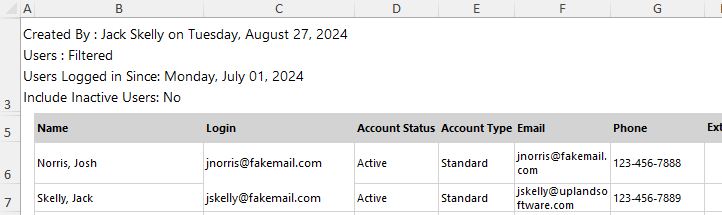
Additionally, the column furthest to the right will display the date and time that each listed user last logged into Eclipse PPM.
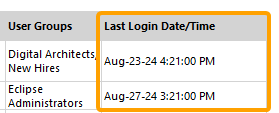
Administrators can run and download the User Login report from the Reports page.
To run the User Login report:
Before You Start: Eclipse PPM users require the "User Administration" permission from an Application Policy to run the User Login report.
-
Select the Reports icon
 from the Navigation Menu.
-
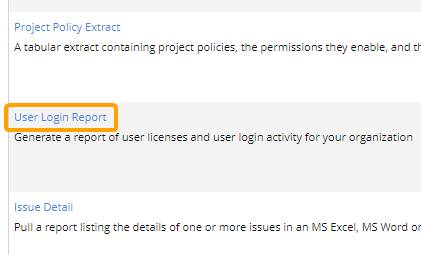
Select User Login Report from the list of Eclipse Reports.
-
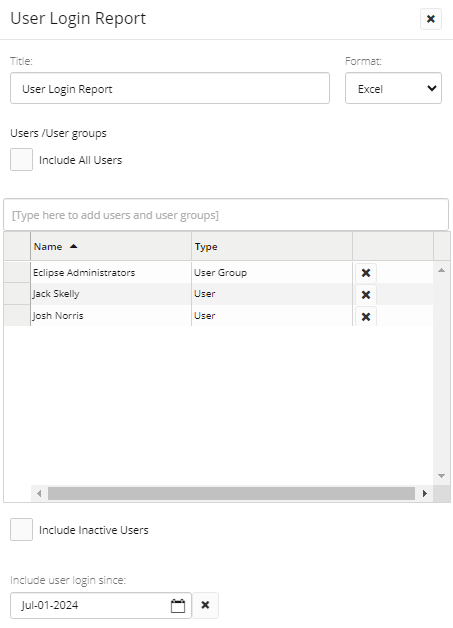
Use the "User Login Report" window to customize your User Login report.
-
Title: Enter a custom name for your User Login report.
-
Format: Determine whether to export your User Login report as a PDF file or a Microsoft Excel file.
Tip: Excel files are much easier to edit. Users can make adjustments and leave notes on Excel files before saving them and sending them to others.
-
Users / User Groups: Type the name of a user or User Group into the textbox and select one from the list of suggestions that appears. Continue this until all of your desired users and User Groups have been added to the table. Additionally, select the "Include All Users" checkbox to automatically add every user from your Eclipse PPM environment to the report.
Note: Select the Delete icon
 next to the name of a user or User Group to delete it from the report.
Note: If a user has been added to the report and also belongs to one (or more) of the User Groups added to the report, the user will still only appear once.
Note: If the "Include All Users" checkbox has been selected, the "Users" field will be set to "All" under the report title.
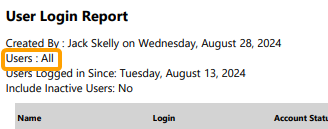
If not, the field will be set to "Filtered".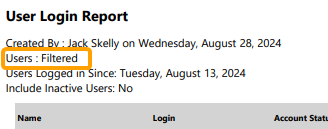
-
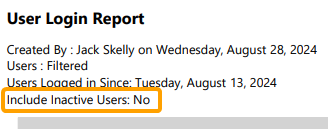
Include Inactive Users: Select this checkbox to include any inactive users in the report.
Note: This selection will be displayed on the report directly under the title.
-
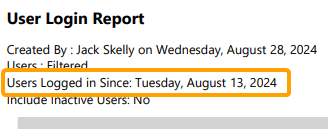
Include user login since: Select this field to filter the users by the date they logged into Eclipse PPM. Any users who logged in before the selected date will not be included in the report.
Note: Select the Delete button
next to the field to empty it. Note: The selected date will be displayed on the report directly under the title.
-
-
Select the Run button.
After selecting Run, the report will automatically download onto your device in your selected format.