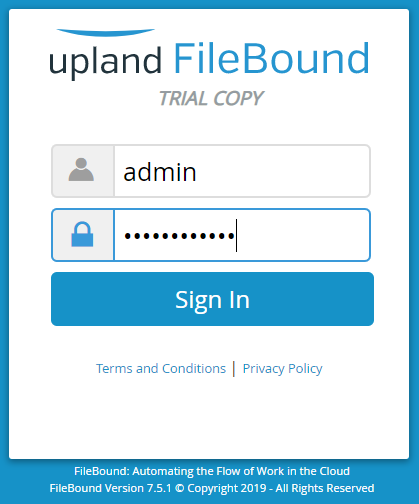
When you access the FileBound URL, you will see the sign in screen. The number of users that can be signed in at the same time depends on the type of license that you have.
A System Administrator has the ability to view successful or failed log in attempts for users using a User Login Report. See User Login Report for more information.
- Type your username in the Username box.
-
Type your password in the Password box. If you have forgotten your password, click Help I forgot my password. to send an one-time password to the configured email address. You can sign in to FileBound using the one-time password and then reset your password.
Note: You will see the Help I forgot my password link only if it is enabled by the System Administrator. - Click Sign In.
The screen that displays when you sign in depends on the Start Screen that is selected in User Preferences. See Edit my preferences for more information.
License expiry message
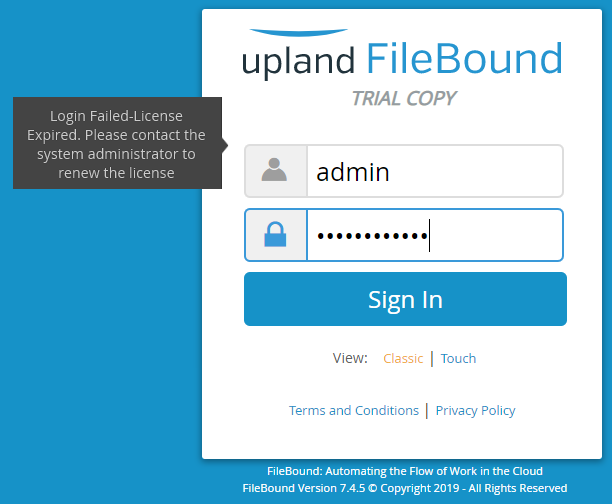
The sign in screen displays a message if your FileBound license has expired or is about to expire. The message is displayed every day starting 30 days prior to the expiry date. When signed in, another message is displayed that mentions the number of days remaining before the license expires. You cannot sign in to FileBound once the license has expired.
License expiry message for Administrators
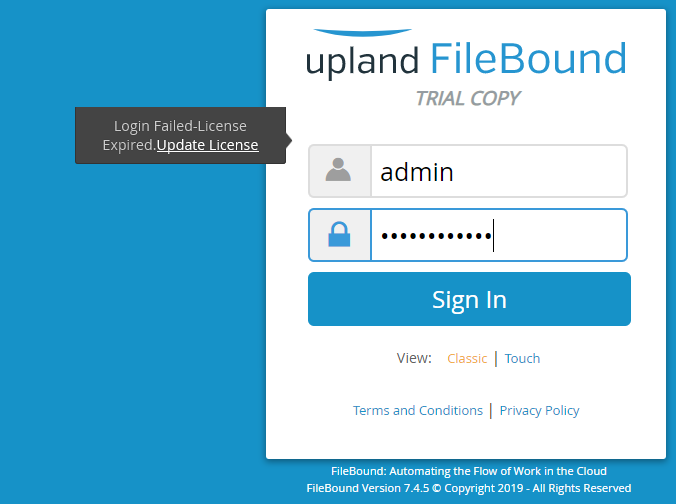
The license expiry message displayed for System Administrators provides an option to update the license.
Database not compatible message
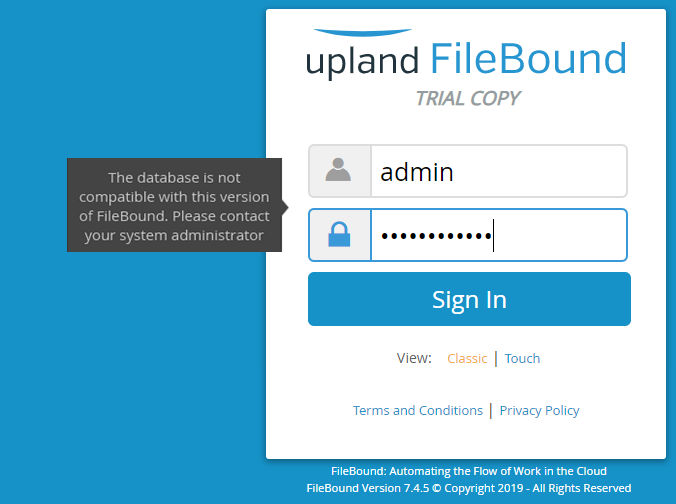
A message is displayed on the sign in screen that the database is not compatible with the current version of FileBound. This may occur when FileBound site is not associated with a current database. For example, you have updated from FileBound 7.2 to FileBound 7.3, but the database was not properly updated due to an error.
Menu