Adding user accounts
As an administrator, you have access to add and remove users in Mobile Commons.
To access user settings:
-
On the right side of the title bar, select your profile picture.
-
Select Company & Users.
The Company & Users page contains the Active Users and Inactive Users tables.
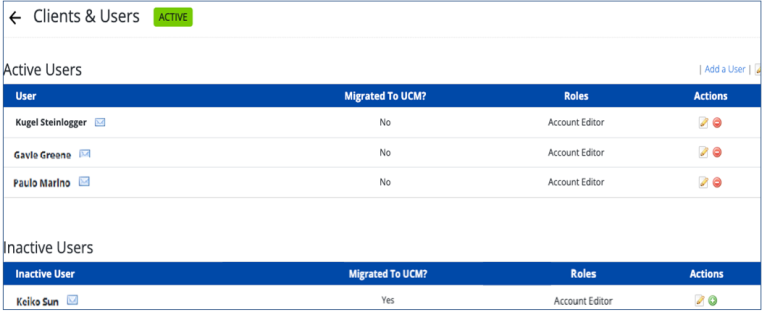
The company name, ID, and key are listed at the bottom of the page.
From the Company & Users page:
For more information, see Editing user accounts.
Understanding user roles
The following standard user roles determine access to Mobile Commons:
| Role | Description |
|---|---|
| Account Editor | (Highest level) Access to add, delete, and edit users in this account. |
| Editor |
(Second-highest level) Access to create campaigns and send messages. Note: Non-editors can only view reports; they can not edit or update any data. |
| Limit to Campaign Editor Role | Access is limited to the assigned campaigns. |
| Broadcast Require Approval | Access is limited to creating a broadcast that must be approved by an Editor. |
| Agent View Only | Access is limited to the Agent View only. The role cannot access any personally identifiable information (PII). |
| Analyst | (Default) Read-only access to view all reports and content. This role cannot take actions. |
Adding a new user
To add a new user:
-
On the right side of the title bar, select your profile picture.
-
Select Company & Users.
You see the Active Users table.

-
In the upper-right corner above the Active Users table, select Add a user.
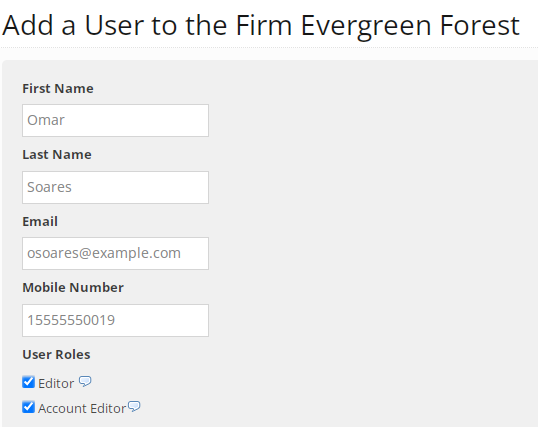
The Add User page opens.
-
Fill in the user's profile information:
-
First and last names
-
Email address
-
Mobile number
-
-
In the User Roles section, select the role for the new user.
Tip: If you do not assign a role, the user is limited to read-only access to view all reports and content (Analyst).
 User roles
Role Description Account Editor (Highest level) Access to add, delete, and edit users in this account. Editor (Second-highest level) Access to create campaigns and send messages. Non-editors can only view reports; they cannot edit or update any data.
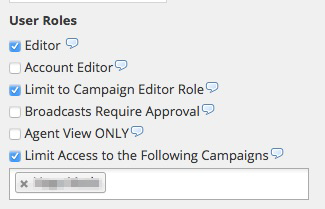
Tip: To limit an editor's access, select the Limit to Campaign Editor Role option and fill in the Limit Access to the Following Campaigns field, below.
Limit to Campaign Editor Role Access is limited to the campaigns you assign in the Limit Access to the Following Campaigns field, below. Broadcasts Require Approval Access is limited to creating a broadcast that must be approved by an Editor. This role may be assigned in conjunction with the Campaign Editor role. Agent View Only Access is limited to the Agent view only. This role cannot access any personally identifiable information (PII).
Note: The Editor setting must also be set to true; otherwise, the agents cannot send responses.
Limit Access to the Following Campaigns Access is limited to the assigned campaigns.
-
To assign one or more campaigns, select this option, then start to type a campaign name, which filters the list. Select the matching campaign name.
-
To remove a campaign from the list, select X next to the campaign name.
Note: To ensure that this user can take action on their assigned campaigns, make sure that Limit to Campaign Editor Role and Editor options are also selected:
Note: Creating a user on a main account with any level of access, except for Limit Access to the Following Campaigns, will assign access to both the main account and any subaccounts; creating a user with any level of access on a subaccount will limit access to the assigned subaccount.
-
-
Select the user's time zone from the drop-down list.
-
(Optional) To add a 32 x 32 pixel photo that will represent the user in Mobile Commons, work with Gravatar (https://en.gravatar.com/) or other service and then paste the URL for the image file in the Photo URL field.
-
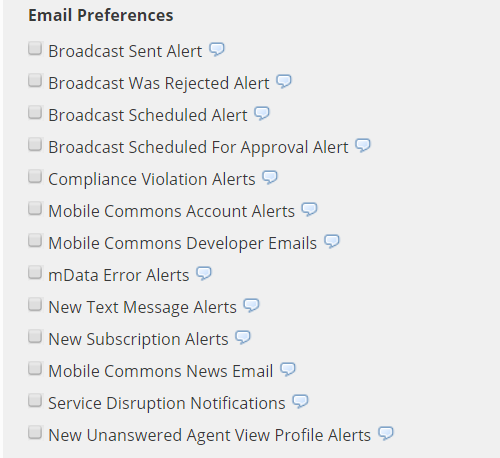
In the Email Preferences section, select the supported email notifications, for example, new incoming messages, new opt-ins, etc.:
-
If the user role is Editor, be sure to select Broadcast Scheduled for Approval Alert.
When a broadcast is added by a campaign editor with restricted access, it must be approved before sending. Any editor can review and approve a broadcast message, so to avoid unnecessary delays, it is important to ensure that editors receive an email alert when a broadcast message is ready for approval.
-
If the user role is a restricted Campaign Editor, be sure to select Broadcast was rejected to send a notification if a broadcast message is not approved. The campaign editor can then edit the broadcast message and re-submit it for approval.
-
-
To add a password for the user, enter a new password in the Password and Password Confirmation fields.
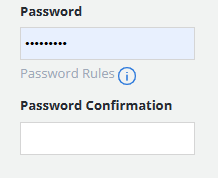
For guidelines on adding passwords, select Password Rules below the Password field.
Tip: To ensure password security, instruct the new user to change their password as soon as they have access to Mobile Commons.
-
When you are done, select Create to add the new user.
Assigning the Campaign Editor role
Campaign Editor is a restricted role that allows the user to access and take actions only in specific approved campaigns.
To assign a campaign editor role:
-
On the right side of the title bar, select your profile picture.
-
Select Company & Users.
-
Select Add a user.
-
Fill in the user's profile information:
-
First and last names
-
Email address
-
Mobile number
-
-
In the User Roles section, select Limit to Campaign Editor Role.
-
Select Limit Access to the Following Campaigns. Begin to type the campaign name, and then select one or more campaigns from the pop-up list. To remove a campaign from the list, select X next to the campaign name.
-
To allow the user to build broadcasts for the assigned campaigns, select Editor.
The Campaign Editor can assign groups to a new broadcast. If a member of a group is not already a subscriber to that broadcast, then they will be automatically opted in to the campaign.
-
To restrict the user from automatically adding new subscribers to a broadcast campaign, select Broadcasts require approval. An editor will need to approve a broadcast message created by this user before it can be sent.
Tip: In the Email Preferences section, be sure to select Broadcast was rejected.
-
Select the user's time zone from the drop-down list.
-
(Optional) To add a 32 x 32 pixel photo that will represent the user in Mobile Commons, work with Gravatar (https://en.gravatar.com/) or other service and then paste the URL for the image file in the Photo URL field.
-
In the Email Preferences section, select Broadcast was rejected to send a notification if a broadcast message is not approved. The campaign editor can then edit the broadcast message and re-submit it for approval.
Permissions for the Campaign Editor role
Campaign editors can take the following actions for their approved campaigns:
-
Create and edit message schedules
-
Create and edit broadcasts
-
Create and edit opt-in paths
-
Create and edit keywords
-
Can access and send to groups
-
View and run campaign reports
-
View the Inbox and the Outbox
-
View and directly message profiles from approved campaigns
-
Access the Agent View
-
Manually opt-out subscribers
-
Access, create, edit, and delete custom fields
-
Create and edit mDatas
-
Create and edit mConnects, phonebook, and recordings
Campaign editors cannot do the following:
-
Create, view, or edit Smart Campaigns
-
Create, view, or edit the master campaign
-
View deactivated campaigns
-
Create and edit users
-
View calls
-
Create, view, or edit affiliates, also known as subaccounts
-
Create, view, or edit links
-
-
To add a password for the user, enter a new password in the Password and Password Confirmation fields.
For guidelines on adding passwords, select Password Rules below the Password field.
Tip: To ensure password security, instruct the new user to change their password as soon as they have access to Mobile Commons.
-
When you are done, select Create to add the new Campaign Editor.