Editing user accounts
After you add a user account, you can edit, deactivate, or reactivate it.
Note: Each user has access to edit their own account.
Depending on your level of access, you may:
For more information, see Adding user accounts.
Editing a user account
To edit a user account:
-
On the right side of the title bar, select your profile picture.
-
Select Company & Users.
You see the Active Users table.

-
Locate the user In the Active Users table, and then select
 Edit user at the end of the row.
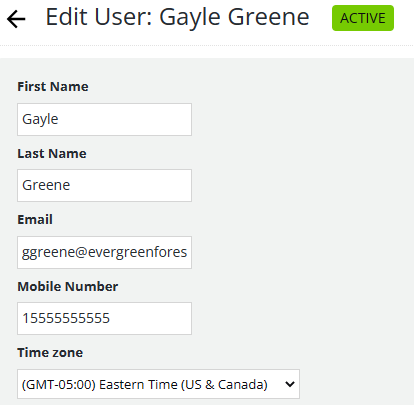
The Edit User page opens.
-
Make changes to the user record and notifications. For more information, see Adding a new user.
You see a record of changes made to the account in the History table at the bottom of the page.

-
When you are done, select Update.
Deactivating an active user
To remove a user's access to Mobile Commons:
-
On the right side of the title bar, select your profile picture.
-
Select Company & Users. You see the Active Users table.
-
Locate the user In the Active Users table, and then select
 Delete user at the end of the row.
 -
Select OK to confirm.
The user is added to the Inactive Users table.
Note: Deactivation does not permanently delete the user. You can reactivate the user at a later time.
Reactivating an inactive user
To restore an inactive user's access to Mobile Commons:
-
On the right side of the title bar, select your profile picture.
-
Select Company & Users. You see the Inactive Users table.
-
Verify that the user is listed in the Inactive Users table.
To reactivate the user, you will add them back to your account as a new user.
-
In the upper-right corner above the Active Users table, select Add a user.
-
Re-enter the user's profile information in the new account. For more information, see Adding a new user.
-
When you are done, select Create.
The user is added back to the Active Users table.