Accessing fundraising reports
For fundraising reports:
Opening the fundraising programs reports
To open a fundraising report:
-
Select
 Fundraising in the left pane, and then select Fundraising.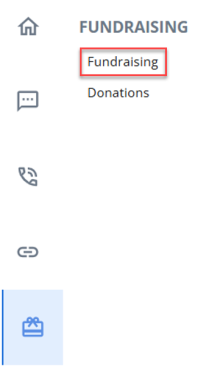
The Fundraising page contains Active and Inactive Fundraising Programs report tables.
The Active Fundraising Programs report table lists fundraising programs that are currently in use, along with the donation information:
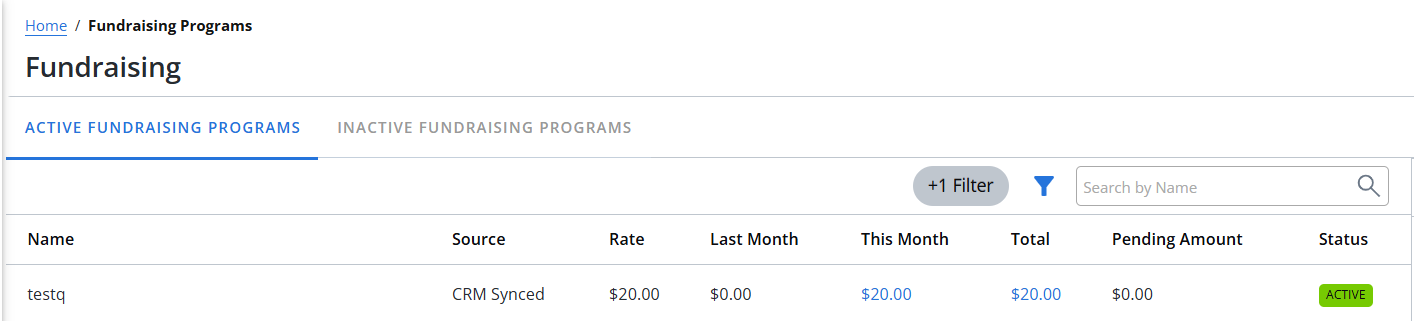
If the table is longer than one page, use the page-navigation options on the right to navigate to the
 next or
  previous page.
The Inactive Fundraising Programs table lists the same information for programs that have not yet been activated or that have been deactivated.
 About the Active and Inactive Fundraising Programs Tables
The Active and Inactive Fundraising Programs tables contain the following information:
Column Description Name Name of the fundraising campaign; also a link to open the performance report for the campaign. Rate The amount of each donation, in the following increments: $5, $10, $15, $20, $25, $30, $40, or $50. Last month Donations made in the previous calendar month. This month Donations made in the current calendar month Total Total donations made to this program, plus pending donations (in parentheses). Pending amount Amount yet pending for donation. Status Status of a fundraising program (for example, active, inactive).
Opening a performance report
To open a performance report:
-
Select
Fundraising in the left pane, and then select Fundraising. -
Locate the campaign in the Active Fundraising Programs report, and then select the campaign name link.
The report also includes the following information for programs that have successfully raised donations:
Row Description Total amount raised Total U.S. dollar amount raised by the campaign. Accepted Number of donations confirmed by the user. Pending Number of donations pending confirmation, plus the total dollar amount. Declined Number of donations declined, because the user responded NO or did not respond. Rejected Number of donations rejected by the service carrier, usually because the user's mobile phone or mobile carrier service has blocked donations. Total Total number of donations.
Opening a donation report for a user
To open a donation report for a user:
-
Select
Fundraising in the left pane, and then select Fundraising. -
Locate the campaign in the Active Fundraising Programs report, and then select the campaign name link.
The performance report for the donation campaign opens.
-
Select the Total donations link.
The donation report lists donations by each donor's mobile phone number.
The Donations report contains the following information about each donation:
Column Description Profile Mobile phone number identifying the user profile.
Tip: To open the user profile, select the profile number.
Status The status of the donation:
-
Accepted
-
Pending/Incomplete
-
Declined
-
Rejected
-
Failed
Amount The U.S. dollar value of the donation. Source The channel used to make the donation, for example SMS or MMS text message to the donation campaign keyword. Description Further information about the source of the donation. Processed at Date and time when the donation was processed by Mobile Commons. -
From the Donations table:
Filtering donations
To filter the donation records in the Donations table:
-
Select
Fundraising in the left pane, and then select Fundraising. -
Locate the campaign in the Active Fundraising Programs report, and then select the campaign name link.
-
Select the Total donations link.
The Donations report opens.
-
To filter the Donations table, select one of the following options above the table:
-
All: All donations.
-
Accepted: Donations confirmed by the user.
-
Pending/Incomplete: Donations not yet confirmed, because the user texted in the keyword but has not replied YES to confirm the donation.
-
Declined: Donations declined, because the user responded NO or did not respond.
-
Rejected: Donations rejected by the service carrier, usually because the user's mobile phone or mobile carrier service has blocked donations
-
Failed: Donation messages failed, because of a block on premium messaging on this phone (for example, a parental lock or the user is not an authorized account holder).
The Donations table displays only those records that match the selected filter.
-
Exporting donation data
You can export the full set or a subset of donation records to a CSV (comma-separated values) file.
To export donation records:
-
Select
Fundraising in the left pane, and then select Fundraising. -
Locate the campaign in the Active Fundraising Programs report, and then select the campaign name link.
-
Select the Total donations link.
-
(Optional) Arrange the Donations table to display the records to export. For more information, see Filtering donations.
-
Above the Donations page, on the right, select Save as CSV.
The contents of the Donations table, filtered or all data, plus the donor's s profile data, are saved in a CSV file containing the following columns:
Column Description phone The mobile phone number identifying the user profile. amount The U.S. dollar value of the donation. created_at The date and time when the donation was processed by Mobile Commons. donation_status The status of the donation:
-
Accepted
-
Pending/Incomplete
-
Declined
-
Rejected
-
Failed
source The channel used to make the donation, for example, SMS or MMS text message to the donation campaign keyword. description Further information about the source of the donation. donation_log Error messages generated when the donation was processed. carrier The messaging service provider for the user's mobile device. For more information on the profile fields, see Exporting profile records.
-
-
To download the CSV file, select
 Home in the left pane, and then select Reports.
 -
Locate the CSV file in the Exports table, select the link in the Name column, and then open the downloaded file.