Working with user profiles
User profiles contain standard fields for the following user data:
- Age
- Date
- Gender
- Number
- Text
- Time of Day
- Yes/No
Note: The key identifier in a user profile is the mobile phone number.
To build targeted audiences, create more detailed user profiles by adding custom fields to the profile. For more information, see Setting up custom fields.
To work with profiles:
-
Select
 Home in the left pane, and then select Profiles.
The Profiles table opens:
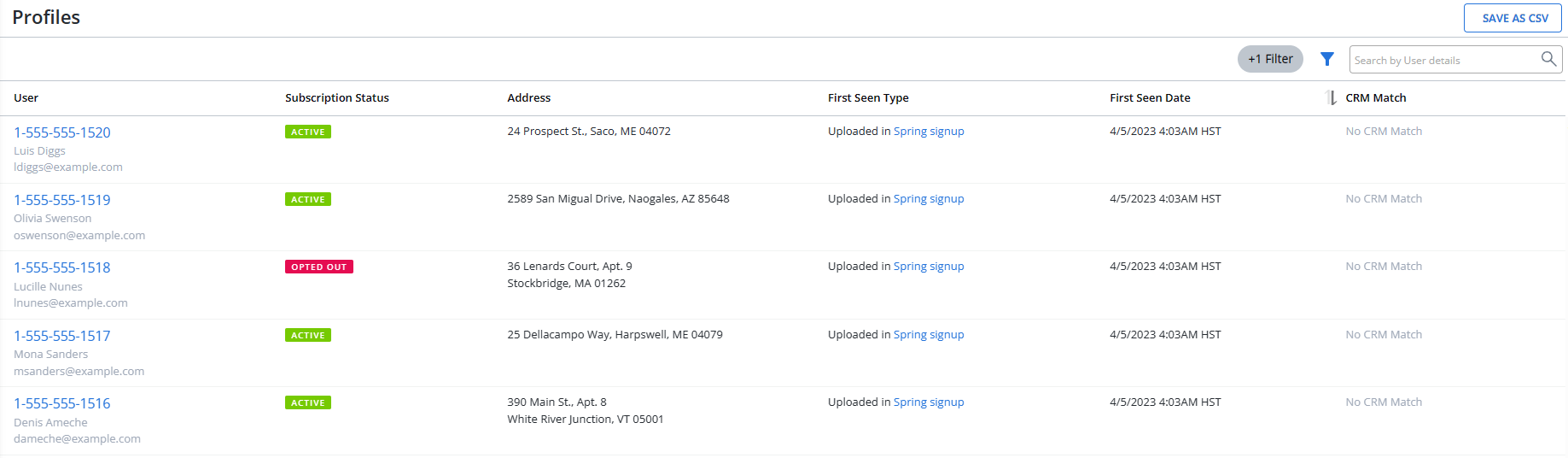
The Profiles table is sorted by First Seen Date column. To change the sort order, select
 Ascending or
  Descending order to the right of the header.
 About the Profiles table
The Profiles table contains the following information for each user:
Column Description User The mobile number and basic information about the user (name, email address) associated with it. Subscription status The user's current status for the subscription:
-
 The user has opted in to the campaign and can receive messages.
 -
 The user has opted out of an active campaign and can no longer receive messages.
 -
 The user is not currently subscribed to any campaigns.
Cleaned status  When a profile is cleaned, a “Cleaned” tag appears under the Cleaned status. For more information on cleaned profiles, see Cleaned Profiles. This column appears when user navigates to the profile page from the broadcast or campaign reports.
Address The physical address (street, city, state, and zip code) for the user. First seen type The method by which the profile information was added to Mobile Commons. See First seen type for a list. First seen date The date when the profile was added to Mobile Commons. CRM match The name of the CRM (customer relationship management) sync and the date of the last sync. For more information, see Integrating data from CRM platforms. Actions Available action for a profile:
-
 CHAT
CHATFor more information, see Chatting directly with a user.
If the table is longer than one page, use the page-navigation options on the lower-right to select the number of rows per page and to navigate to the
 next or
  previous page.
Tip: To navigate directly to a specific page, select the page field, enter the page number, and then press ENTER.
-
From the Profiles table:
For more information, see Accessing user data.
Searching the Profiles table
To search the user details in the profile records (first name, last name, phone number, and email address):
-
Select
Home in the left pane, and then select Profiles. -
Above the Profiles table, on the right, enter a search term in the Search box, and then select
 Search.
The Profiles table displays the matching records.
Filtering profiles
To filter profile records based on subscription status and the method used to add them to Mobile Commons:
-
Select
Home in the left pane, and then select Profiles. -
Above the Profiles table, on the right, select
 Filter.
 -
From the Filters pane on the right, select a Profile Status, Subscription Status or First Time Seen filter option.
-
Profile Status
Subfilter Description All All Profiles (by default, All is selected). Active Profiles that are active. Cleaned Profiles that are cleaned. 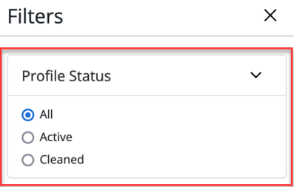 Note: The Profile Status filters appear when the user navigates to the campaign or broadcast report.
-
Subfilter Description All All of the profile records in your company account regardless of opt-in status. Active subscribers Profiles that are subscribed to one or more active campaigns. Former subscribers Profiles that had been subscribed to one or more active campaigns but are no longer. No subscriptions Profiles that are not subscribed to any active campaigns. Opted out Profiles of users who have ended their subscription(s). Synced Profiles that are synced with a CRM. Invalid profile data Profiles with invalid data, for example, with addresses as phone numbers (incorrect receipt of phone number, usually via sync or other integration).
Error conditions include:
-
Undeliverable-Texted a STOP word: The user texted a STOP word (STOP, END, CANCEL, QUIT, UNSUBSCRIBE, etc.) and was opted out.
-
Undeliverable-Hard Bounce: The phone is not a mobile number, or Mobile Commons has received an error code from the aggregator indicating that the number cannot receive text messages.
-
Undeliverable - Opt-out from profile: The profile was opted out manually from the profile page.
-
Undeliverable - Opt-out from Inbox: The profile was opted out manually from the Inbox.
-
Undeliverable - Phone was Deactivated: The mobile phone number for the profile was deactivated by the phone carrier.
-
Undeliverable - Manual Opt-Out
-
Undeliverable - Blacklisted
-
-
You can select multiple options for the first seen type.
Subfilter Description Donated User made a donation. For more information, see Accessing fundraising reports. Uploaded group User data uploaded as part of a group in a CSV file. For more information, see Working with profile groups. Called mConnect User made a phone call through mConnect call routing. For more information, see Setting up a new mConnect. Used mData User added by using an mData. For more information, see Setting up mData searches. Opted in User opted in to an active campaign. Unknown User data added from an unknown source. CRM User added through CRM.
-
-
When you are done, select APPLY in the lower-right corner.
The Profiles table displays only those records that match the selected filter(s). The filter indicator above the table
 displays the number of filters that have been applied. Hover your cursor over the filter indicator to display a list of applied filters.
Exporting profile records
You can export the full set or a subset of profile records to a CSV (comma-separated values) file.
To export profile records:
-
Select
Home in the left pane, and then select Profiles. -
Arrange the Profiles table to display the records to export. For more information, see Searching the Profiles table and Filtering profiles.
-
Above the Profiles table, on the right, select Save as CSV.
The profile records in the Profiles table are downloaded in a CSV file containing the following columns:
Column Description id A unique identifier for the profile record. phone_number The user's mobile phone number. email The user's email address. first_name The user's first name. last_name The user's last name. status The user's subscription status:
-
Active Subscriber
Note: Active status indicates a profile that is not opted out, has existing subscriptions (including active or inactive subscriptions), is not blacklisted, is not untextable, and is not pending confirmation.
-
Former Subscriber
-
No Subscriptions
-
Opted Out
-
Synced
-
Invalid Profile Data
Tip: If a profile status is Undeliverable, the Description column provides additional information.
description Additional details on phones that cannot receive messaging (opted-out, hard bounce, deactivation) or that have invalid data. street1 User's address in a standard (normalized) format. street2 city state postal_code country congressional_district Legislative districts are determined by the user's normalized address. state_upper_district state_lower_district split_district (Yes/No) latitude Location determined by the user's normalized address. longitude Location determined by the user's normalized address. precision Level of accuracy based on our location tools, arranged from most accurate to least accurate:
-
Address
-
Rooftop
-
Point
-
Range
-
Street center
-
Place
-
State
Note: The accuracy detail will be used to match legislative districts.
geocoded_city User's location information used for mData searches. For more information, see Setting up a location-based mData. geocoded_state geocoded_postal_code geocoded_country carrier_name Name of the company providing mobile phone services. created_at Date and time when the user profile was first seen in Mobile Commons. source_type Method by which the user profile was added to the data set. source_name Name of the person, upload, or process used to add the user profile to the data set. opted_out_at If applicable, date when the user's subscription permission was removed. opted_out_source If applicable, method by which the user subscription permission was removed. Cleaned? (included for campaign, broadcast, or opt-in path profile exports when the cleaned_profile feature is enabled) The cleaned status of a profile: Yes or No. Note: Any custom fields are added to columns on the right.
-
-
To download the CSV file, select
Home in the left pane, and then select Reports. -
Locate the CSV file in the Exports table and then select the link in the Name column.
Analyzing messaging performance
If you have Profile Analysis set up for your company, you can view messaging performance analytics for all of the profiles in your company's data set.
Note: Profile Analysis is an add-on feature. To add Profile Analysis and set it up for your company account, contact your mobile strategist or Technical Support.
Profile analysis tracks message failures for messages sent from Mobile Commons (MT failures) or subscribers who did not respond to broadcast messages (broadcast non-responders) for a set date range. The analysis may be run weekly or monthly.
About failed messages
Failed messages are messages that are rejected by the messaging aggregator or carrier and do not reach the intended recipient. After the initial failed attempt, Mobile Commons re-sends the message to a subscriber; then if Mobile Commons gets back a failure code from the aggregator or carrier, the message is marked as Failed.
The reasons for failures can include the following:
-
The user's mobile phone cannot receive multi-part messages on their carriers and plans.
-
The user has payment issues, including non-payment or lack of credit on their plan.
-
The mobile carrier or message aggregator is experiencing service issues.
Tip: Your mobile strategist can help you build a group of subscribers with consistently failing profiles, which you may want to suppress from future sends or to cull your profile groups.
To review performance analytics:
-
Select
Home in the left pane, and then select Profile Analysis. The Profile Analyses table contains the following information:
Column Description Analysis type The following reports are available:
-
Frequent MT failures
-
Broadcast non-responders
Recurring Weekly or monthly Analysis Parameters used in the analysis for messages sent from Mobile Commons (MT) and/or messages received by Mobile Commons from a mobile device (MO). Group The name of the uploaded profile group created as a result of the analysis. For details, select the group name link.
For more information, see Editing profile groups.
Tip: To better target recipients who will respond to your message, exclude this group from your broadcast audience.
Last processed at The date and time (UTC) when the analysis was last run. Delete Available action for a profile analysis:
-
 Delete
-