Creating and reviewing allotment usage
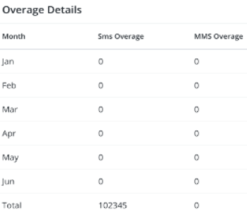
Each company has an allotment of messages to send during a set time period, according to their contract with Mobile Commons. When the number of messages sent exceeds the allotment for that time period, the company may be charged for the overage.
Note: Allotments are based on standard contracts with an allotment for SMS and MMS. If you do not see any allotments for your account, contact your customer success manager for assistance.
To help you plan your messaging campaigns, you can receive alerts when you reach 70% and 90% of utilization across each of your message allotments (SMS and MMS). For more information, see Enabling usage alerts.
Creating a New Allotment
To create a new allotment:
1. Select  Home in the left pane, and then select Allotments.
The Allotments dashboard opens.
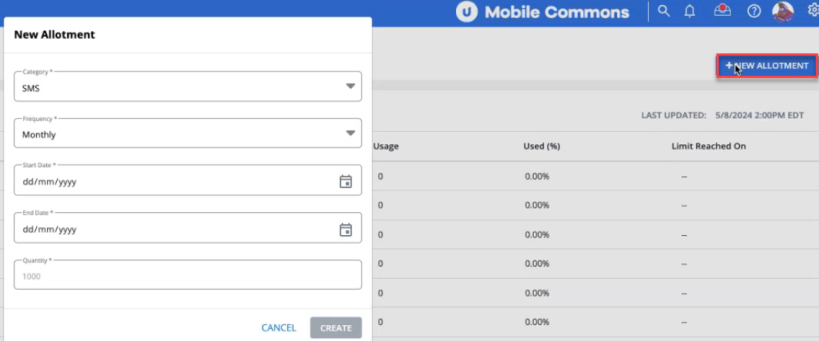
2. Click +NEW ALLOTMENT. The New Allotment modal opens.
-
Select a Category from the dropdown menu options:
-
SMS (default)
-
MMS
-
Blended
-
-
Select a Frequency from the dropdown menu options:
-
Monthly (default)
-
Yearly
-
-
Select the start and end date from the calendar selector.
-
Quantity: Enter a numerical value for specifying number of messages allotments.
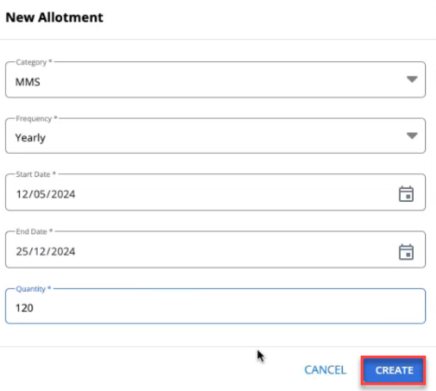
3. Select CREATE to create a new allotment. A success message, "Allotment created," will appear upon successfully creating an allotment.
Note: The CREATE button is not enabled until all required fields are filled.The created allotments will appear under FUTURE ALLOTMENTS.

The following are the end date colors:
-
Green: Future allotments.
-
Orange: Allotments nearing their end.
-
Red: Allotments close to ending (within the next 90 days).
Edit a Current or Future Allotment
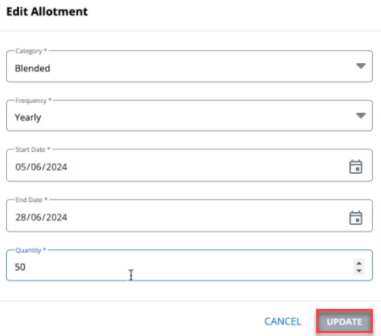
Locate the allotment, select  Menu at the end of the row, and then select Edit.

The Edit Allotment page opens. Make the required changes and select UPDATE to save the changes.
Deactivate an Allotment
You can deactivate a past, current or future allotment. To deactivate:
Current or Future allotment: Locate a current or future allotment to deactivate, select Menu at the end of the row, and then select Deactivate.
Past allotment: Locate a past allotment to deactivate, then select Deactivate at the end of the row.

A confirmation message appears on the screen “Are you sure you want to deactivate this allotment?” Select OK to confirm.
Reactivate an Inactive Allotment
Locate an inactive allotment, select Menu at the end of the row, and then select REACTIVATE ALLOTMENT.

Reviewing Allotment Usage
To review your usage statistics:
Select  Home in the left pane, and then select Allotments.
The Allotments dashboard opens to the Current Allotments Usage table:
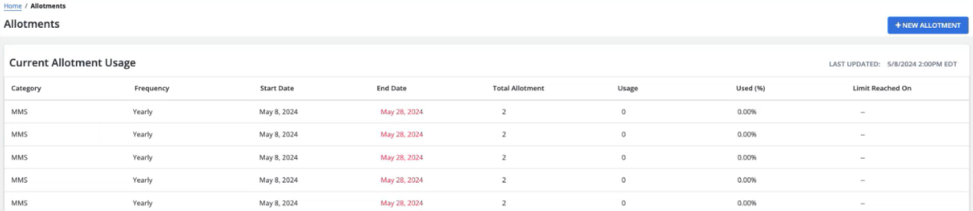
 About the Current Allotments Usage table
The Current Allotments Usage table contains the following information:
| Column | Description |
|---|---|
| Category | SMS, MMS, or Blended. |
| Frequency | The contract term: Monthly or Yearly. |
| Start date | The start date of current allotment usage. |
| End date | The end date of current allotment usage. |
| Total allotment | The number of messages allotted for the contract term. |
| Usage | The number of messages sent during the contract term to date. |
| % Used |
The percent of the total allotment used, based on the contract term:
|
| Limit reached on | Current allotment usage limit reached date. |
The allotments tables below the Current Allotments Usage table track your company's past, current, future, and inactive allotments, based on start and end dates, and the overage details.