Adding a phone book
Tip: When you set up your mConnect, you can provide a general service number, such as a customer service number, for callers who do not match any locations in the phonebook. For more information, see Adding a new mConnect.
To work with phone books:
-
Select
 Phone Calls in the left pane, and then select Phone Books.
The Phonebooks table lists available phone books and a description of their contents.

If the table is longer than one page, use the page-navigation options on the lower-right to select the number of rows per page and to navigate to the
 next or
  previous page.
Tip: To navigate directly to a specific page, select the page field, enter the page number, and then press ENTER.
From the Phonebooks table:
Phone books listed in the Phonebooks table are available to add to an mConnect. For more information, see Adding a new mConnect.
Searching the Phonebooks table
To search by phone book name:
-
Select
Phone Calls in the left pane, and then select Phone Books. -
Above the Phonebooks table, on the right, enter a search term in the Search box, and then select
 Search.
The Phonebooks table displays phone books that match the search term.
Creating a phone book from a template
You can upload phone book data in a CSV (comma-separated values) file that you create from a template.
To create a phone book file:
-
Select
Phone Calls in the left pane, and then select Phone Books.
-
To download the template file, above the Phonebooks table, select Actions, and then select Download CSV Template.
-
Open the template file in a spreadsheet program, such as Microsoft Excel.
The template contains the following columns:
Column Description Input The address of the location Destination The phone number for the location Description A short description of the phone book entry, for internal use only -
Fill in the phone book information, using one row for each entry.
-
When you are done, save the file in CSV format with a new, descriptive name.
Note: Be sure to save the file in CSV format; other file types will not be accepted.
Uploading a phone book
To upload a new phone book:
-
Select
Phone Calls in the left pane, and then select Phone Books. -
Above the Phonebooks table, on the right, select
 New Phonebook.
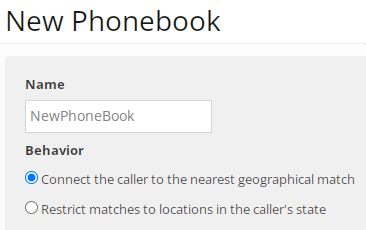
The New Phonebook page opens.
-
Enter a descriptive name for the phonebook.
-
In the Behavior field, select the connection setting:
-
Connect the caller to the nearest geographical match.
-
Restrict matches to locations in the caller’s state.
-
-
Select Create.
-
In the Phonebook Actions panel on the right, select
 Upload CSV.
 -
On the Upload CSV page, select Choose file, locate the CSV file, and then select Preview Entries.
-
Review the phone book entries to ensure that they are correct.
-
Select Save.
The phonebook is now available to add to a new or existing mConnect.
Reviewing phone book entries
After you upload a phone book, you can review its contents and add or subtract entries.
To review a phone book:
-
Select
Phone Calls in the left pane, and then select Phone Books.The Phonebooks table lists the available phone book files.
-
Locate the phone book name in the Phonebooks table and then select the phone book name link.
The Phone book page opens.

-
To view the entries in the phone book, select the number of contacts link.
The Contacts page opens.
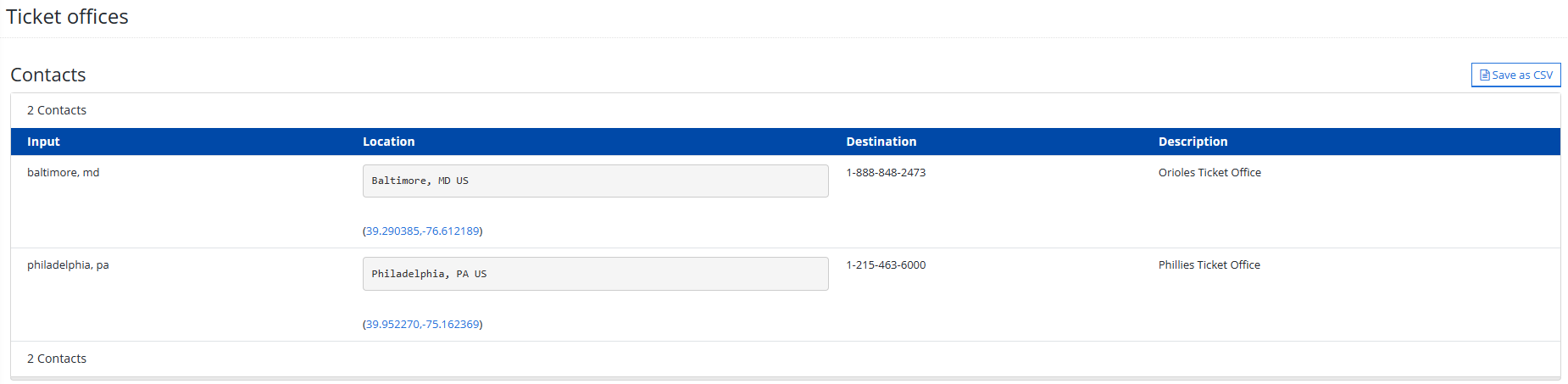
The Contacts table displays the entries in the phone book, including input, location, destination phone number, and general description.
Editing phone book entries
-
Select
 Phone Calls in the left pane, and then select Phone Books.
 -
Above the Phonebooks table, select Actions and then select Save as CSV.
The entries are downloaded to a CSV file.
-
Open the CSV file in a spreadsheet program, such as Microsoft Excel, and then add or edit entries.
-
Save the file in CSV format.
When you are done, return to the Phonebooks table.
-
Above the table, select Actions and then select Upload CSV from the Phonebook Actions panel on right. For more information, see Uploading a phone book.
Deleting a phone book
-
Select
Phone Calls in the left pane, and then select Phone Books. -
Locate the phone book in the Phonebooks table, and then select the name link.
The phone book page opens.
-
In the Phonebook Actions pane on the right, select Delete Phonebook.
-
Select OK to confirm.