Setting up a new mConnect
Note: Before you set up an mConnect, be sure to set up a VoIP (voice-over Internet protocol) number. For more information, see Adding a VoIP number.
Also, if you are planning to leave a voice message for callers or to route calls to non-legislative numbers, be sure to add a recording or phone directory before you begin. For more information, see Adding a recording and Adding a phone book.
To work with mConnects:
-
Select
 Phone Calls in the left pane, and then select mConnects.
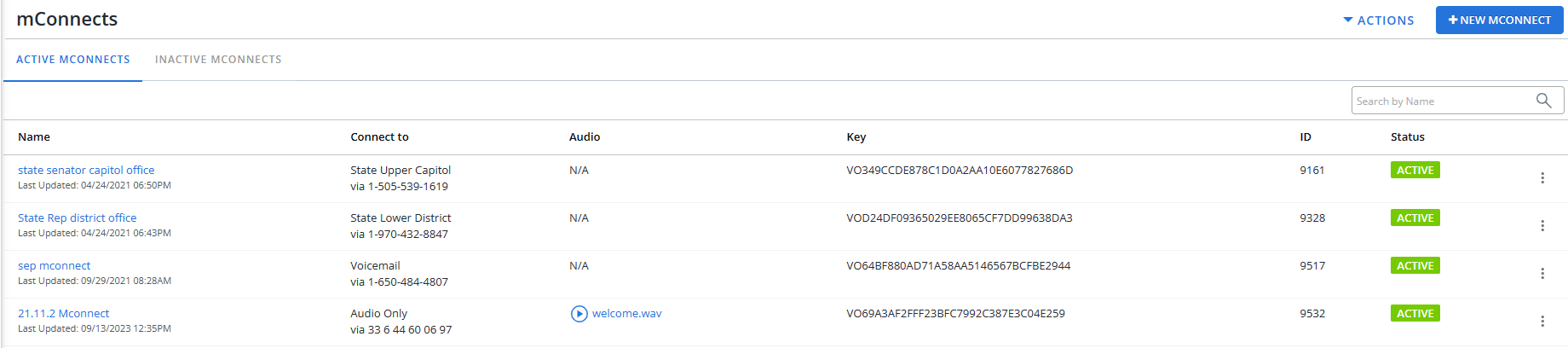
The mConnects page displays the Active mConnects table.
-
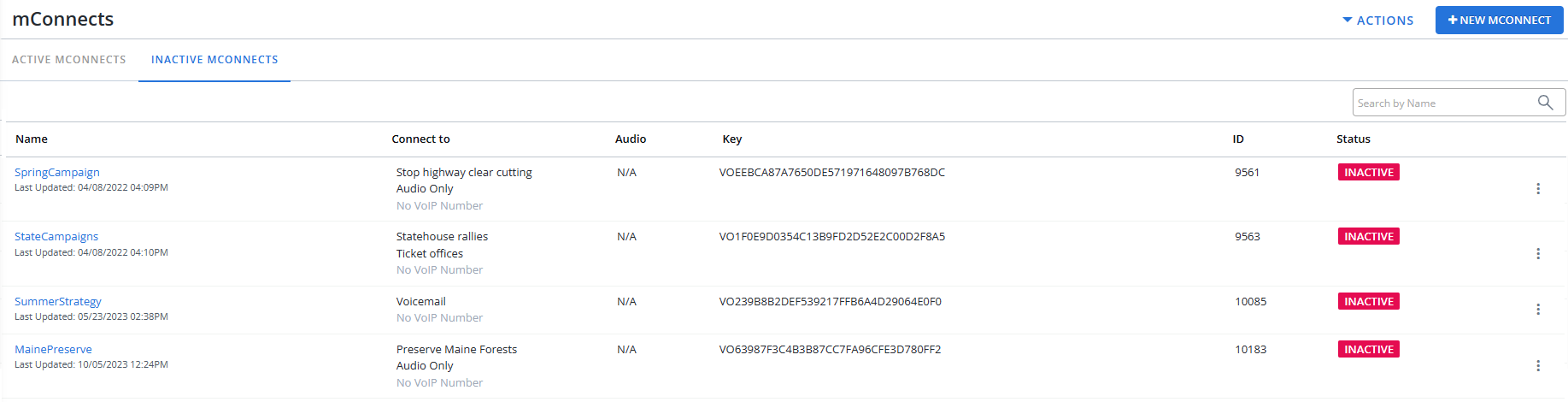
Select the Inactive mConnects tab to open the Inactive mConnects table.
 About the mConnects tables
The Active and Inactive mConnects tables contain the following information:
Column
Description Name The name of the mConnect, the date and time when it was last updated.
Connect to Description of the mConnect connection Audio Link to the audio file (if any)
Tip: To listen to a recording, select
 Play.
Play. Key Key identifiers ID The ID number for the mConnect Status  in the Active mConnects table
 in the Inactive mConnects table
Available actions for an mConnect:
-
Edit - Edit the mConnect
-
Report - Open the mConnect report
-
Calls - Open the Calls table
-
If the table is longer than one page, use the page-navigation options on the lower-right to select the number of rows per page and to navigate to the  next or
  previous page.
Tip: To navigate directly to a specific page, select the page field, enter the page number, and then press ENTER.
Adding a new mConnect
To set up a new mConnect:
-
Select
Phone Calls in the left pane, and then select mConnects.The mConnect page displays the Active mConnects table.
-
At the top of the page, on the right, select
 New mConnect.
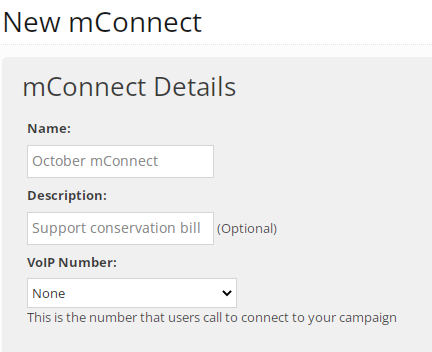
The New mConnect form opens:
-
In the mConnect Details section, add a name and description.
-
Select a VoIP number from the drop-down list.
If you have not already set up a VoIP number, see Adding a VoIP number.
-
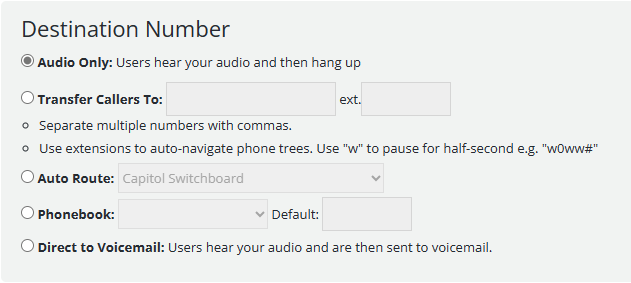
In the Destination Number section, specify the routing setting:
-
To add a recording, select the Audio Only option. The call will end after the caller listens to the recording.
-
To transfer calls automatically, enter one or more phone numbers. Separate multiple numbers with a comma.
If you specify multiple numbers, calls are routed evenly among the numbers in turn. For example, if you enter two phone numbers, calls are routed as follows: call 1 will go to phone number 1, call 2 will go to phone number 2, caller 3 will go back to phone number 1, and so on.
Note: You can also set up navigation of the phone tree for your calls. For assistance, contact your customer success manager.
-
To route calls to government offices, select Auto Route, and then select the office to call:
-
Capitol Switchboard: Select the US Capitol switchboard, the White House switchboard, or the White House comment line.
-
U.S. Senator: Select US Senator any office, capitol office, or district office(s). You can select Show Advanced Targeting to select a specific senator, leave Round Robin as the default, or select Neither, in which case callers from that state will connect to a randomly targeted senator from another state.
-
U.S. Representative: Select US Representative any office, capitol office, or district office(s). You can select Show Advanced Targeting to select a specific representative from a list.
To make the list of representatives available to mobile users, select the If we don't have an exact district match, let users choose reps from a list checkbox.
-
State Senator: Select State Senator any office, capitol office, or district office(s).
-
State Representative: Select State Representative any office, capitol office, or district office(s).
-
Governor: Select Governor.
Note: Location information is gathered from the caller's user profile. If you do not have your subscriber's location or a caller is not yet a subscriber, you can ask the caller to key in their postal code. For more information, see Advanced options.
-
-
To auto-route calls to other (non-legislative) numbers, select an available phone book. Provide a general service number in the Default field.
If you have not already uploaded a phone book, see Adding a phone book.
-
To allow callers to leave a message after listening to a recording, select Direct to voicemail.
-
-
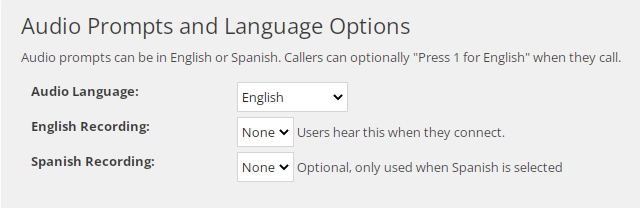
In the Audio Prompts and Language Options section, select the language for audio prompts, English or Spanish, and then select the recording that matches the selected language.
If you are using a recording and have not already uploaded it to mConnect, see Adding a recording.
-
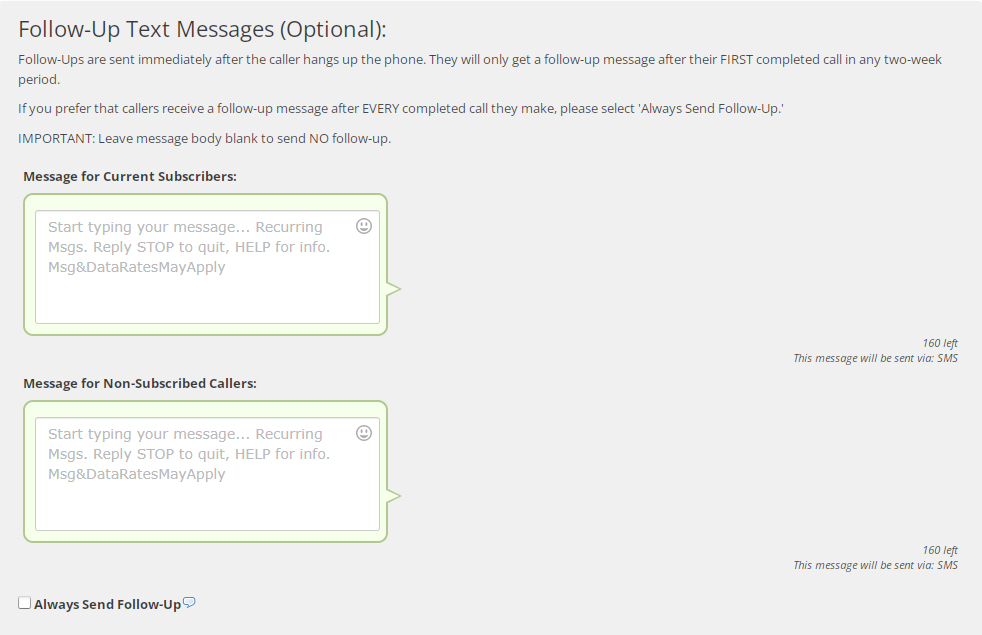
In the Follow-up Text Message section, to follow up with the caller after the call is completed, add a text message for subscribers and an opt-in message with short code and keyword to sign up non-subscribers.
Follow-up text messages are sent immediately after the caller hangs up the phone.
-
By default, callers will get a follow-up message only after their first completed call to a specific mConnect in a two-week period (if they connect to different mConnects, they'll get the follow-up messages after their first call to each mConnect).
-
To send a follow-up message after every completed call, select Always Send Follow-Up.
-
To send no follow-up message, leave the message body blank.
Tip: Consider sending a thank-you message to users who have made a phone call.
-
-
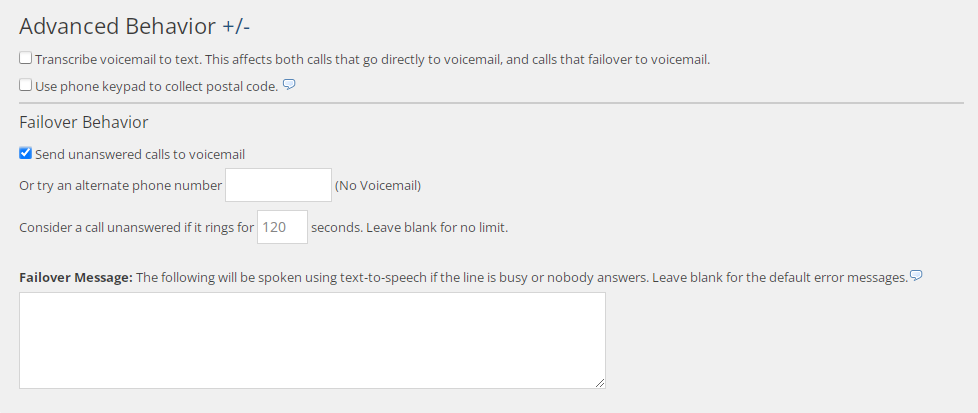
For additional options, select the + (plus) next to the Advanced Behaviors heading to expand the form.
-
To have messages left in voicemail transcribed, select Transcribe voicemail to text. This affects both calls that go directly to voicemail and calls that failover to voicemail.
Note: There is an additional cost associated with this option.
-
To collect location information from callers, select Use phone keypad to collect postal code. Calls who listen to the (optional) recording will be prompted to enter their zip code on their keypad. This information is then saved to a new or existing user profile.
-
In the Failover Behavior section, specify the settings when a call is not answered:
-
You can send calls to voicemail or forward the call to an alternate number:
-
To allow callers to leave a message, select Send unanswered calls to voicemail.
-
To re-route calls, enter an alternate phone number.
-
-
Enter the number of seconds the phone can ring or give a busy signal while connecting to the destination before it is considered unanswered. If you do not want to set a limit, clear the default value and leave the seconds field blank.
-
Enter a failover message that will play using text-to-speech if the line is busy or nobody answers, for example: “Your call cannot go through at this time. Please try again later, and thank you for your patience and support. You can also leave a message after the beep.”
-
- When you are done, select Create.
The new mConnect is marked Inactive and added to the Inactive mConnects table.
If you want to review or adjust your mConnect settings, you can edit the mConnect campaign. For more information, see Editing an mConnect.
When you are satisfied with your settings and you are ready to start the mConnect campaign, you can activate it. For more information, see Activating an mConnect.