Analyzing call data
To open the Calls table:
-
Select
 Phone Calls in the left pane, and then select Calls.
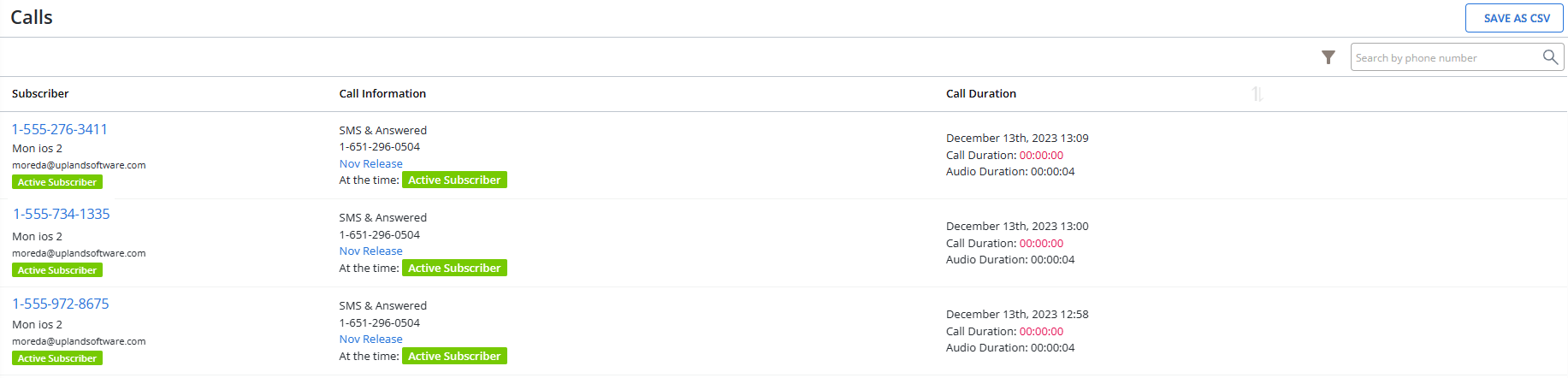
The Calls table displays call data by subscriber, based on their profile information, including subscriber name and call duration. If a caller is a new subscriber, a new profile is created for their mobile phone number.
 About the Calls table
The Calls table contains the following information for each subscriber call:
Column Description Subscriber Information about the subscriber, including their mobile number, full name, email address, and status. Call information Detailed information about the origin of the call and the mConnect name link. Call duration Date, time, and duration of the call, plus duration of the audio recording or voicemail. If the table is longer than one page, use the page-navigation options on the lower-right to select the number of rows per page and to navigate to the
 next or
  previous page.
Tip: To navigate directly to a specific page, select the page field, enter the page number, and then press ENTER.
Tip: To sort the table by time of call, select the sorting arrows on the right-hand side of the column header:
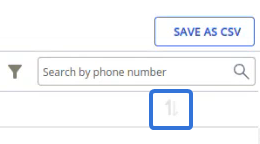
By default, the calls are sorted from most recent to earliest. Selecting the arrows for the first time will reverse this order and sort the calls from earliest to most recent. Selecting the arrows again will return to the original sorting of most recent to earliest.
From the Calls table:
Searching the Calls table
To search by phone number:
-
Select
 Phone Calls in the left pane, and then select Calls.
 -
Above the Calls table, on the right, enter a mobile phone number in the Search box, and then select
 Search.
The Calls table displays the subscriber calls that match the search term.
Filtering call data
Tip: Any sorting that has been applied to the table will remain on the page after a filter is added.
To filter the Calls table:
-
Select
Phone Calls in the left pane, and then select Calls. -
Above the Profiles table, on the right, select
 Filter.
 -
From the Filters pane on the right, select one option from one or more filters.
You can filter the subscriber data in the Calls table by the following criteria:
Filter Filter options Description Phone type All All calls made by all phones, whether a mobile phone or not. Not a mobile phone Calls made by landlines or other device that is not a mobile phone. Mobile phones Calls made by mobile phone. Source All All calls originating from all sources: VoIP, text, and web form. Dialed Calls made by directly dialing a VoIP number. Texted Calls made by replying to a text message broadcast. Web form Calls made by filling out a click-to-call form on the web. Profiles All profiles All profiles for mobile devices used to call in to your campaign.
Note: If a caller is a new subscriber, a new profile is created for their mobile phone number.
Subscribers Calls made by active subscribers to your mobile campaigns. Non-subscribers Calls made from mobile devices that are not subscribed to any campaigns (for example, a non-subscriber sees the VoIP number on a Facebook page and calls in, but does not choose to join the mobile list and become an active subscriber). Opted out Calls made by subscribers who have since chosen to opt out. Status Any status Any call that was made. Reached destination The call reached the final destination number, but the call was not completed, perhaps because caller hung up or no one answered the call. Connected to destination The call was connected to the final destination number. Ended before destination The caller hung up or was disconnected before the call reached the final destination. Errors No errors There were no errors on the call. Any error There an unspecified error on the call. Failed connecting to user There was an error when attempting to connect to the caller’s phone, perhaps because the caller did not answer the call from the VoIP number. Voicemail The caller was sent to voicemail, perhaps because the call was set to route to voicemail or because the caller did not reach the destination number and was sent to voicemail as failover. Could not reach destination There was an error reaching the final destination number. Date Last 30 days (default) Calls made during the last 30 days, including today. Any time Calls made at any time. This week Calls made during the last 7 days. Last week Calls made during the previous 7 days. This month Calls made during the current calendar month. Last month Calls made during the previous calendar month. This year Calls made during the current year. Last year Calls made during the previous year. Custom range Calls made during the date range you select:
-
Select the Start Date field and then select a date from the calendar or select Today.
-
Select the End Date field and then select a date from the calendar or select Today.
-
-
When you are done, select Apply in the lower-right corner.
The Calls table displays only those records that match the selected filter(s). The filter indicator above the table
 displays the number of filters that have been applied. Hover your cursor over the filter indicator to display a list of applied filters.
Exporting subscriber call data
You can export all subscriber calls or a filtered list of subscriber calls to a CSV (comma-separated values) file.
To export subscriber call data:
-
Select
Phone Calls in the left pane, and then select Calls.The Calls table displays call data by subscriber, based on their profile information.
-
Arrange the Calls table to display the records to export. For more information, see Searching the Calls table and Filtering call data.
-
Above the Calls table, on the right, select Save as CSV.
The contents of the Calls table, filtered or all data, plus the callers' profile data, are saved in a CSV file containing the following columns:
Column Description start_time Time when the call started. end_time Time when the call ended. duration Number of minutes for the call. call_status The call status:
-
Answered
-
Completed
-
In progress
-
Voicemail
connection_source The type of connection:
-
Dial: Calls made by directly dialing a VoIP number.
-
SMS: Calls made by replying to a text message broadcast.
-
Web: Calls made by filling out a click-to-call form on the web.
origin_description Description of the origin source, if available. profile_status_at_call_time Status of caller's profile:
-
Active subscriber
-
Profiles with no subscriptions
-
Undeliverable
handset_number The caller's mobile phone number. voip_number The VoIP number used to make the phone call. destination_number The phone number that was called. legislator_first_name The legislator's first name. legislator_last_name The legislator's last name. legislator_party The legislator's party affiliation. legislator_district The district represented by the legislator. legislator_state The state represented by the legislator. transcription The text version of the caller's voicemail message. voicemail_duration The duration of the voicemail message left by the caller (in seconds). voicemail The URL for the voicemail recording file. mconnect The name of the mConnect campaign. For more information on the profile fields, see Exporting profile records.
-
-
To download the CSV file, select
 Home in the left pane, and then select Reports.
 -
Locate the CSV file in the Exports table and then select the link in the Name column.
Exporting mConnect data
You can export active and inactive mConnect records in the mConnects tables to a CSV (comma-separated values) file.
To export mConnect data:
-
Select
 Phone Calls in the left pane, and then select mConnects.
 -
Select the Active mConnects or Inactive mConnects tab.
-
Above the mConnects or Inactive mConnects table, select Actions and then select Save as CSV.
-
To download the CSV file, select
 Home in the left pane, and then select Reports.
 -
Locate the CSV file in the Exports table, select the link in the Name column, and then open the downloaded file.
The contents of the Active or Inactive mConnects table are downloaded in a CSV file containing the following columns:
| Column | Description |
|---|---|
| id | The downloaded records are sorted by the unique ID for the mConnect. |
| name | The name of the campaign. |
| destination_number | The telephone number called. |
| destination_description | The description of the destination for the call. |
| voip_number | The VoIP number used for the call, if any. |
| audio | The name of the audio recording used to answer calls, if any. |
| destination | The destination for the call, including the legislator, voicemail, and audio only. |
| activated_at | The date and time with the mConnect was activated. |
| created_at | The date and time with the mConnect was created. |
| updated_at | The date and time with the mConnect was last updated. |
| failover_number | Failover number in case the destination number is not answered. |
| voicemail | True/False, indicating whether callers can leave a message on voicemail. |
| transcribe | True/False, indicating whether voicemail messages will be transcribed to text. |
| phonebook | Name of the phonebook used, if any. |
| crm_alert_id | For data syncs with a CRM system, maps to an existing call campaign. |
| language | Language used for the audio recording, usually English or Spanish. |
| calls | Number of calls made by subscribers for the campaign. |
| total_duration | Total number of minutes for calls made. |
| Tags | Name of tags added to organize the mConnect campaign data. |