Working with the mConnect report
To open the mConnect report:
-
Select
 Phone Calls in the left pane, and then select mConnects.
 -
Locate the mConnect in the Active mConnects or Inactive mConnects table, and then select select
 Menu at the end of the row, and then select Report.
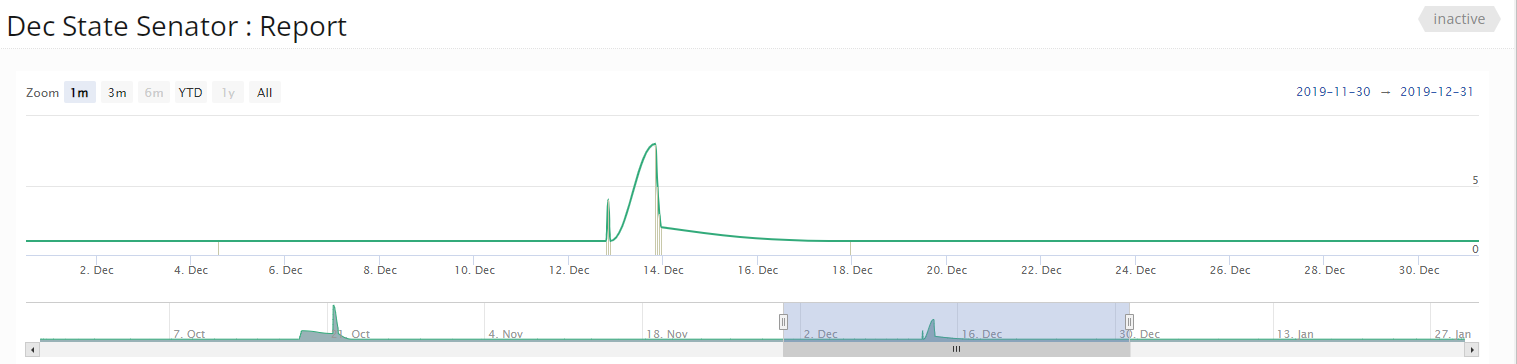
 The mConnect report displays the call frequency graph at the top of the page.
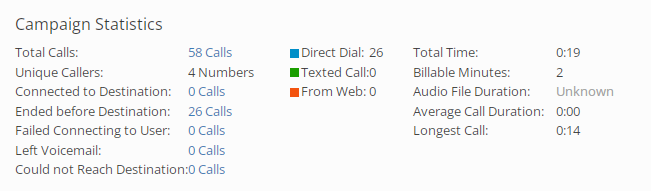
Campaign statistics appear below the call frequency graph.
The mConnect report contains the following sections:
-
Legislators (if applicable)
mConnect call frequency graph
The mConnect call frequency graph at the top of the page illustrates the number of calls made by subscribers for the last 3 months.
Tip: To see the statistics for a specific date, hover the cursor over the date in the graph.
To change the date range:
-
In the upper-left corner, select a standard date range:
-
Zoom narrows the current date range displayed in the campaign graph.
-
1m displays the most recent month.
-
3m displays the most recent three months.
-
6m displays the most recent six months.
-
YTD displays the year to date.
-
1y displays the most recent year.
-
All displays the entire available date range.
-
-
In the upper-right corner, select the current date range and specify a new date range from the calendar selector.
-
At the bottom of the graph, drag the left and/or right handles of the blue slider to select a new date range.
Campaign statistics
The Campaign statistics section lists the total number of calls and then breaks down call volume, status, errors, and duration.
-
Select a call link to open the filtered Calls table for the last 30 days. For more information, see Filtering call data.
Legislators (if applicable)
If the mConnect campaign includes calls to legislators or governors, the Legislators section lists calls by legislator or governor contacted:

-
To open the Calls table with data on the subscribers who called a legislator within the last 30 days, locate the legislator in the list and then select the Calls link on the right. Reset the date range, if necessary. For more information, see Filtering call data.
Exporting legislator call data
To save the legislator call data in a CSV (comma-separated values) file:
-
Select
Phone Calls in the left pane, and then select mConnects. -
Locate the mConnect in the mConnects or Inactive mConnects table, and then select
 Report below the campaign name.
 The mConnect report opens.
-
Scroll down to the Legislator table.
-
Above the mConnects table, on the right, select Save as CSV upper-right corner of the table.
The call records in the Legislators table are saved in a CSV file containing the following columns:
Column Description first_name The legislator's first name. last_name The legislator's last name. state The state represented by the legislator. district The district represented by the legislator. count The number of calls made to the legislator for the selected campaign. -
To download the CSV file, select
 Home in the left pane, and then select Reports.
 -
Locate the CSV file in the Exports table, select the link in the Name column, and then open the downloaded file.