Working with custom fields
To work with custom profile fields:
-
Select
 Home in the left pane, and then select Custom Fields.
The Custom Fields table opens.

Tip: You can add any number of custom fields to the user profiles. For more information, see Adding a new custom field.
 About the Custom Fields table
The Custom Fields table contains the following information for each field:
Column Description Name Name of the custom field Type
One of the following data type values:
-
text
-
date
-
gender
-
number
-
age
-
yes or no
-
time of day
-
anniversary
-
identity
Description (optional) Description of the custom field Actions Available actions for a custom field:
-
Edit
-
Delete
Tip: For more information, from the Actions drop-down list on the right, select Show Field Help.
If the table is longer than one page, use the page-navigation options on the lower-right to select the number of rows per page and to navigate to the
 next or
  previous page.
Tip: To navigate directly to a specific page, select the page field, enter the page number, and then press ENTER.
-
Filtering Custom Fields:
You can narrow the custom fields list by selecting one or more Types filters:
-
Above the Custom Fields table, on the right, select
 Filter.
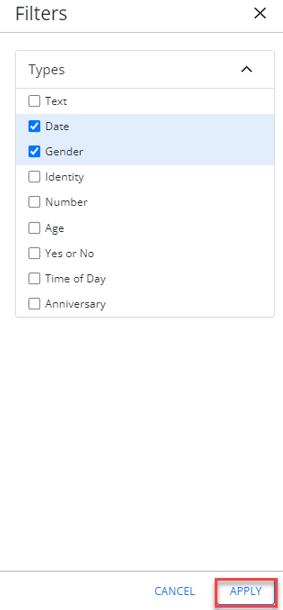
-
From the Types filters, select one or more of the following options:
-
Text
-
Date
-
Gender
-
Number
-
Age
-
Yes or No
-
Time of Day
-
Anniversary
-
Identity
-
-
When you are done, select APPLY.
From the Custom Fields table:
For more information, see Setting up custom fields.
Searching the Custom Fields table
To search the custom field names:
-
Select
 Home in the left pane, and then select Custom Fields.
 -
Above the Custom Fields table, on the right, enter a search term in the Search box, and then select
 Search.
The Custom Fields table displays the matching records.
Exporting custom field records
You can download user profile data in custom fields to a CSV (comma-separated values) file.
To download all of the custom fields:
-
Select
Home in the left pane, and then select Custom Fields. -
From the Actions drop-down list on the right, select Save as CSV.
The records in the Custom Fields table are saved in a CSV file containing the following columns:
Column Description phone number The mobile phone number in the user profile. name The name of the custom field. value The custom field entry in the user profile. created_at The date and time when the custom field value was added to the user profile. active The active status of the user profile: TRUE or FALSE. -
To download the CSV file, select
Home in the left pane, and then select Reports. -
Locate the CSV file in the Exports table and then select the link in the Name column.
Downloading custom fields
To download all of the custom fields:
-
Select
Home in the left pane, and then select Custom Fields. - From the Actions drop-down list on the right, select Download All Custom Fields.
The records in the Custom Fields table are saved in a CSV file containing the following columns:
Column Description name The field name description The description entered when the field was added. data type text
date
gender
number
age
yes or no
time of day
anniversary
identity
-
To download the CSV file, select
Home in the left pane, and then select Reports. -
Locate the CSV file in the Exports table and then select the link in the Name column.