Securely uploading data files
Note: In order to download secure data files, you must be authenticated with Mobile Commons.
To work with secure files:
-
Select
 Home in the left pane, and then select File Drop.
The Secure Files table opens:

 About the Secure Files table
The Secure Files table contains the following information for each file:
Column Description File name The name of the file and a link to download the file. Size The size of the file. Uploaded The date when the file was uploaded. Actions Available action for a secure file:
-
 Delete
If the table is longer than one page, use the page-navigation options on the lower-right to select the number of rows per page and to navigate to the
 next or
  previous page.
Tip: To navigate directly to a specific page, select the page field, enter the page number, and then press ENTER.
-
From the Secure Files table:
Searching the Secure Files table
To search secure files by file name:
-
Select
 Home in the left pane, and then select File Drop.
 -
Above the Secure Files table, enter a search term in the Search box, and then select
 Search.
The Secure Files table displays the matching files.
Uploading a secure file
To upload a data file in a secure way:
-
Select
Home in the left pane, and then select File Drop.The Secure Files table opens.
-
Select
 in the upper-right corner.
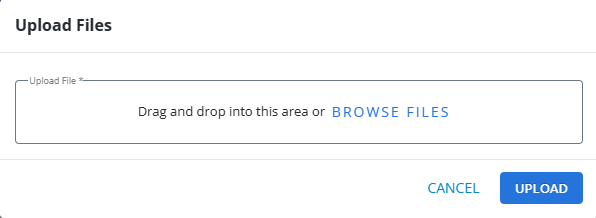
 The Upload Files page opens.
-
To select the data file to upload:
-
Locate the file on your computer, and then drag and drop it into the Upload Files box.
-
Select Browse Files, navigate to the attachment file location, and then select Open.
To remove an upload file, select x Remove next to the file name.
-
-
When you are done, select Upload.
The file is added to the Secure Files table.
Note: Custom reports containing message usage statistics are downloaded to the Secure Files table automatically. For more information, see Creating a custom report.
Downloading a secure file
-
Select
 Home in the left pane, and then select File Drop.
The Secure Files table contains data files sorted by upload date.
-
Locate the data file in the Secure Files table. The File name column contains the CSV file name and the URL where it is stored.
Tip: To copy the link, select
 Copy next to the file name.
 -
To download your CSV file, select the URL link.
Deleting a secure file
To delete a secure file:
-
Select
Home in the left pane, and then select File Drop. -
Locate the file in the Secure Files table, and then select
Delete at the end of the row. -
Select OK to confirm.
Deleting multiple secure files
To delete multiple secure files:
-
Select
Home in the left pane, and then select File Drop. -
Select the checkbox next to one or more files in the Secure Files table, or to select all of the secure files in the table, select the checkbox in the header row.
-
Select
Delete above the table on the right. -
Select OK to confirm.