Working with profile and usage reports
-
Select
 Home in the left pane, and then select Reports.
The Reports page opens to the Exports table.

From the Reports page:
Mobile Commons also provides campaign reports. For more information, see Working with campaign reports.
Accessing recent data exports
The Recent Data Exports page lists the three most recent CSV (comma-separated values) files with profile data downloaded from Mobile Commons.
To access recent data export reports:
-
Select
Home in the left pane, and then select Reports.The Reports page displays the Exports table.
 About the Exports table
The Exports table contains the following information:
Column Description Name Name of the exported file and a link to download the file. Exported Date and time when the file was exported during the last 60 days.
Note: The time is in the UTC (Coordinated Universal Time) time zone.
Rows Number of rows containing content in the file. Actions Available actions for the file:
-
Create new group
-
Delete
Note: Mobile Commons does not retain export files older than 60 days.
-
-
To view all of the CSV export files in the Exports table, above the Exports table, select All CSV Exports. The Exports page displays all of the export files during the last 60 days.
If the table is longer than one page, use the page-navigation options on the right to navigate to the
 next or
  previous page.
From the Exports table:
Downloading a CSV export file
To download a single export file containing profile data:
-
Select
Home in the left pane, and then select Reports. -
Select a file to download:
-
Locate the CSV file in the Exports table, and then select the download file name link.
-
Above the Exports table, select All CSV Exports. Locate the CSV file in the Exports table, and then select the file name link.
The file downloads automatically.
-
Creating a profile group
To create a profile group that includes the profiles in the profile export file:
-
Select
Home in the left pane, and then select Reports. -
Select a file containing the profiles to be added to a new group:
-
Locate the file in the Exports table, select
 Menu at the end of the row, and then select Create new group.
 -
Above the Exports table, select All CSV Exports. Locate the CSV file in the Exports table, select
Menu at the end of the row, and then select Create new group.
-
-
Select OK to confirm.
The new profile group has the same name as the CSV file and includes the profiles from the CSV file. For more information see Editing profile groups.
Deleting a CSV export file
To delete a CSV export file:
-
Select
Home in the left pane, and then select Reports. -
Select the file to delete:
-
Locate the file in the Exports table, select
Menu at the end of the row, and then select Delete. -
Above the Exports table, select All CSV Exports. Locate the CSV file in the Exports table, select
Menu at the end of the row, and then select Delete.
-
-
Select OK to confirm.
Downloading billing data
Billing data and other statistics are calculated nightly.
To download the messaging statistics for the last three months in CSV format:
-
Select
Home in the left pane, and then select Reports. - Select the Usage Reports tab, and then select Download historical billing data in the upper-right corner.
The data from the tables in the Usage Reports section are downloaded in a CSV file with columns labeled by month for the year to date.
The billing data report contains the following statistics:
- Sent as SMS
- Received as SMS
- Sent as MMS
- Received as MMS
- Sent as multi-part SMS
- Sent as single SMS
- No. of SMS multi-parts
- Phone calls
- Links clicked
- Active subscribers
- Billable minutes
Creating a custom report
To create a custom report from message usage statistics:
-
Select
Home in the left pane, and then select Reports. -
Select the Usage Reports tab, and then select Generate Custom Report on the right.
-
To specify a date range for the report:
-
Select the From field and select a start date from the calender selector.
-
Select the To field and select an end date from the calender selector.
-
-
When you are done, select Generate CSV.
Mobile Commons generates a CSV file, which is uploaded to the File Drop for your company.
-
Select
Home in the left pane, and then select File Drop.The Secure Files table contains custom reports sorted by upload date.
-
Locate your custom report in the Secure Files table.
The Filename column contains the CSV file name and the URL where it is stored.
-
To download your CSV file, select the URL link.
The CSV file contains the following columns:
Column Description Name of the company account. Name of the active company. Category The type of statistic, including:
- Sent as SMS
- Received as SMS
- Sent as MMS
- Received as MMS
- Sent as multi-part SMS
- Sent as single SMS
- No. of SMS multi-parts
Count Total number of messages in the category for the select time range.
Reviewing usage reports
The Usage Reports table contains reports with statistics on text messages sent and received. Statistics are calculated nightly.
To review usage reports:
-
Select
Home in the left pane, and then select Reports. -
Select the Usage Reports tab.
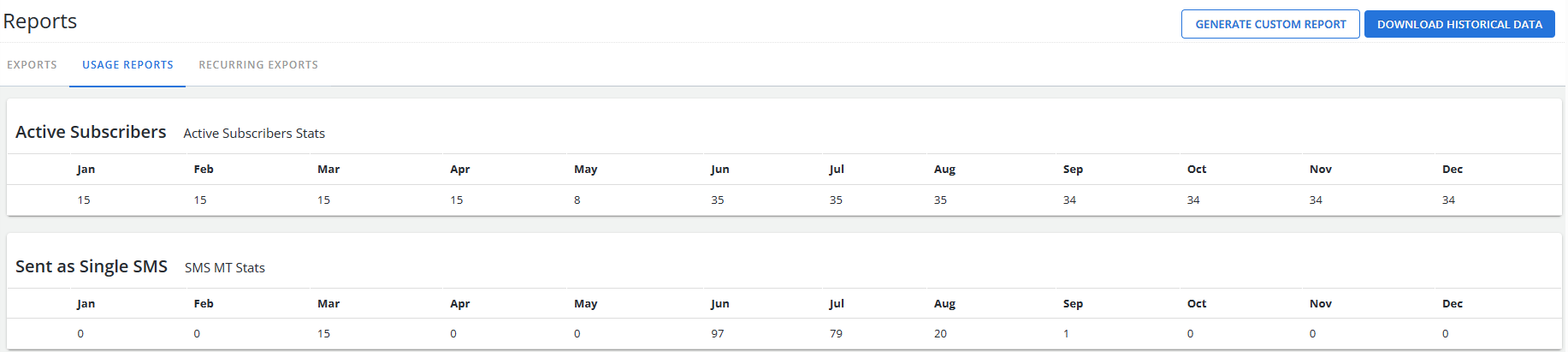
The Usage Reports table displays the following reports containing messaging statistics for each of the three most recent months:
Statistic Description Active subscribers Total number of active subscribers in your account during the past year. Sent as single SMS Number of single, text-only (SMS) messages sent from Mobile Commons to subscribers during the past year.
Sent as failover SMS The number of single SMS messages sent as a failover when MMS messages fail.
Sent as multi-part SMS Number of overlarge SMS messages that were divided and sent in parts during the past year.
Note: An SMS message that contains more than the standard number of characters may be divided into multiple parts that are sent separately and reconstructed upon delivery.
No. of SMS multi-parts Number of parts sent in SMS multi-part messages during the past year. Total sent as SMS Total number of text-only messages sent from Mobile Commons to subscribers during the past year. Received as SMS Number of SMS messages received from subscribers during the past year. Sent as MMS Number of MMS (multimedia message service) messages sent from Mobile Commons to subscribers during the past year. Received as MMS Number of MMS messages received from subscribers during the past year. Phone calls The number of calls made using mConnect during the past year. Transcribed minutes If you have selected Transcribe voicemail to text in mConnect, the number of minutes of transcribed voicemail messages during the past year.
Billable minutes The total number of minutes from mConnect phone calls billed during the past year. Links clicked (Total) Number of times users clicked on shortened, trackable links during the past year. Links clicked (Unique) Number of times each user (one click per user) clicked on shortened, trackable links during the past year. Many of these statistics are also available on the Mobile Commons Home dashboard, with data for the current month only. For more information, see This month's statistics.
Tip: To return to the Home dashboard, select your company name (if available) in the first column of any table.