Managing messages in Agent View
-
Select
 Text Messaging in the left pane, and then select Agent View.
 -
In the Agent View Actions panel on the right, select
 View All.
The Messages table lists messages sent by mobile users to Mobile Commons that may require a response.
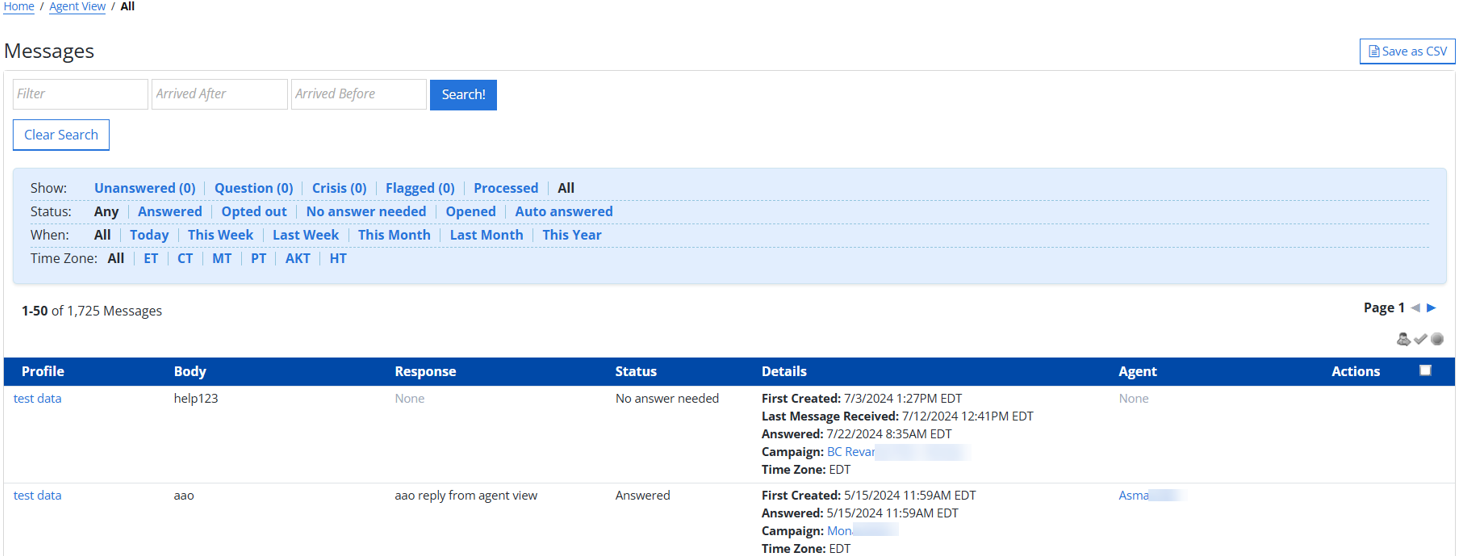
 About the Messages table
The Messages table contains the following information about messages sent in response to Mobile Commons text messages:
Column Description Profile The name of the mobile user who sent the message.
Tip: Select the name link to open the sender's user profile.
Body The content in the body of the message. Response The content of the agent's response to the message, or if the message has not yet been answered, None. Status The status of the message: answered or unanswered. Details Additional profile information about the mobile user who sent the message:
-
First created: Date and time when the sender's user profile was created.
-
Last message received: Date and time when a message was last received from the sender.
-
Campaign: The name of the campaign the sender was responding to.
-
Time Zone: The sender's time zone.
Agent The name of the Mobile Commons agent who responded to the message. Actions Available actions for messages sent by mobile users:
-
 Respond to this profile
 -
 No response needed
 -
 Opt out
 -
 Start chatting
Bulk actions are available above the table.
Select a checkbox at the end of the row to select one message or select the checkbox in the heading row to select all, and then select an action:
-
 Respond to selected groups of messages
 -
 No response needed to selected messages
 -
 Opt out selected profiles
If the table is longer than one page, use the page-navigation options above and below the table to navigate to the
 next or
  previous page.
 -
From the Messages table:
For more information, see Responding to messages in Agent View.
Searching the Messages table
To search the message records:
-
Select
Text Messaging in the left pane, and then select Agent View. -
In the Agent View Actions panel on the right, select
View All. -
In the upper-left corner of Messages page, enter a search term in the Filter box.
-
Select the Arrived After box and select a start date for your search from the calendar selector.
-
Select the Arrived Before box and select an end date for your search from the calendar selector.
-
Select Search!
The Messages table displays your search results.
Filtering messages
The Messages table displays three groups of preset filters at the top of the page.

To filter message records, select a filter option from one or more filter groups:
-
Show: Display messages based on whether or not they have been answered:
Subfilter Description Unanswered Messages that have been received but not yet answered. Processed Messages that have been answered or marked No response or No response needed. All All of the message records in your company account regardless of opt-in status. -
Status: Display messages based on the response status:
Subfilter Description Any All of the statuses. Answered Messages that an agent user has answered. Opted out Messages for one or more campaigns that an agent user has manually opted out the mobile number in the profile. No answer needed Messages that do not require a response. Opened Messages that an agent user has opened but not yet acted on. -
When: Display messages based on when they were received:
Subfilter Description All All messages received, regardless of time frame. Today Messages received today. This week Messages received this week to date. Last week Messages received last week. This month Messages received this month to date. Last month Messages received last calendar month. This year Messages received this year to date.
-
Time Zone: Display messages based on the sender's time zone:
Subfilter Description All All messages received, regardless of time zone. ET Messages received during Eastern Time. CT Messages received during Central Time. MT Messages received during Mountain Time. PT Messages received during Pacific Time. AKT Messages received during Alaska Time. HT Messages received during Hawaii Time.
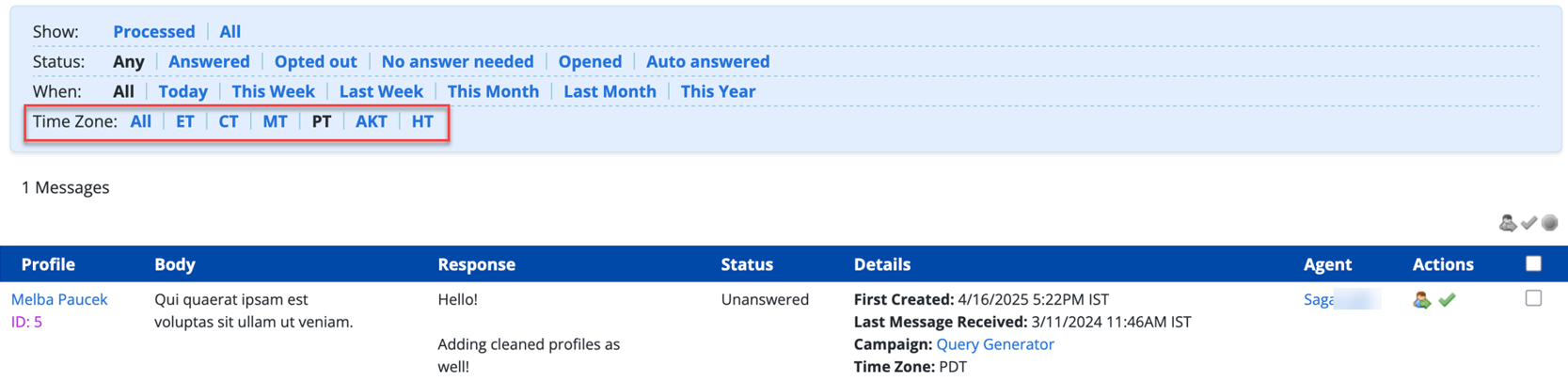
The Messages table displays only those records that match the selected filter(s).The filtered results include profiles that fall under Daylight Time, as applicable.
Exporting message data
You can export the full set or a subset of message records to a CSV (comma-separated values) file.
To export message data:
-
Select
Text Messaging in the left pane, and then select Agent View. -
In the Agent View Actions panel on the right, select
View All. -
Arrange the Messages table to display the records to export. For more information, see Searching the Messages table and Filtering messages.
-
Above the Messages the table, on the right, select Save as CSV.
The message records in the Messages table are saved in a CSV file containing the following columns:
Column Description phone The mobile phone number for the mobile user who sent the message. created_at The date and time when the mobile user sent the message. opened_at The date and time when the agent opened the message. opened_by The name of the agent who opened the message. processed_at The date and time when the message was answered or marked No response needed. status The response status of the message:
- Answered
- Opted out
- No answer needed
- Opened
last_message The last message sent by an agent to the profile user. last_reply The last reply received from the profile user. -
To download the CSV file, select
 Home in the left pane, and then select Reports.
 -
Locate the CSV file in the Exports table, select the link in the Name column, and then open the downloaded file.