Responding to messages in Agent View
You can swiftly answer incoming messages and have one-on-one conversations with a user. The messaging queue may contain messages that need a special response, such as requests for help and user responses that do not match the conversation flow.
You can also opt a user out of a campaign, usually in response to the user's request.
Tip: After you have responded to messages, you can review the user profiles. Point to the  Messages icon in the title bar, on the right, and then select My Recent Responses.
From the Agent View:
For information, see Managing messages in Agent View.
Responding to the next message in the queue
To respond to the next question in the queue:
-
Select
 Text Messaging in the left pane, and then select Agent View.
 -
To respond to the next message in the queue:
-
For all available campaigns (default), select Respond to the next profile.
-
For a specific campaign, select the from campaign field, select the campaign from the drop-down list, and then select Respond to the next profile.
The Profile table displays the message from the next mobile user in the queue.
-
-
Select one of the following responses:
-
Type a response in the text box, and then select Send Response.
-
Select the Search canned responses checkbox, select a frequently used response to use, and then select Send Response. For more information, see Setting up a canned response.
-
Select Remove from my queue to mark the message as Unanswered and return it to the queue where another agent can answer it. You cannot access the message again for 24 hours.
-
Select No Response Needed to remove the message from the queue without requiring a response. This message will still appear in the main Mobile Commons Inbox as well as in Agent View reporting.
-
Select Flag to mark the message for further attention.
-
Select Chat to start a one-on-one conversation directly with the user. For more information, see Chatting directly with a user.
-
Selecting an unanswered message from the queue
To select an unanswered question from the queue:
-
Select
Text Messaging in the left pane, and then select Agent View. -
In the Agent View Actions panel on the right, select
 View All.
 The Messages table opens.
-
In the Show filter options at the top of the table, select Unanswered.
-
Locate the message in the Messages table, and then select
 Respond to this profile.
The Profile table displays the message and your response options.
-
Select one of the following responses:
-
Type a response in the text box, and then select Send Response.
-
Select the Search canned responses checkbox, select a frequently used response to use, and then select Send Response. For more information, see Setting up a canned response.
-
Select Remove from my queue to mark the message as Unanswered and return it to the queue where another agent can answer it. You cannot access the message again for 24 hours.
-
Select No Response Needed to remove the message from the queue without requiring a response. This message will still appear in the main Mobile Commons Inbox as well as in Agent View reporting.
-
Select Flag to mark the message for further attention.
-
Select Chat to start a one-on-one conversation directly with the user. For more information, see Chatting directly with a user.
-
Select Opt-out with No Response to opt the mobile user out of the selected campaign without sending a reply.
-
Responding to unanswered messages in bulk
You can select two or more messages and respond to them in bulk.
-
Select
Text Messaging in the left pane, and then select Agent View. -
In the Agent View Actions panel on the right, select
View All. The Messages table opens.
-
In the Show filter options at the top of the table, select Unanswered.
-
Select messages in the Messages table:
-
To select all messages, select the checkbox at the end of the heading bar, on the right.
-
To select two or more messages, locate each message in the Messages table, and then select the checkbox at the end of the row.
-
-
Select a response option above the table, on the right:
-
 Bulk respond: The response text box opens. To send the same response to all of the selected profiles:
Type a response in the text box, and then select Send Bulk Response.
Select the Search canned responses checkbox, select a frequently used response to use, and then select Send Bulk Response. For more information, see Setting up a canned response.
-
 Bulk no response needed: The messages are marked No response needed and removed from the unanswered messages list.
 -
 Bulk opt out: For more information, see Opting one or more users out of a campaign.
-
Setting up a canned response
If you find yourself sending the same response over and over, you can save pre-written (canned) responses to use when replying to incoming messages.
To set up a canned response:
-
Select
Text Messaging in the left pane, and then select Agent View. -
From the Agent View Actions panel on the right, select
 Canned Responses.
 The Canned Responses table opens.
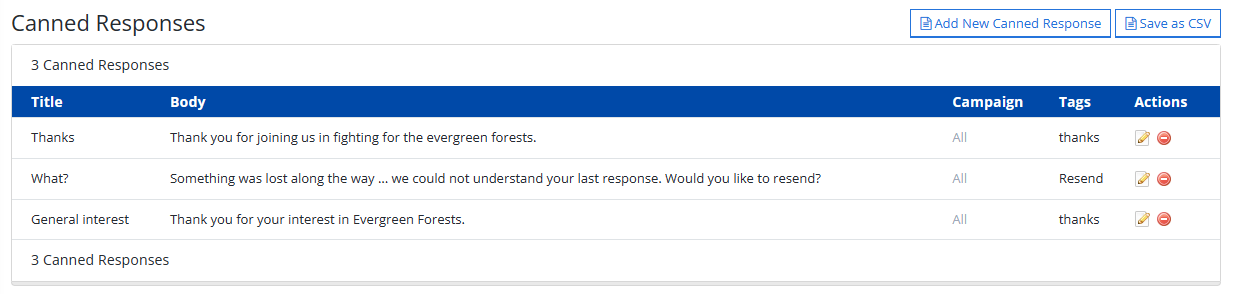
 About the Canned Responses table
The Canned Responses table contains the following information:
If the table is longer than one page, use the page-navigation options above and below the table to navigate to the
 next or
  previous page.
The Help pane on the right provides additional information.
From the Canned Responses table:
Adding a canned response
To add a canned response for unanswered messages:
-
Select
Text Messaging in the left pane, and then select Agent View. -
From the Agent View Actions panel on the right, select
Canned Responses. -
Above the Canned Responses table, on the right, select Add New Canned Response.
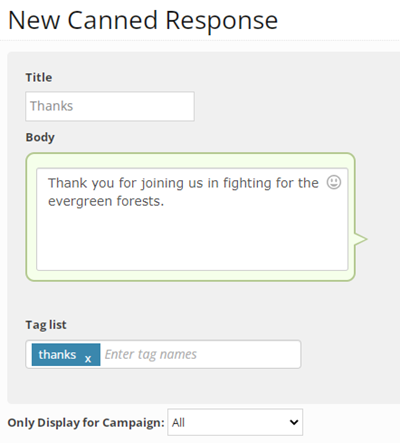
The New Canned Response form opens.
-
Enter a descriptive title.
-
In the Body text box, type the message that you use frequently. The remaining character count appears on the right.
-
Special characters, including emojis, add extra characters to the character count for your SMS message.
-
To add an emoji, select
 Emoji. Scroll through the emoji library and select an emoji image to use.
Tip: If you know the name of the emoji, you can enter it directly into the message, with beginning and ending colons, for example, :emoji:
-
-
(Recommended) Add one or more descriptive tags to search by. Type the tag in the Tag list field and then press ENTER.
-
To remove a tag, select the x next to the tag name in the Tag list field.
-
-
Assign the canned response to all campaigns (default), or select a campaign from the drop-down list.
-
When you are done, select Create.
The canned response is added to the Canned Responses table.
Editing a canned response
To edit a canned response:
-
Select
Text Messaging in the left pane, and then select Agent View. -
From the Agent View Actions panel on the right, select
Canned Responses. -
Locate the response in the Canned Responses table, and then select
 Edit at the end of the row.
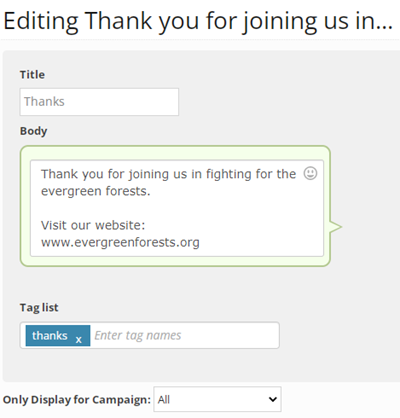
 The Edit canned response form opens.
-
Make your changes to the fields on the form. For more information, see Adding a canned response.
-
When you are done, select Update.
Deleting a canned response
To delete a canned response:
-
Select
Text Messaging in the left pane, and then select Agent View. -
From the Agent View Actions panel on the right, select
Canned Responses. -
Locate the response in the Canned Responses table, and then select
 Delete at the end of the row.
 -
Select OK to confirm.
Exporting canned response data
You can export the full set of canned response records to a CSV (comma-separated values) file.
To export canned response data:
-
Select
Text Messaging in the left pane, and then select Agent View. -
From the Agent View Actions panel on the right, select
Canned Responses. -
Above the Canned Responses table, on the right, select Save as CSV.
The canned response records in the Canned Responses table are saved in a CSV file containing the following columns:
Column Description id The unique identifier for the canned response. body The content of the canned response. campaign All campaigns or a selected campaign where you can use the canned response. tags One or more tags assigned to the canned response. -
To download the CSV file, select
 Home in the left pane, and then select Reports.
 -
Locate the CSV file in the Exports table, select the link in the Name column, and then open the downloaded file.
Chatting directly with a user
You can have a one-on-one conversation with the user.
Note: You can also chat directly with a user through their profile and the Inbox.
To start a chat:
-
Select
Text Messaging in the left pane, and then select Agent View. -
In the Agent View Actions panel on the right, select
View All.The Messages table opens.
-
Locate the mobile user in the Messages table, and then select
 Start Chatting at the end of the row.
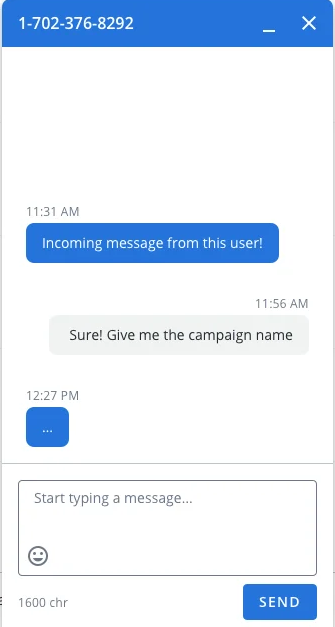
The pop-up Chat window opens on the right.
-
Type your message in the text box.
The remaining character count displays in the lower-right corner of the Chat window.
Special characters, including emojis, add extra characters to the character count for your SMS message.
-
To add an emoji, select
Emoji. Scroll through the emoji library and select an emoji image to use.Tip: If you know the name of the emoji, you can enter it directly into the message, with beginning and ending colons, for example, :emoji:
-
-
When the message is ready, select Send or press ENTER.
If the user responds to your message, you can converse back and forth.
-
When the conversation is done, select x Close in the upper-right corner of the Chat window.
Opting one or more users out of a campaign
You can opt one or more users out of a campaign, usually in response to the user's request.
About opt-outs
Just as a user can text a keyword to your short code to opt-in to subscribe to a campaign, they can also unsubscribe from the campaign by texting a STOP term (for example, stop, cancel, unsubscribe, end, quit) to the same short code.
By opting out, users will no longer receive any text messages from you, including broadcasts, and post-call follow-up texts, but they can still make calls using VoIP numbers or click-to-call forms.
Note: If a user opts out unintentionally, they can resubscribe by texting OOPS or any of your keywords to the same short code.
Tip: Be respectful of the mobile user’s wishes and act promptly on opt-out requests.
To opt one or more subscribers out of a campaign:
-
Select
Text Messaging in the left pane, and then select Agent View. -
In the Agent View Actions panel on the right, select
View All.The Messages table opens.
Tip: If you are opting out multiple users, arrange the Messages table to display the records to respond to in bulk. For more information, see Searching the Messages table and Filtering messages.
-
Select one or more users to opt out from the campaign listed in the Details column:
-
To opt-out a single user, locate the user in the Messages table, and then select
 Opt out at the end of the row.
 -
To opt-out two or more users, locate each user in the Messages table, and then select the checkbox at the end of each row. Select
Bulk opt out in the headings row. -
To opt-out all users in the Messages table, select checkbox in the headings row. The
Bulk opt out icon turns red. Select  Bulk opt out in the headings row.
-
-
Select OK to confirm.