Working with the campaign report
To open the Campaign report:
-
Select
 Text Messaging in the left pane, and then select Campaigns.
 -
Locate the campaign in the Campaigns table or Master Campaign table.
-
Select
 Menu at the end of the row, and then select Report.
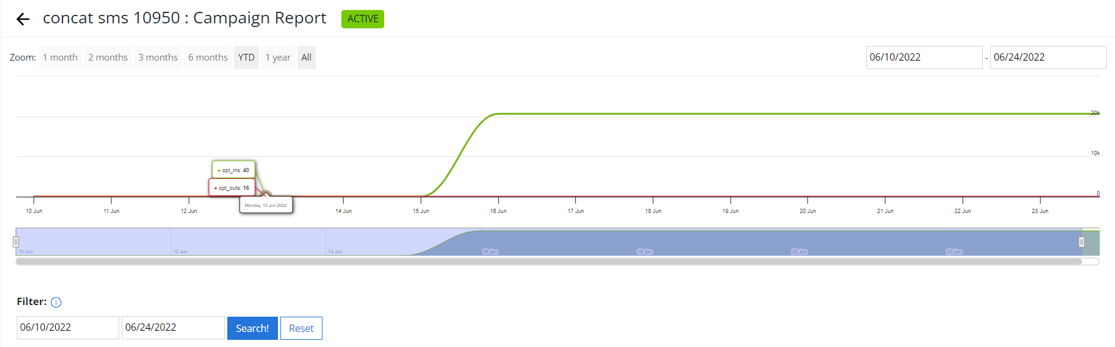
 The Campaign report displays the campaign responses graph at the top of the page.
Campaign statistics appear below the campaign graph.
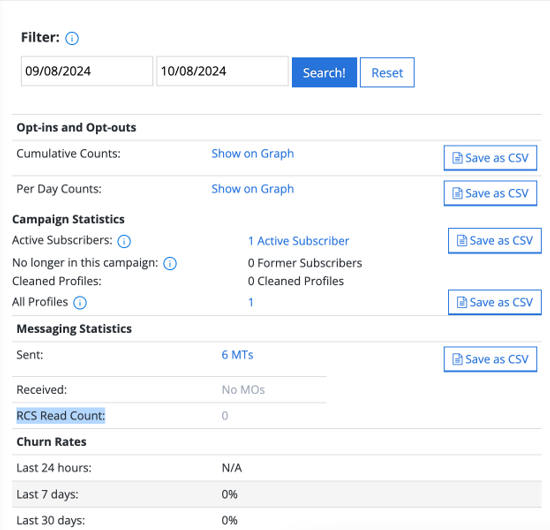
The Campaign report includes the following sections:
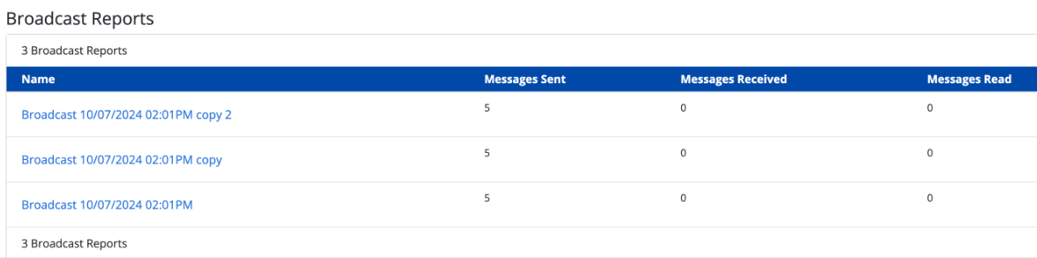
The Campaign report also includes the messaging statistics for related opt-in paths and broadcasts. The Opt-In Path Reports table shows the name, messages sent, and messages received.

The Broadcast Reports table shows the name, messages sent, messages received, and messages read (for read RCS messages).
Campaign responses graph
The campaign responses graph at the top of the page displays the number of responses (such as opt-ins and opt-outs), plus the number of subscribers to the campaign. For more information, see Opt-ins and opt-outs.
Tip: To see the statistics for a specific date, hover the cursor over the date in the graph.
To change the date range:
-
In the upper-left corner, select a standard date range:
-
Zoom narrows the current date range displayed in the campaign graph.
-
1 month displays the most recent month.
-
2 months display the most recent two months.
-
3 months display the most recent three months.
-
6 months display the most recent six months.
-
YTD displays the year to date.
-
1 year displays the most recent year.
-
All displays the entire available date range.
-
-
In the upper-right corner, select the current date range and specify a new date range from the calendar selector.
-
At the bottom of the graph, drag the left and/or right handles of the blue slider to select a new date range.
-
In the Filter field at the bottom of the graph:
-
Select the start date and specify a new start date from the calendar selector.
-
Select the end date and specify a new end date from the calendar selector.
-
Select Search!
Tip: To restore the default date range (1 month), select Reset.
-
Opt-ins and opt-outs
The opt-ins and opt-outs statistics display the number of user actions during the selected time range:
-
To show the total number of user actions accumulated over the course of the selected time range, in the Cumulative Counts row, select Show on Graph.
-
To show the number of user actions for each day, in the Per Day Counts row, select Show on Graph.
The campaign graph displays the selected statistics.
Exporting opt-in and opt-out statistics
You can export opt-in and opt-out campaign statistics for the selected date range to a CSV (comma-separated values) file.
To export opt-in and opt-out campaign statistics:
-
In the Cumulative Counts or Per Day Counts row, select Save as CSV.
The campaign statistics are saved in a CSV file:
-
The cumulative count export file contains the following columns:
Column Description Date Every date in the selected date range. Opt-in count The number of user opt-ins leading up to and on that date. Opt-out count The number of user opt-outs leading up to and on that date. -
The per day count export file contains the following columns:
Column Description Date The date when new user actions are recorded in the campaign during the selected date range. Opt-in count The number of user opt-ins on that date. Opt-out count The number of user opt-outs on that date.
-
-
To download the CSV file, select
 Home in the left pane, and then select Reports.
 -
Locate the CSV file in the Exports table, select the link in the Name column, and then open the downloaded file.
Campaign statistics
The Campaign Statistics section displays the number of active subscribers, former subscribers, cleaned profiles, and all subscribers for the selected date range:
Exporting profile records
You can export the profile records of the active and former subscribers for the selected date range to a CSV (comma-separated values) file.
To export user profiles:
-
In the Active Subscribers, All Profiles, or Profiles with no Messages row, select Save as CSV.
The profile records are saved in a CSV file:
-
The active subscribers export file contains the user profile records for all active subscribers to the campaign during the selected time range.
-
The all profiles export file contains the user profile records for all active and former subscribers to the campaign during the selected time range.
-
The profiles with no messages export file contains the user profile records for all users who have not responded to the campaign during the selected time frame.
For more information on the profile fields, see Exporting profile records.
-
-
To download the CSV file, select
 Home in the left pane, and then select Reports.
 -
Locate the CSV file in the Exports table, select the link in the Name column, and then open the downloaded file.
Messaging statistics
The Messaging Statistics section displays the number of messages sent (MTs) and received (MOs) by the campaign during the selected date range. It also tracks the read count for RCS messages, providing insight into how many RCS messages have been read.
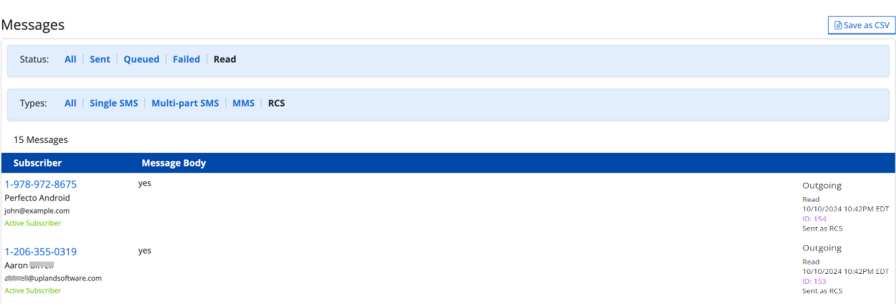
Click on messages sent (MTs) link to view the outgoing messages report that display filters based on various statuses and types. To view the filtered results, click on any specific status or type.
Exporting messaging records
You can export the messaging records, including the profile records of subscribers who sent or received messages from the campaign during the selected date range, to a CSV (comma-separated values) file.
To export messaging records:
-
In the Sent or Received row, select Save as CSV.
The profile records are saved in a CSV file:
-
The sent (MTs) export file contains the messaging records and user profile records for all users to whom Mobile Commons sent messages from the campaign during the selected time range. The sent export file contains the following columns, plus the profile record, for each user:
Column Description phone_number The user's mobile phone number. direction Outgoing, the message was sent to the user from Mobile Commons. when The date and time when the message was sent by Mobile Commons. body The content of the message. message_type The message type:
-
direct message: sent directly to a mobile user, for example, as a scheduled message, direct text to the user, or test message.
-
help_response
-
info_request
-
opt_in_confirmation
-
opt_out_confirmation
-
opt_out_receipt
-
question
-
regular_text
-
t_and_c_message
sms_parts The number of parts to the message. If a message is longer than the 160 character limit, it is broken into parts that are reassembled upon delivery. status The delivery status of the message:
-
queued: awaiting processing, not yet sent.
-
sent
-
failed_permanently
shortcode The short code on which the message was sent. id The identifier for the user. message_id The identifier for the message. campaign_name The name of the campaign. -
-
The received (MOs) export file contains the messaging records and user profile records for all users from whom Mobile Commons received messages for the campaign during the selected time range. The received export file contains the following columns, plus the profile record, for each user:
Column Description phone_number The user's mobile phone number. direction Incoming, the message was sent from the user from Mobile Commons. when The date and time when the message was sent by the user. body The content of the message. message_type The message type:
- Opt-in: opt-in message, the first step in double opt-in, in response to a CTA (Call to action) promotion.
Opt-out: opt-out message, canceling the user's subscription to a campaign.
Reply: message in response to a message from a campaign.
Info response: message providing information requested by a message from a campaign.
Help: request for information.
mConnect message in response to mConnect requests.
mData: message received in response to an mData.
Answer: message received in response to a multiple choice question.
Duplicate opt-in: opt-in response received after the user has already opted in to a campaign.
Unknown: Mobile Commons is unable to determine which campaign the subscriber is responding to, or the message contains an invalid response to a multiple-choice question.
MMS: message sent via MMS, usually including images or other graphic media.
sms_parts The number of parts to the message. If a message is longer than the 160 character limit, it is broken into parts that are reassembled upon delivery. status The delivery status of the message:
-
Found an outgoing mConnect request message to this number
-
Matched on keyword: "keyword"
-
Opt-out
-
Opt-out request from a user with one or more subscriptions
-
This is a reply to an outgoing text message
-
This response matched multiple choice "letter": "value"
-
User request to reactivate subscriptions
shortcode The short code on which the message was sent. id The identifier for the user. message_id The identifier for the message. campaign_name The name of the campaign. For more information on the profile fields, see Exporting profile records.
-
-
To download the CSV file, select
Home in the left pane, and then select Reports. -
Locate the CSV file in the Exports table, select the link in the Name column, and then open the downloaded file.
Churn rates
The Churn Rates section displays the percent of recipients who opted out of the campaign over the last 24 hours, 7 days, and 30 days.