Working with polling locators
During election season, use polling locators to help individuals locate and access their designated voting or ballot drop-off stations based on their full voting address. For more information, see Adding polling locators.
To work with polling locators:
-
Select
 Text Messaging in the left pane, and then select Polling Locators.
The Polling Locators page opens to the Active Polling Locators table.

-
To view deactivated polling locators, select the Inactive Polling Locators tab.

 About the Polling Locators tables
The Active Polling Locators and Inactive Polling Locators tables contain the following information:
Column Description Name The name of the polling locator. Originator It displays the short code, 10DLC long code, or RCS agent used to send the message. Details The API URL for the polling locator.
Status  in the Active Polling Locators table.
 in the Inactive Polling Locators table.
If the table is longer than one page, use the page-navigation options on the lower-right to select the number of rows per page and to navigate to the
 next or
  previous page.
Tip: To navigate directly to a specific page, select the page field, enter the page number, and then press ENTER.
From the Polling Locators page:
Editing a voting locator
To update an existing polling locator:
-
Select
Text Messaging in the left pane, and then select Polling Locators.The Active Polling Locators table opens.
Note: To edit a deactivated polling locator, select the Inactive Polling Locators tab.
-
Locate the polling locator in the table, select
 Menu at the end of the row, and then select Edit.
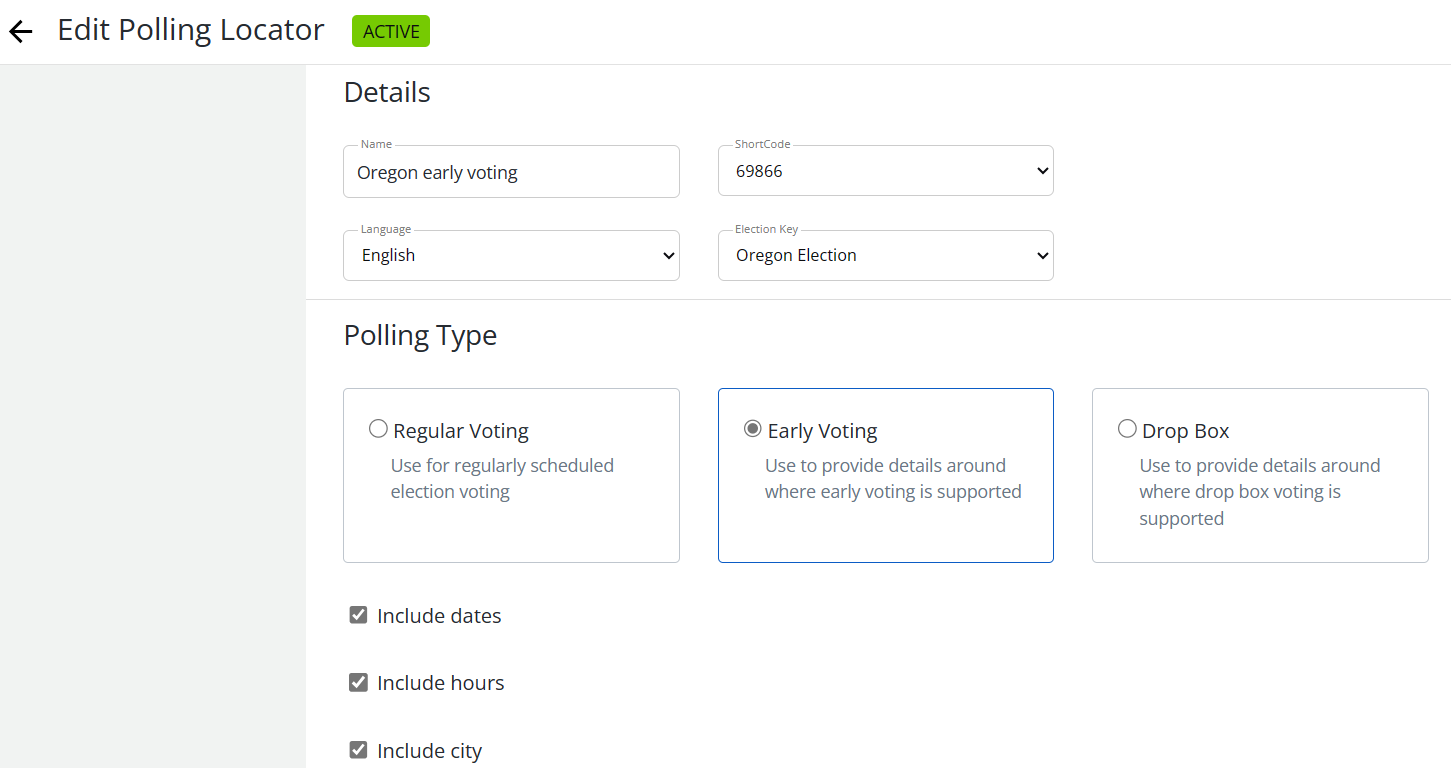
The polling locator page opens.
-
Make your changes to the form. For more information, see Creating a voting locator.
-
When you are done, select Update.
The updated polling locator is added to the Active Polling Locators table or the Inactive Polling Locators table.
Cloning a polling locator
To make a copy of a polling locator:
-
Select
Text Messaging in the left pane, and then select Polling Locators.The Active Polling Locators table opens.
Note: To clone a deactivated polling locator, select the Inactive Polling Locators tab.
-
Locate the polling locator in the table, and then select the name link.
The polling locator page opens.
-
At the top of the page, select Actions, and then select Clone.
-
To confirm, select OK.
The polling locator is cloned, but not any keywords associated with it.
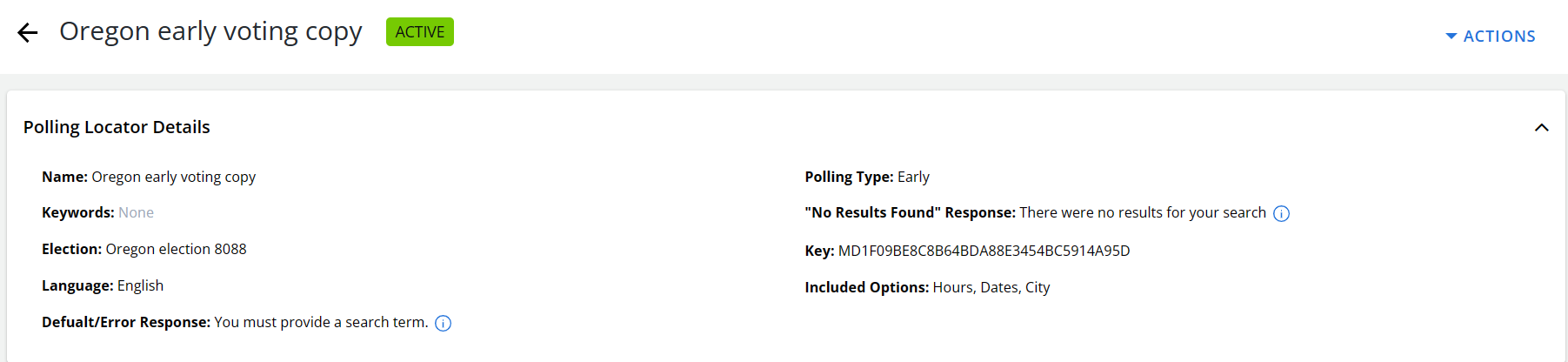
Mobile Commons creates an identical polling locator with "copy" appended to its name.
-
(Optional) You can test this polling locator. For more information, see Testing a voting locator.
-
To change the polling locator name, at the top of the page, select Actions, and then select Edit Details.
-
(Recommended) In the Name field, enter a descriptive name for the polling locator.
-
Make any additional changes to the form. For more information, see Creating a voting locator.
-
When you are done, select Update.
The new polling locator is added to the Active Polling Locators table or the Inactive Polling Locators table.
Deactivating a polling locator
If you want to remove an active polling locator from use, you can deactivate it.
-
Select
Text Messaging in the left pane, and then select Polling Locators.The Active Polling Locators table opens.
-
Locate the polling locator in the table, and then select the name link.
The polling locator page opens.
-
At the top of the page, select Actions, and then select Deactivate.
The deactivated polling locator is removed from the Active Polling Locators table and added to the Inactive Polling Locators table.
Activating a polling locator
If you want to restore an inactive polling locator, you can reactivate it.
-
Select
Text Messaging in the left pane, and then select Polling Locators.The Active Polling Locators table opens.
-
Select the Inactive Polling Locators tab.
-
Locate the inactive polling locator in the table, and then select the name link.
The polling locator page opens.
-
At the top of the page, select Actions, and then select Activate.
The reactivated polling locator is removed from the Inactive Polling Locators table and restored to the Active Polling Locators table.
Viewing a polling locator report
To open a polling locator report:
-
Select
Text Messaging in the left pane, and then select Polling Locators.The Active Polling Locators table opens.
Note: To view the report for a deactivated polling locator, select the Inactive Polling Locators tab.
-
Locate the polling locator in the table, select
Menu at the end of the row, and then select View report.The polling locator report opens.