Link a local GitHub repository
After you Create a GitHub repository and Set up SSH Key authentication for GitHub, the next step is to link your local OL Connect Automate project to the remote GitHub repository.
Copy the SSH URL from GitHub
-
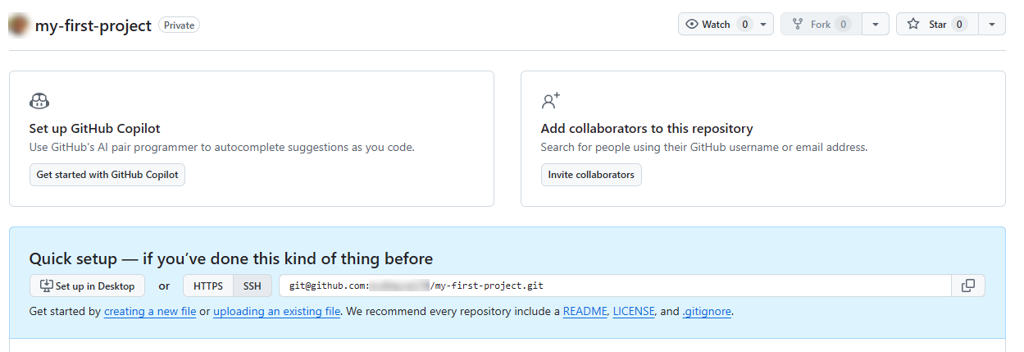
In GitHub, open your newly created repository.
-
In the Quick setup area (visible for new/empty repositories), select the SSH option.
-
Copy the SSH URL, which looks similar to:
git@github.com:<your-github-account>/my-first-project.git
Add the Remote Repository in OL Connect Automate
-
In OL Connect Automate, navigate to Menu → Projects → Project Settings → Settings.
-
In the Git remotes section, click add remote.
-
Enter the Remote Name for the remote repository, for example,
MyFirstProjectRemote. -
Paste the SSH URL into the URL field.
-
Click Add remote.
Your local project is now linked to the remote GitHub repository.
Push files to the remote repository
-
Open the History tab of the right sidebar.
-
Open the Commit History panel.
-
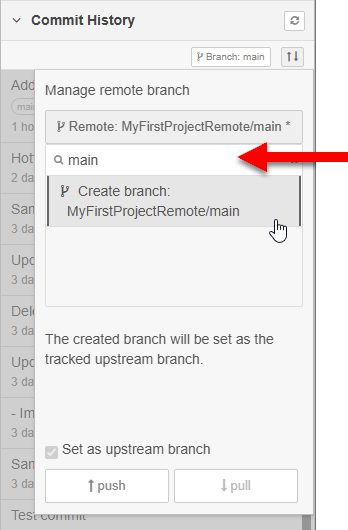
Click the Manage Remote Repository icon

-
Click the Remote button.
-
Enter the name of the branch you want to push to.
-
For GitHub repositories, the default branch is typically
main. -
If it does not yet exist in the remote repository, entering
mainwill create it.
-
-
Select the
mainbranch from the list. -
Click push to upload your project files to GitHub.
-
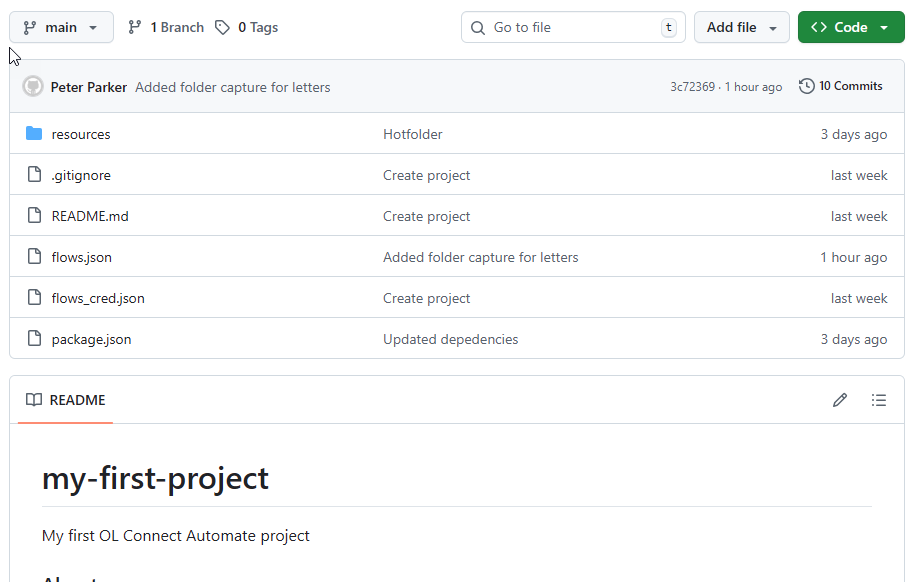
Once the push completes, you can confirm the files are in the repository:
-
Return to your GitHub repository in your browser.
-
Refresh the page to see your project files appear in the repository.
-
Note: If you encounter the error:
Host key verification failed. The repository host key could not be verified. Please update your known_hosts file and try again.
when selecting the remote branch in the History panel, refer to GitHub’s SSH key fingerprints documentation for instructions on how to update your known_hosts file.