Create a GitHub repository
Integrating a Project with a GitHub repository allows you to store, version, and collaborate on your OL Connect Automate flows and resources securely.
In this and subsequent topics, you’ll see how to:
-
Create a new repository on GitHub.com.
-
Set up SSH Key authentication for GitHub to securely connect your environment with GitHub.
-
Link a local GitHub repository. This is the usual process if you create a new repository on GitHub. For example, if you Create a Project locally, and then decide to use it with GitHub, you create a repository as shown below, then link to it.
-
Clone a GitHub repository. This is the process if you want to work with a project that already exists in a GitHub repository.
Create repository
-
If you don’t already have a GitHub account, start by creating one at GitHub.com. Follow the instructions there to sign up.
-
Log in to your GitHub account.
-
In the GitHub portal, click New to create a new repository.
-
Enter a repository name, for example:
my-first-project. -
Optionally, provide a short description to help identify the purpose of the project.
-
Under Choose visibility, select
Private. This is recommended if you don’t intend to share the project publicly. Leave all other settings at the default. -
Click Create repository to finish.
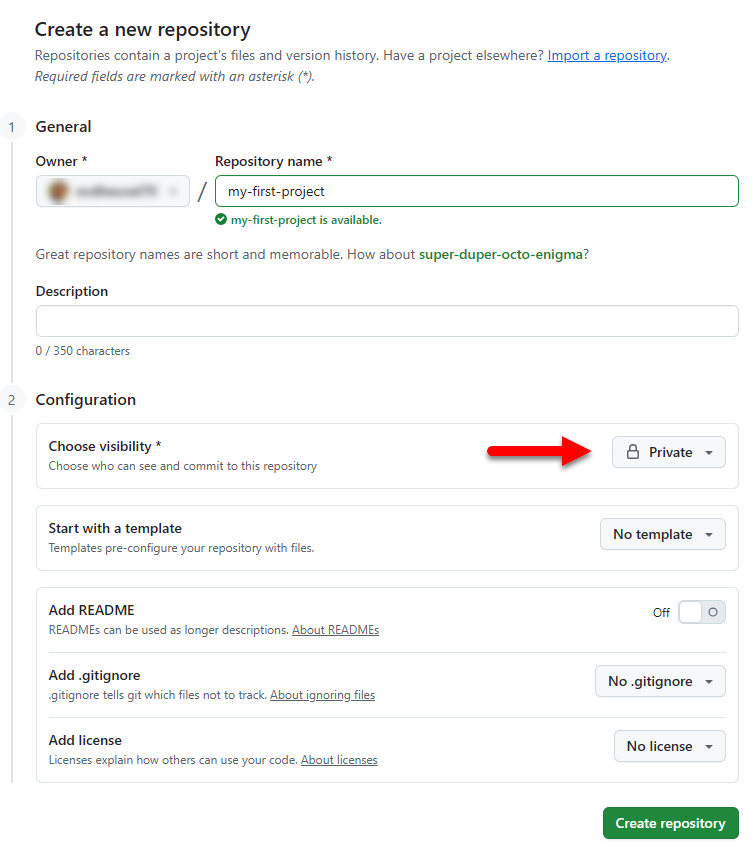
Your new repository is now ready to be connected to your OL Connect Automate.
Next, Set up SSH Key authentication for GitHub to enable secure communication between OL Connect Automate and GitHub.