Import Timesheet Data
Timesheet data saved on *.txt files can be imported into PowerSteering. The import file can update Timesheet data for multiple Resources simultaneously, including hours worked, work items worked on, Activities, Rates, and more. This is especially useful when first migrating to PowerSteering or when backfilling missed Timesheet entries, where large volumes of Timesheet data need to be entered at once.
Once a Format a Timesheet Import File has been created, it can be uploaded into PowerSteering.
To import Timesheet data into PowerSteering:
Before You Start: Users must belong to the Admin Group to import Timesheet data into PowerSteering.
Also, make sure you have access to a Format a Timesheet Import File that can be imported into PowerSteering. Finally, ensure that at least one Timesheet Loader Template has been created.
-
Select Review
 → Import/Export → Timesheets from the Navigation Menu.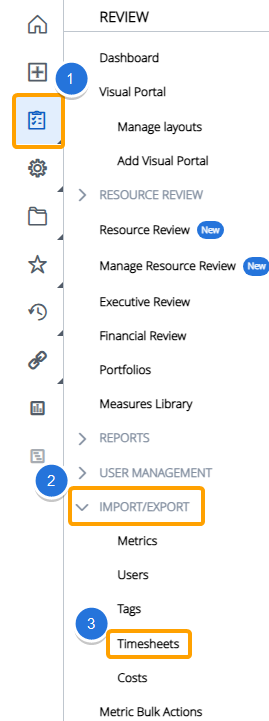
-
Select the Choose File button.

-
Use the window that appears to navigate to the Format a Timesheet Import File that will be used to upload Timesheet data and select it.
-
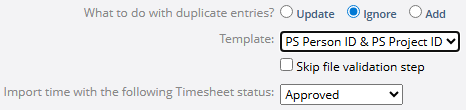
Configure the Timesheet import options.
-
What to do with duplicate entries?: Decide what will happen to any duplicate entries included in the import file.
 Click here for more information on duplicate entries
Note: A duplicate entry is a line item in the import file that contains the same work item and activity as an existing time entry on a Resource's Timesheet. For example, have a look at this line item from an import file:

The "Unique Person Id" belongs to Jonathan O'Reilly, and the "Unique Project ID" belongs to the "Digital Method Implementation" project. The "Activity" has been set to "Design" and the date is January 12th, 2026.
If we look at Jonathan's Timesheet for the week, we can see that there is already an entry for this project with this activity on the same day: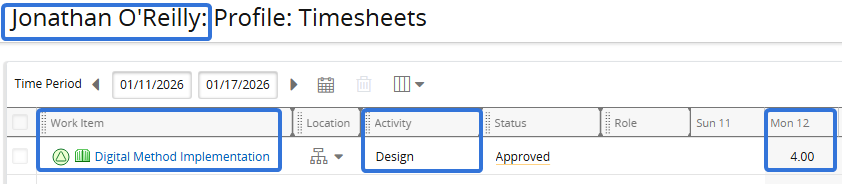
This means that the line item is a duplicate entry.
Please keep in mind that all four of these values must be the same to be considered a duplicate value. For instance, removing the "Activity" value or changing it to another one will create a new entry because time can be entered against the same work item on the same day under difference activities.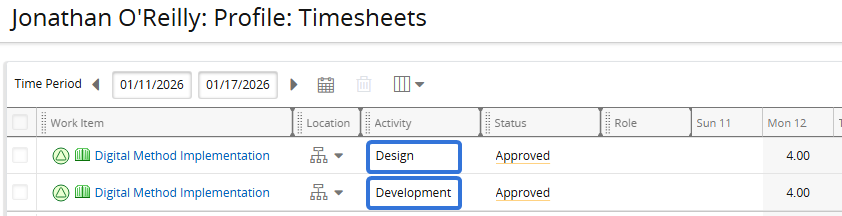
Note: This option will only affect import file line items that do not have a value under the "Action" column. The value in the "Action" column (either "Update", "Ignore", or "Add") will supersede the option selected from this screen. See Format a Timesheet Import File for more information on the "Action" column.
-
Update: Time entries in the import file will replace any duplicate entries that exist on the Timesheet.
-
Ignore: Time entries in the import file will NOT replace any duplicate entries that exist on the Timesheet. The existing Timesheet entries will remain in place and any duplicate entries from the fil will be ignored.
-
Add: Time entries in the import file will be added to any duplicate entries that exist on the Timesheet. For example, if a duplicate time entry contains 4 hours in the import file and 3 hours on the Timesheet, the new value on the Timesheet will be 7 hours.
-
-
Template: Select a Timesheet Loader Template that will be used to import the file.
Note: These templates essentially determine the data used to identify Resources and work items. If you are unsure which template to select, contact a PowerSteering administrator.
Note: If only one Timesheet Loader Template is available, it will be automatically selected and there will be no drop-down menu.
-
Skip file validation step: Selecting this checkbox will skip the validation that occurs after configuring settings and the Upload & Continue button. If selected, Step 6 below will not be applicable.
-
Import time with the following Timesheet status: Select a Timesheet status that will be applied to each Timesheet entry in the import file.
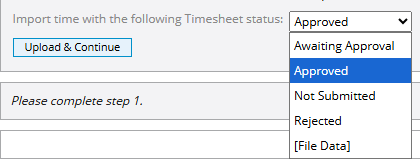
If [File Data] is selected, users can add a "Status" column to their Timesheet import file. This column must contain the name of a Timesheet status spelled correctly.
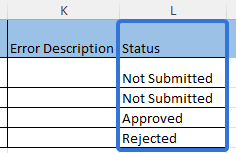
Note: The "Status" column can be located anywhere in the file.
Note: Empty "Status" cells will automatically receive an "Approved" status. Cells with misspelled words will cause an error. Also, including a "Status" column when any option aside from [File Data] is selected will cause an error.
-
-
Select the Upload & Continue button.
-
(Optional) Select error log from the "Exceptions" panel to download a .txt version of your upload file with explanations of any failed line items.

Note: If you would like to fix any errors before uploading the file, select Click here from the first panel and restart the process from Step 2.

Note: Skip this step if you selected the "Skip file validation step" checkbox.
Tip: After downloading the file, you can use Microsoft Excel's Text Import Wizard to view the data clearly in Excel.
-
Select the Continue... button to upload the file.
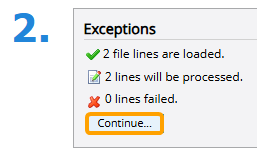
After selecting Continue..., the file will be uploaded into PowerSteering. Data from the successful line items will be applied to PowerSteering Timesheets.