Format a Timesheet Import File
Timesheet data saved on *.txt files can be imported into PowerSteering. The import file can update Timesheet data for multiple Resources simultaneously, including hours worked, work items worked on, Activities, Rates, and more. This is especially useful when first migrating to PowerSteering or when backfilling missed Timesheet entries, where large volumes of Timesheet data need to be entered at once. It is also helpful for organizations using third party applications to collect Timesheet information because that data can be imported into PowerSteering to create Actual Cost entries.
Note: Unlike standard Timesheet entries, imported time entries are applied to each work item's Actual Cost page immediately and do not require the Time Conversion Agent to run.
Before uploading Timesheet data into PowerSteering, the data must be inputted into an import file. This file must be saved using a text (tab delimited) (*.txt) file format before it is imported. However, a spreadsheet program (such as Microsoft Excel) is the easiest way to create the import file before it is saved as a text file.
Download an example timesheet import file here. Excel files must be saved in text (tab delimited) (*.txt) format before being imported into PowerSteering.
This page covers the following topics:
Creating a Timesheet import file
The easiest way to create a Timesheet import file is by entering the data into a spreadsheet program such as Microsoft Excel. In order to prepare the spreadsheet for data entry, simply enter the following header titles to the top row as shown here:

All of the header titles must be spelled exactly as displayed in order to be accepted by PowerSteering.
Note: Any special formatting (such as the blue fill in the header row above) is not necessary.
Tip: If you would like a Microsoft Excel file that is already formatted with header titles, download an example timesheet import file here and input your own data.
The import file column headers are as follows:
-
Action: Decide what will happen if the line item (row) is a duplicate entry.
 Click here for more information on duplicate entries
Note: A duplicate entry is a line item in the import file that contains the same work item and activity as an existing time entry on a Resource's Timesheet. For example, have a look at this line item from an import file:

The "Unique Person Id" belongs to Jonathan O'Reilly, and the "Unique Project ID" belongs to the "Digital Method Implementation" project. The "Activity" has been set to "Design" and the date is January 12th, 2026.
If we look at Jonathan's Timesheet for the week, we can see that there is already an entry for this project with this Activity on the same day: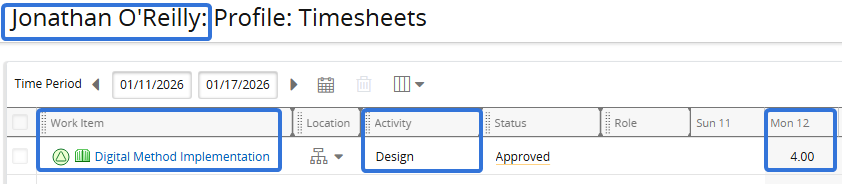
This means that the line item is a duplicate entry.
Please keep in mind that all four of these values (Unique Person ID, Unique Project ID, Activity, and Date) must be the same as an existing time entry for a line item to be considered a duplicate entry. For instance, removing the "Activity" value or changing it to another one will create a new entry because time can be entered against the same work item on the same day under difference activities.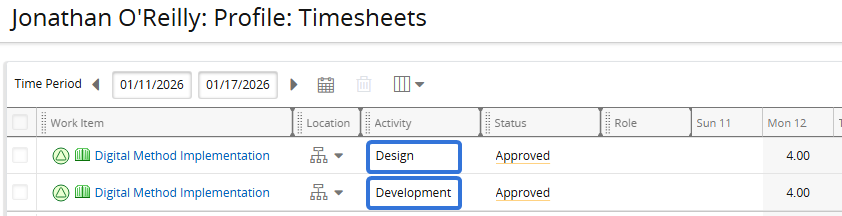
One of three values can be entered in this column:
-
Update: The duplicate entry in the import file will replace the same entry that exists on the Timesheet.
-
Ignore: The duplicate entry in the import file will NOT replace the same entry that exists on the Timesheet. The existing Timesheet entry will remain in place and the duplicate entry from the file will be ignored.
-
Add: The duplicate entry in the import file will be added to the same entry that exists on the Timesheet. For example, if the duplicate entry contains 4 hours in the import file and there are already 3 hours on the existing Timesheet, the new value on the Timesheet will be 7 hours.
The "What to do with duplicate entries?" selection from the Timesheet import page will be applied to all duplicate line items that do not have a value in this column.
-
-
Unique Person ID (required): A number used to identify the Resource that time is being entered for. The ID entered into this field can be one of three things based on the "User column" value of the Timesheet Loader Template used to import the file. "User column" can have one of three values:

Tip: If you are unsure what to use for the "Unique Person ID", speak to an administrator. Administrators will be able to see which "Unique Project ID" is supported by existing Timesheet Loader Templates.
-
User ID: Enter the Resource's User ID number. This number can be added to a Resource profile while editing.
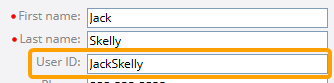
Note: The "User ID" field cannot be seen while simply viewing a Resource's profile, only while editing it.
-
Powersteering ID: Enter the Resource's 26-digit PowerSteering ID. This can be seen by accessing a Resource's profile and viewing the 26 characters after the "U" at the end of the webpage's URL.

Tip: The PowerSteering IDs of multiple Resources can be extracted by running a Report.
-
Email: Enter the Resource's email address listed on the Resource's profile.
Tip: The email addresses of multiple Resources can be extracted by running a Report.
-
-
Unique Project ID (required): A number used to identify the work item that the time is entered against. The ID entered into this field can be one of three things based on the "Work column" value of the Timesheet Loader Template used to import the file. "Work column" can have one of three values:

-
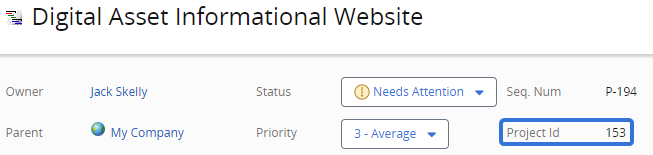
Project ID: The "Unique Project ID" field must contain the Project ID of each work item included in the file. A Project ID can be seen directly on a work item's Summary page.
-
PowerSteering ID: The "Unique Project ID" field must contain the 26-digit ID of each work item included in the file. PowerSteering IDs can be identified by visiting the Summary page of a work item and copying the 26-digit ID from the URL after the "U".

Tip: Some users may wish to use the REST API to gather Project IDs. View the REST API Documentation for more information.
-
Custom Field: If this is selected, the "Unique Project ID" field must contain a value for one of the Custom Fields selected on the Cost Loader Template.

The hours will be applied to the work item that contains an identical value for one of the selected Custom Fields.
Note: This value must still be unique. This means that if multiple work items share the same value for one of the selected Custom Fields, the hours will fail to be added.
Click here for an example
Example: "Main Funding Source" has been selected as one of the Custom Fields on the Timesheet Loader Template:
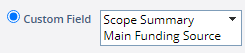
Jack's Gated Project has "Government" listed as the value for the "Main Funding Source" field:
When he enters "Government" in the "Unique Project ID" column, his Gated Project will receive the hours: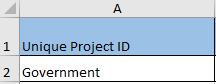
However, if more than one work item has "Government" entered as the value for the "Main Funding Source" field, the Cost will fail to upload because the value must be unique.
Note: "Project" is a Replaceable Term in PowerSteering. If the term "Project" has been replaced, you will need to reformat the "Unique Project ID" header in one of the two following ways:
A) Place brackets "[ ]" around the word "Project" within the "Unique Project ID" column header (i.e. "Unique [Project] ID")
OR
B) Insert the replaced term for "Project" into the column header instead (i.e. "Unique Problem ID").
To see how to find out if the term "Project" has been replaced, see View Replaced Terms. -
-
Role: The Resource's Role on the work item.
-
Activity: The name of an Activity value that is selectable in Timesheets. Entering a misspelled Activity value will result in an error and the line item will not be accepted.
-
Rate: The hourly rate of the Resource for the entered time.
Note: If a valid "Rate Code" (below) is also entered for the line item, the Rate Code value will override the "Rate" value. If neither values are included, the Personal Rate or Default Rate Table rate will be applied.
-
Rate Code: The Rate Code that will be applied to the Resource's entered time.
Note: If a valid "Rate" (above) is also entered for the line item, the "Rate Code" value will override the "Rate" value. If neither values are included, the Personal Rate or Default Rate Table rate will be applied.
-
Currency: The currency code (i.e. USD, CAD, etc.) that will be used to pay for the Resource's time. If no currency is entered, the PowerSteering default currency will be used.
-
Date (required): The day the time is entered against, formatted DD/MM/YYYY.
-
Hours (required): The number of hours entered against the work item (and Activity, if desired) for the day.
Note: Empty values will not be considered 0 hours. Instead, an empty "Hours" cell will cause an error and the line item will not be imported into PowerSteering. A "0" must be entered to import a value of "0" hours.
-
Description: A description of the Resource's work. This message will appear under the "Description" column of the Resource's Timesheet.
-
Error Description: The cells in this column should be left empty; they will be populated by the Timesheet loader when errors occur. If any of the time entries fail, this column will display an explanation of the error in the error log.
Preparing a Timesheet import file for upload
Once the Timesheet import file has been created in a spreadsheet program such as Microsoft Excel, it must be prepared for upload into PowerSteering. Import files must be saved using a text (tab delimited) (*.txt) file format in order to be accepted by PowerSteering during upload. The procedure below explains how to save your Microsoft Excel spreadsheet as a text (tab delimited) (*.txt) file once the Timesheet data has been entered.
To save your Excel file as a text (tab delimited) (*.txt) file:
-
Select the File tab.
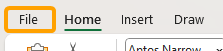
-
Select Save As.
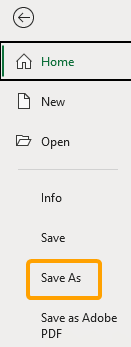
-
Select the Folder icon and use the File Explorer to determine where the file will be saved on your device.

-
Enter an informative name into the filename (top) textfield.

-
Select Text (Tab delimited) (*.txt) from the drop-down menu directly below the filename field.

-
Select the Save button.

After selecting Save, the file will be saved to your device in the correct format. It is ready for upload into PowerSteering.
Tip: Any changes made to the Excel file can be applied to the text (tab delimited) (*.txt) file by simply selecting the Save icon  in the top left-hand corner.