Upload a PowerPoint Template in PowerPoint Branding
Before a Custom PowerPoint Template can be created, an administrator will need to upload a PowerPoint file into PowerPoint Branding. This file will set the framework for the Custom PowerPoint Template that is subsequently created.
To create a PowerPoint Template in PowerPoint Branding:
Before You Start: Only PowerSteering administrators can upload files into PowerPoint Branding.
Also, you will need a PPT or PPTX file that has been optimized for a PowerPoint Template. See Create a New Custom PowerPoint Template and Data Tokens for Custom PowerPoint Slides for information on creating them.
-
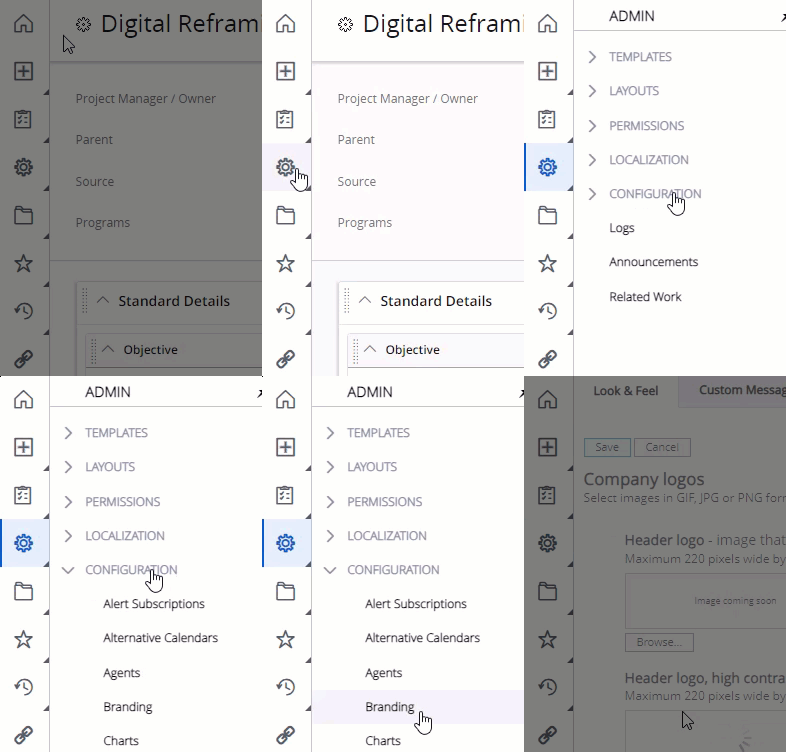
Select Admin → Configuration → Branding from the Navigation Menu:

Click thumbnail to play.
-
Select the PowerPoint Branding tab:

-
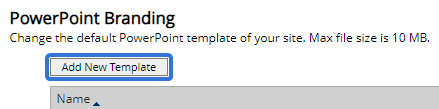
Select the Add New Template button:
-
Use the window that appears to navigate to the PPT or PPTX file that you have saved on your device.
Tip: See Create a New Custom PowerPoint Template and Data Tokens for Custom PowerPoint Slides for information on creating these files.
-
Select the file from the window.
Note: This might involve either double-clicking the file or selecting the file and then selecting the Open button.
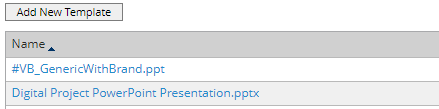
After the file is selected from the window, it will be added to the list of PowerPoint Branding files: