Edit a Risk
Certain risk details can easily be edited after a risk has been created.
1. Click Risks
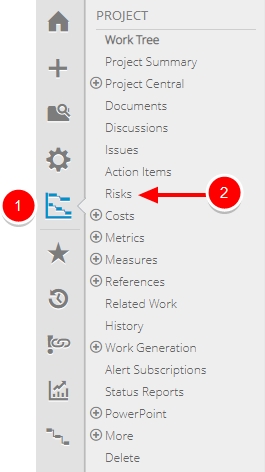
- On the Icon Bar, click the Project button, then click Risks.
Note: Clicking the Project button on the side menu will take you directly to the Summary page of the last work you visited. If this does not bring you to your desired work, navigate to it in the Work Tree.
2. Click Collapse/Expand

- Click Collapse/Expand next to the risk you want to edit.
3. Click Edit
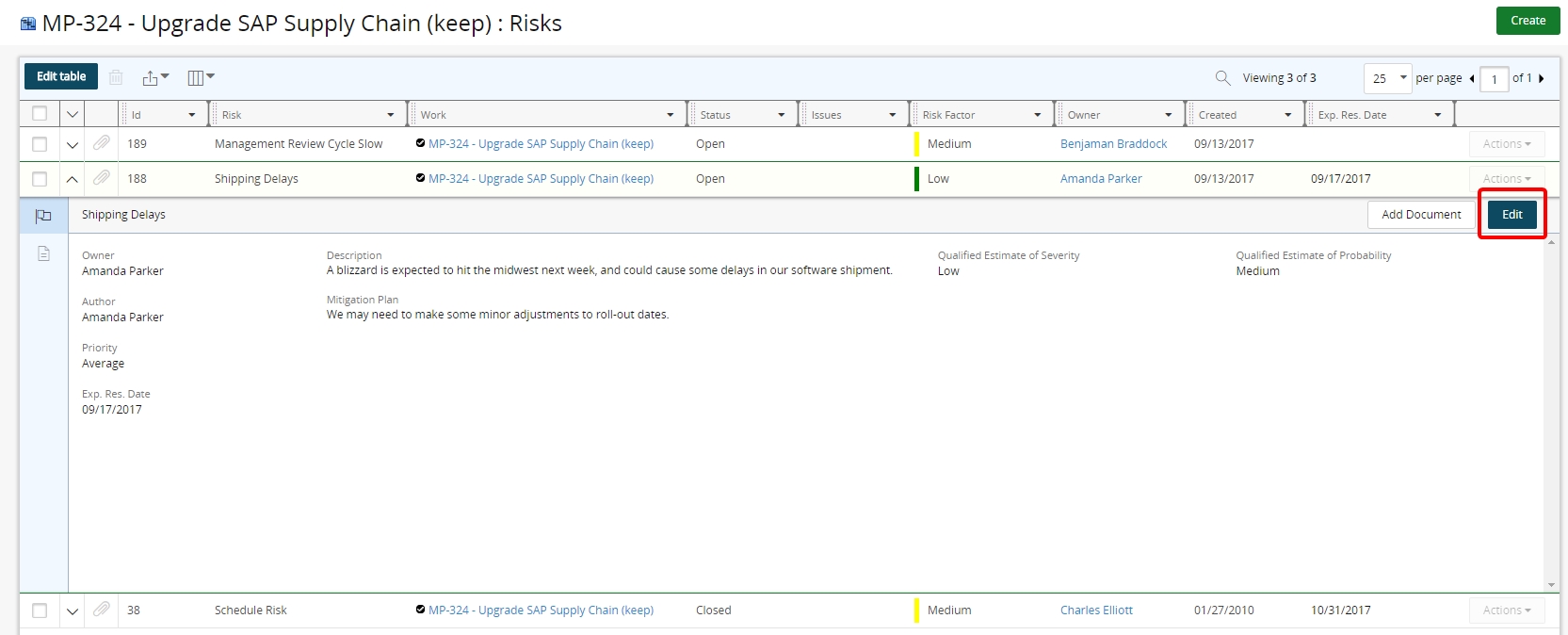
- Click Edit
Note: A risk can also be edited by selecting Edit from the Actions drop-down menu.
4. Edit Risk
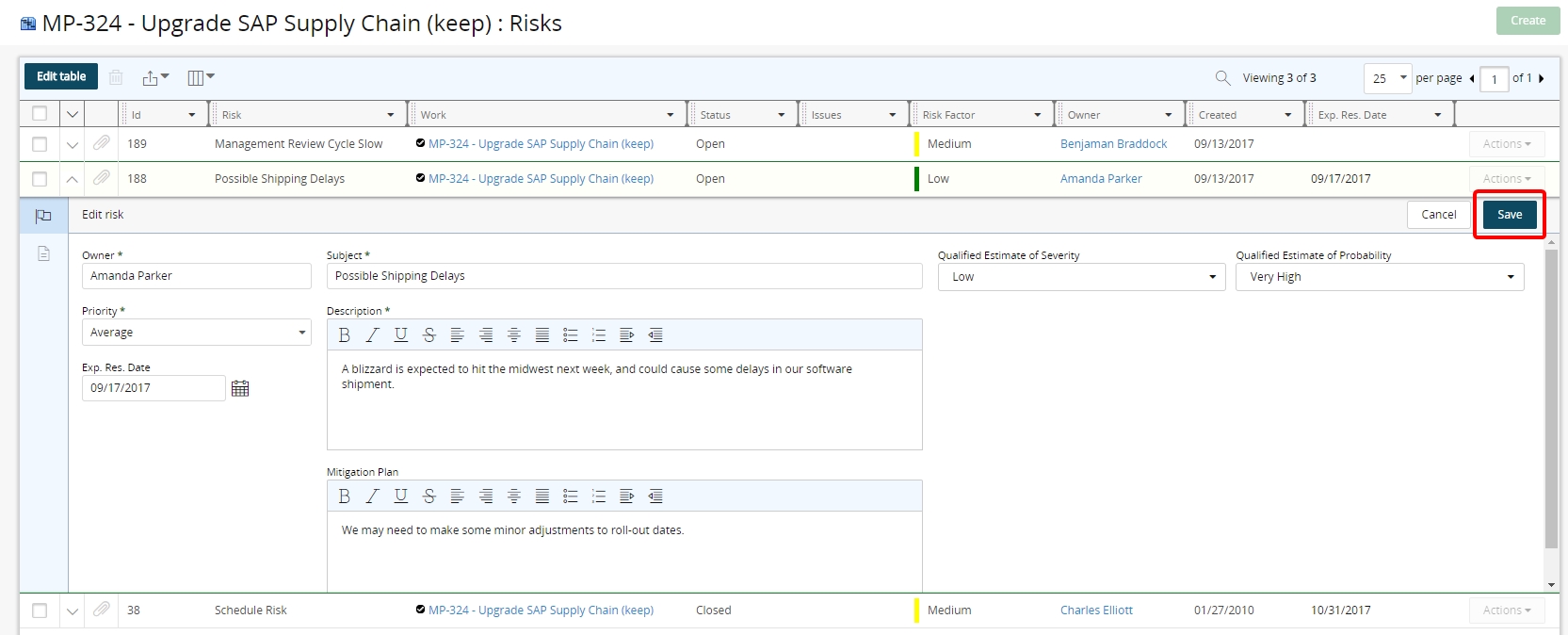
- Edit risk information as necessary.
- Click Save.
5. View Risk
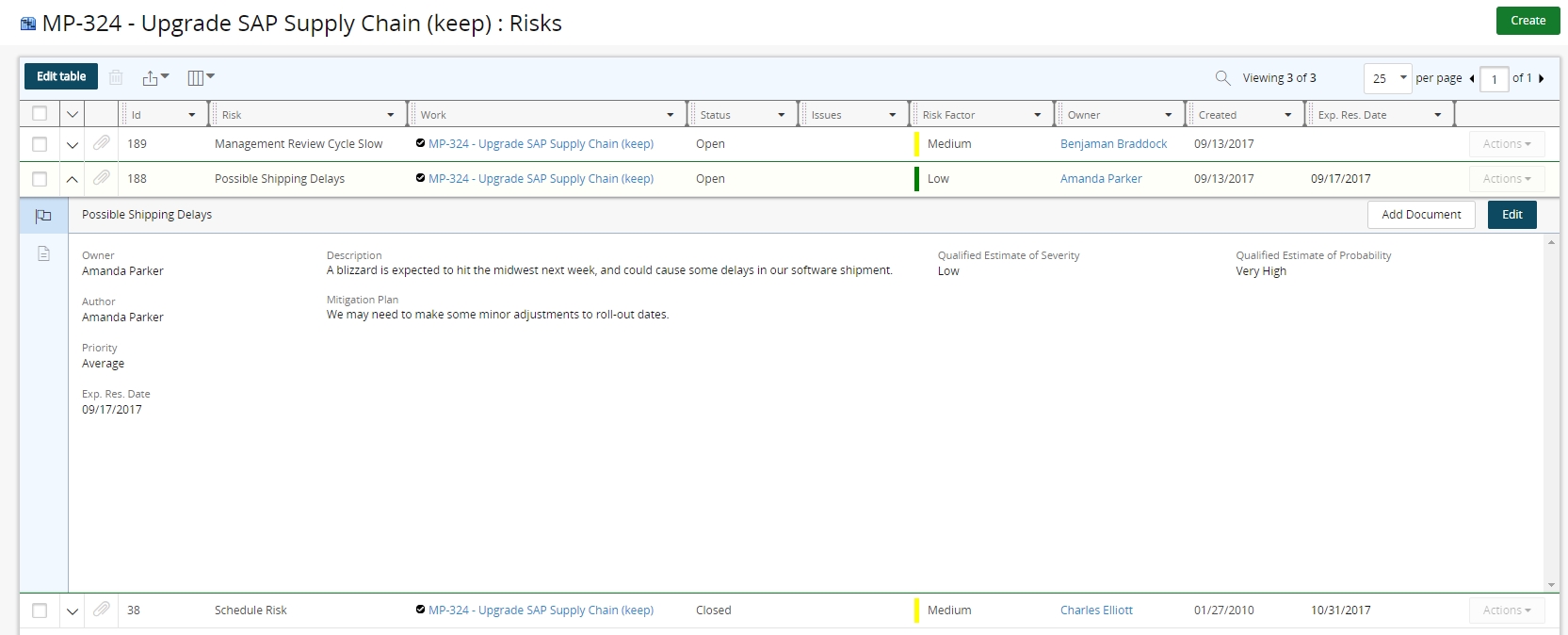
- View updated risk.