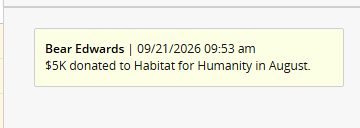
Add Comments to a Metric
Users can add comments to Metrics at any time to provide context and clarity around their updates. Comments create a documented history of decisions, assumptions, and events that can improve reporting accuracy and support more informed decision-making.
Tip: Administrators can configure Metric Templates to require comments after changes are made. See Basic Info Metric Tab for more information.
Tip: PowerSteering leverages artificial intelligence (AI) to determine whether users leave meaningful comments on their Metrics. Comments that are not descriptive enough will be not be immediately saved. Instead, the comment author will be prompted to review the comment before saving.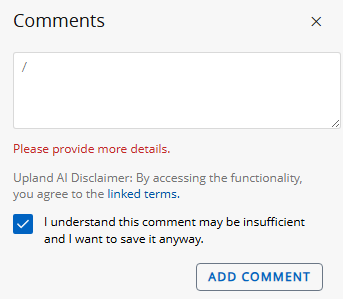
If you find the AI is either too strict or too lenient on Metric comments, contact your PowerSteering representative to adjust it. Also, please feel free to submit any feedback to your PowerSteering representative to help refine the AI model for future use.
Also, please be aware that AI-powered features might not always work as expected. See Upland Software's AI disclaimer for information.
Note: The AI validation process only analyzes the text entered in the comment. No other Metric, work item, or system data is accessed during validation. However, reach out to your PowerSteering representative at any time if you would like to disable AI features.
To add a comment to a Metric:
Before You Start: Users require the "Edit Metric numbers" Project Task permission on a work item to leave comments on its Metrics.
-
Navigate to a work item.
-
Select Project
 → Metrics → the desired Metric from the Navigation Menu.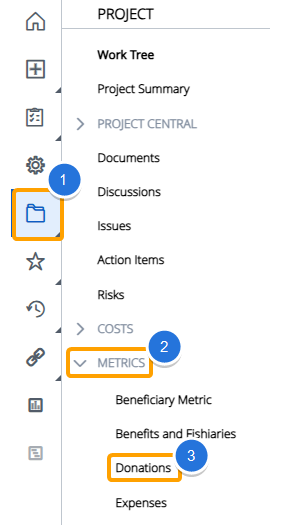
-
Select the Comments icon
 .
.
-
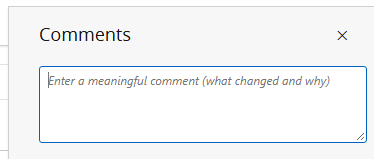
Enter your comment into the textbox that appears on the right-hand side of the page.
-
Select the Add Comment button.

Note: After selecting Add Comment, a large language model (LLM) evaluates the comment on meaningfulness. Comments that are deemed too vague, irrelevant, cryptic, or devoid of information will not be immediately saved and the AI will respond in red text with suggestions on how to revise the comment.
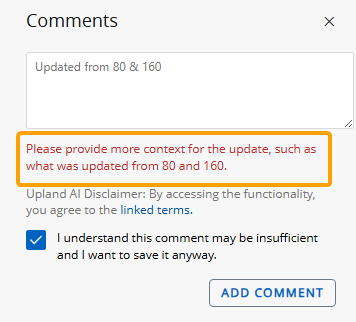
If you are satisfied with your comment despite the suggestion to revise it, ensure the checkbox is selected and select the Add Comment button again.
After selecting Add Comment, your comment will be saved to the Metric. Others can view it at any time by navigating to the Metric and selecting the Comments icon .