Use the Copy feature to create a new Homepage Template based on an existing one, preserving all Widgets, layouts, and configurations from the original.
This approach is especially beneficial for administrators who manage multiple homepage variations for different Users, Security Profiles, Functional Groups or Master Sites, as it eliminates the need to rebuild Templates from scratch.
By copying a Template, administrators can quickly tailor designs to specific audiences while maintaining consistency across the organization.
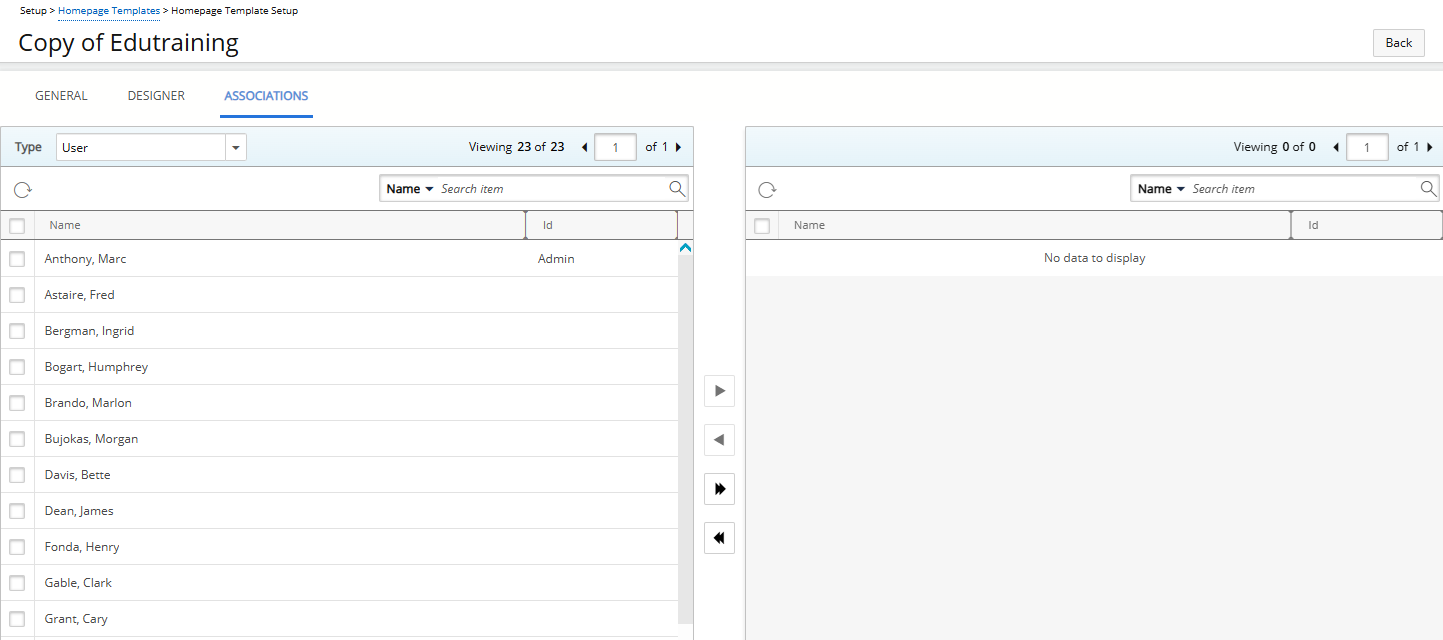
Note that associations are not copied and must be configured manually, allowing administrators to precisely control which Users, Security Profiles, Functional Groups or Master Sites receive the new Template.
This article details how to copy an existing Homepage Template.
- From the Icon Bar click Setup
 .
. - From the Navigation Menu click Homepage Templates.
- Select the checkbox next to the Template you want to copy.
- Click the Copy
 button.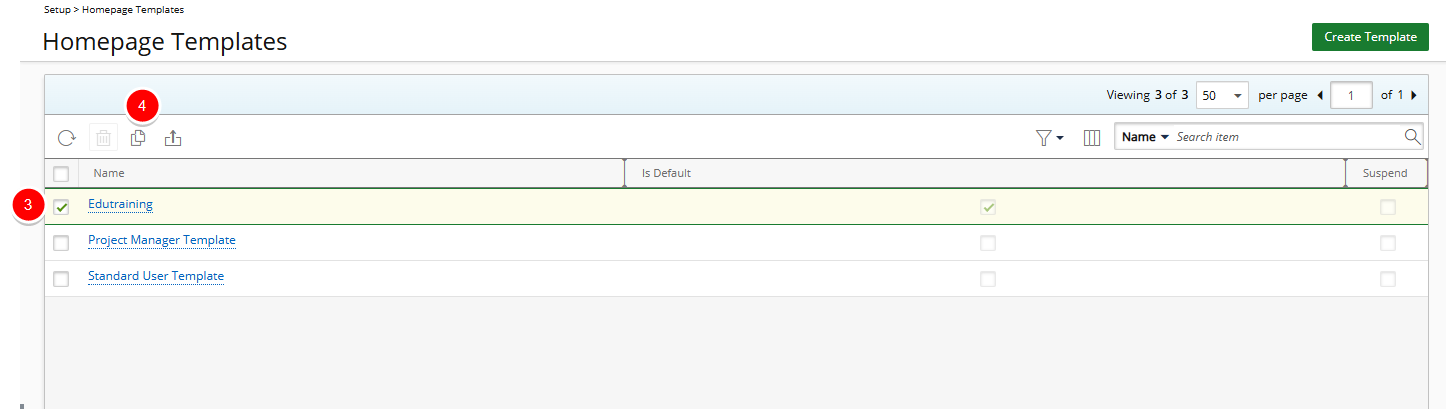
- The copied template is created and displayed immediately with the name “COPY of [Original Template Name]”. The General tab opens automatically.
- On the General tab, you can update the template Name and adjust the Is Default or Suspend options.
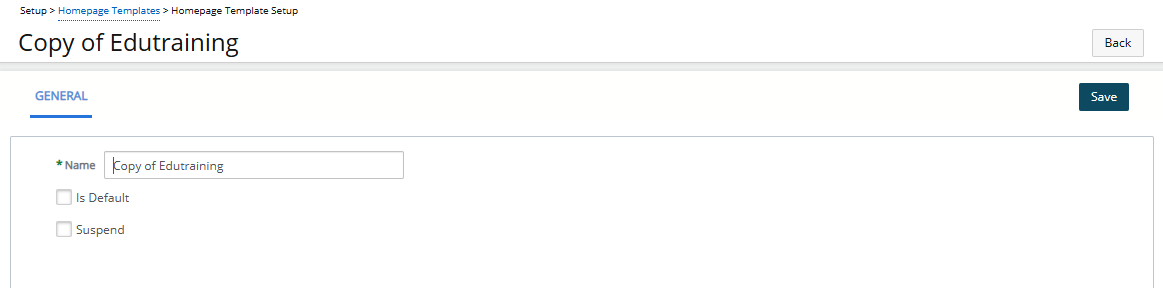
- Click Save to confirm your changes.
- After saving, the Designer and Associations tabs become available.
- Navigate to the Designer tab to verify that all Widgets, their layout, and configurations from the original template are preserved.
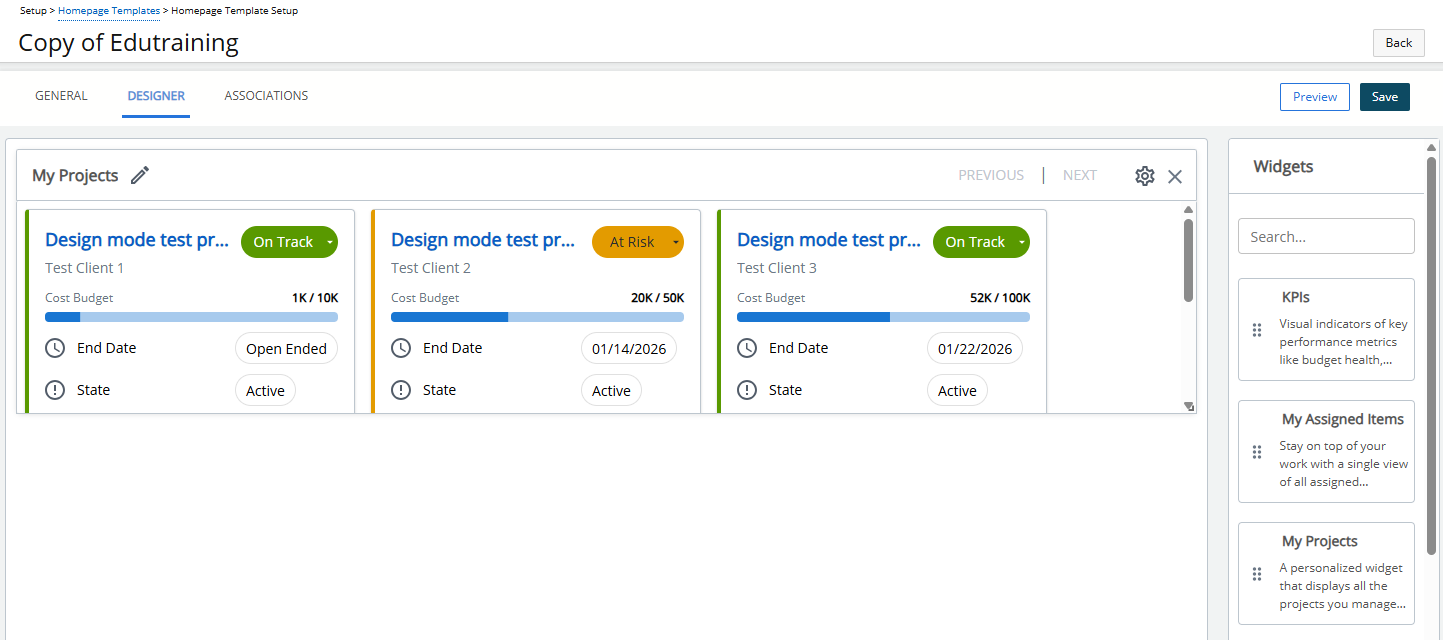
- Click Preview to open a modal window that displays the Homepage exactly as an end user would see it. Preview mode shows all configured widgets, including their order, size, layout, and any KPIs or filters using placeholder data. The preview does not alter the Designer state. To make changes, close the preview window, return to the Designer, update the layout or widget configuration, and click Preview again to immediately review the updated design without saving.
- Navigate to the Associations tab to note that associations from the original template are not copied and need to be set manually.
- After copying and saving the Template, you can further customize it by modifying settings, widgets, and layout in the Designer. For detailed instructions, see: